
Keeping your Oura Ring firmware updated is one of the easiest ways to make sure your smart ring performs at its best. Firmware updates often include bug fixes, improved battery performance, better health tracking accuracy, new features, and overall stability improvements. Even if your ring seems to be working fine, installing the latest firmware can help prevent unexpected issues and ensure you get the newest improvements from Oura.
As long as your ring is charged, connected to your smartphone, and paired with the Oura App, you can complete the update in just a few minutes.
Let’s update your Oura Ring firmware without any confusion.
Update Oura Ring Firmware: Try These Simple Steps
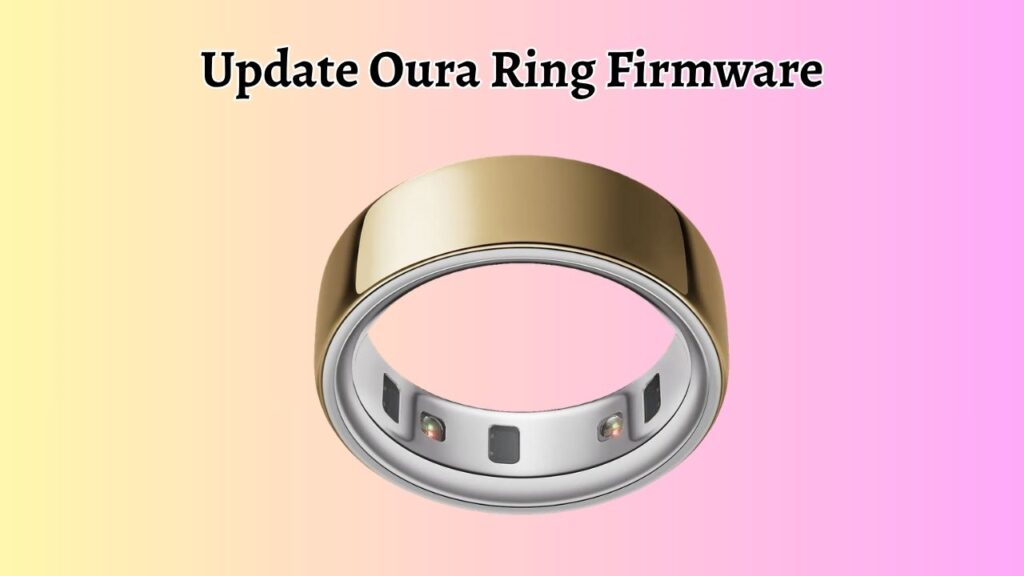
To update your Oura Ring firmware, make sure your ring has enough battery power, connect it to the Oura App, place it on the charger, and install the available firmware update from the app. Keep your phone close to the ring throughout the update process and avoid closing the app until the installation is complete.
Note: Before starting the update, make sure your ring battery is sufficiently charged, your smartphone has a stable internet connection, and Bluetooth is turned on.
Now, Let’s learn the steps in detail!
Step 1: Charge Your Oura Ring Before Updating
The first thing you should do is make sure your Oura Ring has enough battery power. Firmware updates require sufficient battery to complete successfully. If the battery becomes too low during the installation, the update may fail or become interrupted.
Place your ring on its charging dock and allow it to charge until it reaches at least 30 to 50 percent battery, although having a higher charge is always better. At the same time, make sure your smartphone also has enough battery remaining.
Charging both devices before beginning helps ensure the firmware installation finishes smoothly without unexpected interruptions.
Step 2: Connect Your Ring to the Oura App
Open the Oura App on your Android or iPhone and confirm that your ring is connected successfully. You should see your latest health data syncing inside the app.
If your ring does not connect immediately, enable Bluetooth on your phone and move the phone closer to the ring. You can also briefly place the ring back on its charger, which often helps restore the connection.
A stable Bluetooth connection is important because the firmware file is transferred from your phone directly to your Oura Ring during the update process.
Step 3: Check Whether a Firmware Update Is Available
After your ring connects successfully, navigate to the Settings section inside the Oura App. If a newer firmware version is available, the app will display an option to install it.
Sometimes the update notification appears automatically on the app’s home screen. If you do not see it right away, allow the app a few moments to sync with Oura’s servers.
If no update appears, your ring is most likely already running the latest firmware version.
Step 4: Place the Ring on the Charger
Before starting the installation, place your Oura Ring securely on its charging dock.
Keeping the ring on the charger throughout the firmware update helps maintain a stable power supply while the new software is installed. This reduces the chance of the update stopping midway due to a low battery.
Also, leave your phone close to the charger during the entire process. Maintaining a strong Bluetooth connection helps the firmware transfer complete successfully.
Step 5: Start the Firmware Installation
Once everything is ready, tap the Update Firmware button inside the Oura App.
The app will begin downloading the latest firmware before transferring it to your ring. Depending on your internet speed and firmware size, this process may take several minutes.
During this time, avoid closing the app, switching off Bluetooth, restarting your phone, or removing the ring from the charger. Allow the installation to finish naturally.
When the update completes, the app will notify you that your Oura Ring firmware has been successfully installed.
Step 6: Confirm the Update Was Installed
After the installation finishes, reopen the Oura App if necessary and verify the firmware version.
Navigate to your ring information within the app and compare the installed firmware version with the latest available version. If both match, your update was successful.
You can also check that your ring reconnects normally and continues syncing your sleep, readiness, and activity data without any issues.
FAQs
How often does Oura release firmware updates?
There is no fixed schedule. Oura releases firmware updates whenever improvements, bug fixes, performance enhancements, or new features become available.
Can I use my Oura Ring during a firmware update?
It is best not to use the ring while the update is in progress. Leave it on the charger until the installation is completely finished.
Why is my firmware update taking a long time?
The installation time depends on your internet speed, Bluetooth connection, and the size of the firmware update. Most updates finish within several minutes.
Will updating firmware erase my health data?
No. Updating your Oura Ring firmware does not delete your activity, sleep, readiness, or health history stored in your account.
What should I do if my ring disconnects during the update?
Reconnect the ring through the Oura App, place it back on the charger, and try the firmware installation again. Restarting your phone may also help restore the connection.
Do I need to update the Oura App before updating firmware?
Keeping the Oura App updated is recommended because newer app versions often include compatibility improvements for the latest firmware releases.