
Have you ever wished you could change what a specific key does on your keyboard? Maybe your Caps Lock key keeps getting pressed accidentally, your Ctrl key is damaged, or you simply want to create a more comfortable typing experience.
Reassigning keyboard keys, also known as key remapping, lets you change the function of one key to another. For example, you can turn the Caps Lock key into an Escape key, swap Ctrl and Alt, or assign a rarely used key to perform a more useful action.
In this guide, you’ll learn the easiest way to reassign keyboard keys in Windows, even if you’re a complete beginner.
Let’s get started!
Reassign Keyboard Keys in Windows 11 or 10 [Easy Guide]
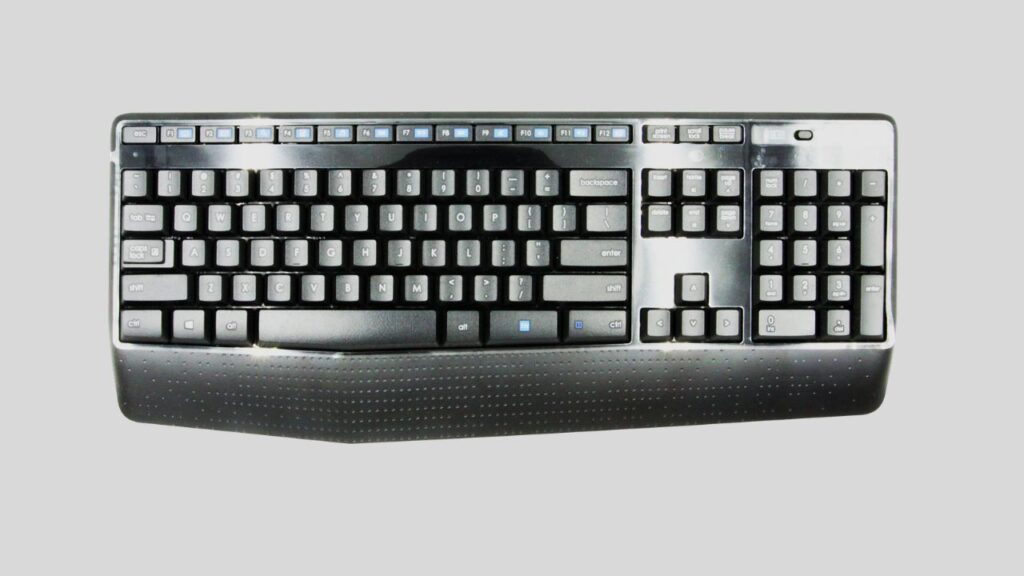
Windows does not provide a simple built-in interface for changing keyboard key functions. However, Microsoft offers a free utility called PowerToys, which includes a feature named Keyboard Manager. This tool makes it easy to remap keys without editing the Windows Registry manually.
With Keyboard Manager, you can:
- Change one key into another key.
- Disable a key completely.
- Swap two keyboard keys.
- Customize keyboard shortcuts.
- Create a more efficient workflow.
The process is straightforward and safe for most users.
Let’s walk through it step by step.
Step 1: Download and Install Microsoft PowerToys
The first thing you’ll need is Microsoft PowerToys. This free application is developed by Microsoft and includes several advanced Windows customization tools, including Keyboard Manager.
Open your preferred web browser and search for Microsoft PowerToys. Download the latest version and begin the installation process. Follow the on-screen instructions until the setup is complete.
Once installed, launch PowerToys from the Start menu. The application may ask for administrator permissions. Allow the permissions so it can properly manage keyboard functions across Windows.
After installation, you’ll have access to various tools inside PowerToys, but for this guide, we’ll focus specifically on Keyboard Manager.
Step 2: Open Keyboard Manager
After PowerToys launches, you’ll see a navigation panel on the left side of the application window.
Scroll through the available tools and click Keyboard Manager.
Before continuing, make sure the Enable Keyboard Manager option is turned on. This activates the key remapping functionality.
Keyboard Manager provides two primary customization options. The first allows you to remap individual keys, while the second allows you to remap keyboard shortcuts.
Since we’re changing the behavior of specific keys, select the option labeled Remap a Key.
A new window will appear where you’ll create and manage custom key mappings.
Step 3: Select the Key You Want to Change
Inside the Remap Keys window, click the Add Key Remapping button.
You will now see two columns. The first column represents the original key, while the second column represents the new key function you want to assign.
Click the Select button under the first column. Press the key on your keyboard that you want to change.
For example, if you want to change Caps Lock, simply press the Caps Lock key when prompted.
You can also choose a key manually from the dropdown menu if you prefer not to press it physically.
Take your time during this step because selecting the correct original key is important for achieving the desired result.
Step 4: Choose the New Function for the Key
Once you’ve selected the original key, move to the second column.
Click Select again and choose the key or function you want the original key to perform.
For example, you might:
Change Caps Lock to Escape.
Change Right Alt to Ctrl.
Change Scroll Lock to Mute Volume.
Change a damaged key to another working key.
PowerToys provides a long list of available keyboard keys and special functions.
When selecting the replacement function, think about how you use your keyboard every day. Choosing practical replacements can significantly improve comfort and productivity.
After making your selection, confirm the mapping and continue.
Step 5: Save the New Key Assignment
Once you’ve finished selecting both keys, click OK in the Remap Keys window.
PowerToys may display a warning message if the reassigned key could affect system functionality. Review the message carefully and proceed if you’re comfortable with the change.
The new key assignment becomes active immediately after saving.
Unlike many system modifications, you typically do not need to restart your computer. The changes begin working right away.
Open a text editor such as Notepad and test the reassigned key to verify that everything functions correctly.
If the key performs the new action successfully, the remapping process is complete.
Step 6: Test the New Keyboard Layout
Testing is an important part of the process.
Open several applications and use the reassigned key in different situations. Check whether the new behavior works consistently across programs.
For example, if you’ve changed Caps Lock to Escape, try using it inside a web browser, command prompt, text editor, and other applications.
Some specialized software may use custom keyboard handling, so verifying compatibility helps ensure the remapping behaves as expected.
If you notice any issues, you can return to Keyboard Manager and make adjustments.
Create Additional Key Remaps if Needed
One of the biggest advantages of PowerToys is that you’re not limited to a single key remapping.
You can repeat the process and customize multiple keys according to your preferences.
Many users create personalized keyboard layouts to improve efficiency. For example, programmers often remap keys for coding convenience, while gamers may customize controls to match their playing style.
Just remember that making too many changes can make your keyboard confusing, especially if other people use the same computer.
Start with a few practical modifications before creating a heavily customized layout.
Return to the Original Format
If you decide that you no longer want the custom key assignments, reverting the changes is simple.
- Open PowerToys and navigate back to Keyboard Manager.
- Select Remap a Key to view your active remapping rules.
- Locate the key assignment you want to remove and click the delete icon next to it.
- After deleting the remap, click OK to save the changes.
- The keyboard will immediately return to its original behavior.
If you want to remove all custom mappings, simply delete every remapping entry in Keyboard Manager.
Another option is to disable Keyboard Manager entirely. Doing so temporarily turns off all custom keyboard assignments without deleting them, allowing you to restore them later if needed.
This flexibility makes PowerToys a beginner-friendly solution for keyboard customization.
Additional Tips
Before remapping important keys, spend a few minutes thinking about your daily workflow. Small changes often provide the biggest productivity improvements.
Avoid changing essential system keys unless necessary. Keys such as Windows, Ctrl, and Alt play important roles in many shortcuts throughout Windows.
Keep a record of your custom mappings if you create multiple changes. This makes troubleshooting easier in the future.
If a physical keyboard key stops working, key remapping can serve as a temporary workaround until the keyboard is repaired or replaced.
Regularly update PowerToys to ensure compatibility with the latest versions of Windows 11 and Windows 10.
Test each new remapping immediately after creating it to confirm that it performs the intended action.
FAQs
Can I reassign keyboard keys without installing software?
Windows does not provide an easy graphical interface for key remapping. While advanced users can modify the Registry, Microsoft PowerToys is the safest and simplest solution for most people.
Is PowerToys safe to use?
Yes. Microsoft PowerToys is developed and maintained by Microsoft and is widely used by Windows users around the world.
Can I disable a keyboard key completely?
Yes. Using Keyboard Manager, you can map a key to Disable, effectively turning it off.
Will key remapping affect all applications?
In most cases, yes. The reassigned key works across Windows and many applications. However, some specialized programs may handle keyboard input differently.
Can I remap keyboard shortcuts, too?
Yes. Keyboard Manager allows you to remap both individual keys and entire keyboard shortcuts.
Does key remapping work on Windows 10 and Windows 11?
Yes. Microsoft PowerToys supports both Windows 10 and Windows 11, making the process nearly identical on either operating system.