
Changing your bedtime and wake‑up time in the Oura app is mainly about correcting the sleep that Oura auto‑detects, not about forcing the ring to follow a fixed schedule. Oura figures out your usual sleep pattern over time and gives you bedtime guidance, while you can manually tweak the start and end of a specific night’s sleep if the app guessed wrong. Think of it as teaching Oura what really happened last night so it can learn your routine and give more accurate insights.
Before we dive into the steps, it helps to know that you’re not changing the ring’s internal clock. You’re simply editing the sleep session inside the Sleep tab for that night, so your Sleep score, sleep stages, and trends reflect reality.
That’s all done in the Oura app, not on the ring itself.
How to Change Bed‑Time & Wake‑Up Time on Oura Ring?
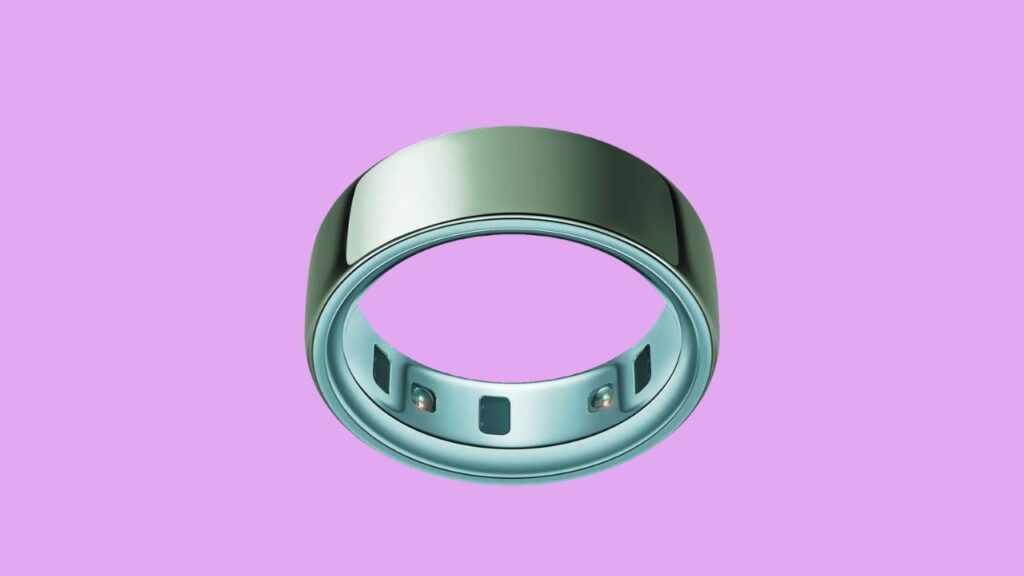
To do this, open the Oura app, go to your Sleep details for the night you want to fix, tap the adjust / edit icon near the sleep stages, then drag the start and end sliders to your real bedtime and wake‑up time, and tap Done to save your changes.
Let’s go into detail!
Step 1: Open the Sleep tab for the right night
First, open the Oura app on your phone and make sure you’re looking at the night you actually want to change. On the main Today screen, tap the Sleep section that shows last night’s Sleep score, total sleep duration, and sleep stages. If you want to edit some other night (for example, two days ago when you had a weird schedule), use the calendar or history view inside the Sleep area to scroll back to that date. This step matters because each night has its own sleep session; you’re editing one specific night at a time, not changing a global bedtime setting.
Once you’re on the correct night, you’ll see the sleep stages graph (light sleep, deep sleep, REM, awake) and summary stats underneath.
This is your detailed Sleep view, and all the manual editing happens here. If you tap around and you don’t see any sleep data, that usually means the ring didn’t record sleep for that night, so there’s nothing to adjust.
In that case, wearing the ring consistently and charging it earlier in the day can help avoid missing sleep data going forward.
Step 2: Tap the adjust or edit icon in the Sleep details
Next, find the adjust or edit icon in the Sleep details. This is usually near the sleep stages chart or in the upper area of the Sleep screen, and it looks like a small slider or pencil icon, depending on the app version. When you tap this icon, Oura switches from the standard view into an editing mode, where you can directly control the bedtime and wake‑up time for that night’s sleep.
In this editing mode, you’ll see a timeline of the night with two key markers: one representing when Oura thinks you fell asleep, and another showing when you woke up. The app turns these markers into sliders you can drag left or right. This is the heart of changing your bedtime and wake time: instead of accepting the automatic detection, you’re telling the app, “No, I actually went to bed at this time, and I really got out of bed at that time.”
Step 3: Drag the sliders to match your real bedtime and wake‑up time
Now, slowly drag the bedtime slider to your actual bedtime. For example, if the app says you went to sleep at 12:30 a.m. but you remember getting into bed and sleeping around 11:00 p.m., move the bedtime slider back to 11:00 p.m. Similarly, drag the wake‑up slider to the time you truly woke up. If Oura thinks you woke at 8:30 a.m. but you were up at 7:00 a.m. and just scrolling on your phone, pull that slider back to 7:00 a.m.
This trims the portion of the night where the ring thought you were sleeping, but you were actually just lying still.
As you move the sliders, you’ll see the total sleep duration and sometimes the sleep stages adjust. If you cut off the last hour, for instance, some of that “light sleep” might disappear from the graph, and your total sleep time will drop.
That’s okay. The goal is accuracy, not the highest possible number. Accurate times make your Sleep score, Readiness score, and trends (like sleep debt and bedtime consistency) more meaningful over time.
Step 4: Review the updated sleep data before saving
Before you lock in your changes, take a moment to look at the updated sleep summary. Check the new total sleep duration, your bedtime, and your wake‑up time. Make sure they match what you actually remember from that night. If you shaved off too much or not enough, you can still adjust the sliders again before saving. Think of this as proofreading your sleep.
It’s also helpful to notice how your sleep stages shifted. Sometimes, cutting out a chunk of time that was actually you lying awake will reduce an artificially high amount of “light sleep,” and your data will look more realistic.
Over multiple nights, this kind of cleanup can improve how Oura understands your sleep quality and can lead to better Bedtime Guidance recommendations that match your real routine instead of a noisy estimate.
Step 5: Tap Done to save your new bedtime and wake‑up time
When everything looks accurate, tap Done to save your edits. This tells the app to accept your new bedtime and wake‑up time as the official record for that night. After you do this, your Sleep score, nightly summary, and long‑term sleep trends will all use the updated times you set, not the original automatic detection.
Once saved, there’s usually a limited window of time (often around a couple of days) when you can still edit that night again.
After that, older data tends to become more locked in. That’s why it’s a good habit to check your sleep data within a day or two and correct any obvious errors, like the ring thinking you slept in later than you did or missing an early wake‑up when you had to get up for work.
Step 6: Understand you can’t manually set a fixed bedtime schedule
A common confusion is thinking you can set a permanent bedtime and wake‑up schedule in Oura, like “go to bed at 10:30 p.m., wake at 6:00 a.m. every day” and have the ring treat that as a rule. Oura doesn’t work that way. The app uses your real sleep data to calculate a dynamic ideal bedtime window and sends bedtime notifications as guidance, but those are generated automatically as Oura learns your chronotype and typical sleep patterns.
So if your goal is to “change your bedtime” in the long‑term sense, the real method is behavior: start consistently going to bed earlier or later, then correct your sleep times for a couple of weeks, and Oura will gradually adjust its Bedtime Guidance and Body Clock view to that new pattern. Manually editing a single night doesn’t instantly change the guidance, but consistently living a new schedule will.
FAQs
Q: Can I increase my recorded sleep time by dragging the sliders to add more hours than the ring detected?
A: You can usually shorten the recorded sleep period and fine‑tune it, but the app is more limited when it comes to extending sleep beyond what the sensors picked up. The sliders are mainly designed to correct overestimates, not to add large amounts of extra sleep that the ring never saw.
Q: Does changing bedtime and wake‑up time for one night change my overall bedtime guidance immediately?
A: Not instantly. Bedtime Guidance and your chronotype are based on trends across many nights, so one edited night is just a small piece of the puzzle. Several nights of accurate, consistent edits and behavior will slowly push your guidance in the new direction.
Q: Where do I find bedtime notifications and sleep trends?
A: In the Oura app, you can go into Settings to turn on bedtime notifications, and you can open Trends to view your bedtime history and consistency over weeks and months. These areas help you see how your manually corrected bedtime and wake‑up times are shaping your long‑term pattern.
Q: What if my schedule is all over the place, like shift work or new parenting?
A: In that case, keep wearing your ring, edit your sleep times when the app clearly gets them wrong, and give it time. Oura can adjust your chronotype and guidance as your pattern changes, but it needs several nights of data to understand your new reality.
Summary
Changing your bedtime and wake‑up time in Oura is really about editing the sleep session for each night so the app reflects what actually happened. You open the Sleep details for that night, tap the adjust / edit icon, drag the start and end sliders to match your real bedtime and wake‑up time, review the updated data, and tap Done to save.
Over time, accurate edits and a consistent routine help Oura fine‑tune its Bedtime Guidance, chronotype, and overall sleep insights.
You’re not setting a strict clock; you’re teaching the system your real pattern so its recommendations line up with your life.