
Are you trying to install an NVIDIA graphics driver on your Windows PC, only to encounter a 7-Zip CRC error? This issue can be frustrating, especially when you have downloaded the driver from NVIDIA’s website and expect the installation to work without problems.
A CRC error usually means that a file failed a Cyclic Redundancy Check (CRC), a process used to detect data corruption. When this happens during NVIDIA driver installation, the installer may be unable to extract one or more files from the downloaded package.
The problem can occur because of an incomplete download, a corrupted installer, insufficient disk space, memory instability, or an issue with the storage drive. Security software and temporary files can sometimes interfere with the extraction process, too.
In this guide, you’ll learn how to troubleshoot the 7-Zip CRC error when installing NVIDIA drivers.
Fix ‘7-Zip CRC Error’ When Installing NVIDIA Drivers
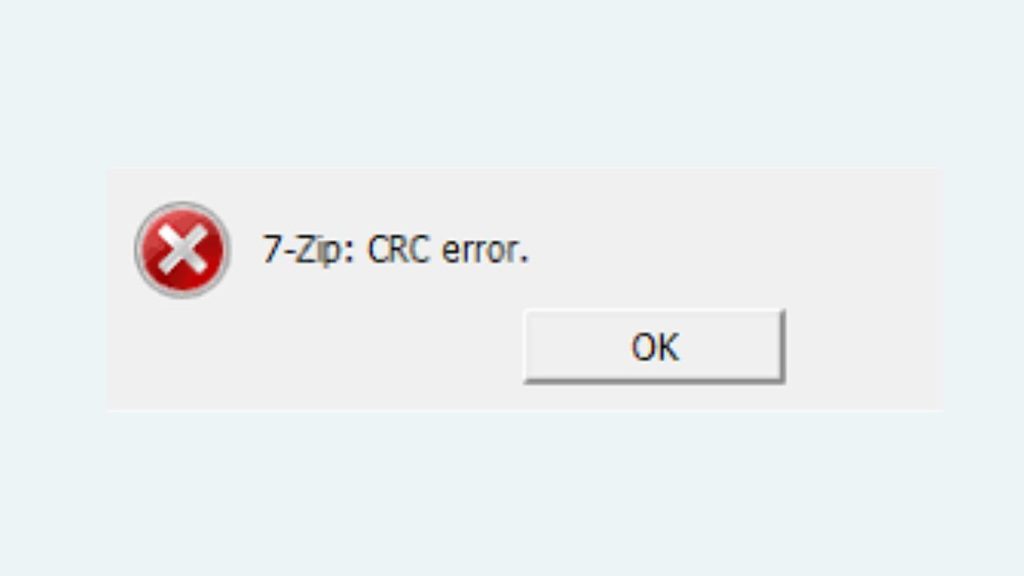
To fix the 7-Zip CRC error during NVIDIA driver installation, try these steps in order:
- Delete the corrupted NVIDIA driver installer and download a fresh copy.
- Make sure the downloaded driver matches your GPU and Windows version.
- Move the installer to a local folder with sufficient free disk space.
- Run the installer as an administrator.
- Remove temporary extraction files and try again.
- Check your storage drive for file system errors.
- Test your RAM if CRC errors continue with multiple downloads.
- Use NVIDIA’s official driver installation options if the standard installer keeps failing.
Start by downloading a fresh installer, since a damaged or incomplete download is one of the most common causes of this error.
Step 1: Download a Fresh NVIDIA Driver Installer
The first thing to check is whether the NVIDIA driver package was downloaded correctly. If the download was interrupted or some data became corrupted, the installer may fail while extracting its contents.
Open the folder where you saved the NVIDIA driver file, usually Downloads. Find the installer, which typically has a filename beginning with GeForce, NVIDIA, or a similar product identifier. Delete the damaged file if you no longer need it.
Next, visit NVIDIA’s official driver download page. Select your graphics card series, exact GPU model, operating system, and the appropriate driver type. You can also use NVIDIA’s official application if it supports your GPU and driver.
Click Search and download the recommended compatible driver package. Let the download finish completely before opening the file.
Avoid using third-party driver download websites, since their packages may be outdated, modified, or unreliable.
Once the new file is downloaded, run it again. If the CRC error disappears, the original download was likely incomplete or corrupted. If the same error returns, continue to the next step.
Step 2: Verify That the Driver Matches Your Graphics Card
Downloading the wrong driver package may not always produce a CRC error, but checking compatibility helps eliminate installation problems before you try more advanced fixes.
First, identify your graphics card. Press Windows + X > Device Manager, then expand Display adapters. Your NVIDIA GPU should appear in the list.
If you see a Microsoft Basic Display Adapter instead, Windows may not currently have the proper NVIDIA driver installed. You can still identify your GPU through your computer manufacturer’s specifications or other reliable hardware information.
Now visit NVIDIA’s driver download page and select the correct product series and model. Make sure you choose the right Windows version and system architecture.
For laptops, check whether your manufacturer recommends a particular graphics driver, especially on systems with switchable graphics or customized hardware configurations.
Download the matching package and attempt installation again.
Important: A compatibility problem and a CRC error are different issues. Selecting the correct driver helps rule out a mismatch, but a genuine CRC error usually points to data integrity or extraction trouble.
Step 3: Move the Installer to a Local Folder
Sometimes, the problem is related to the location from which the installer is being launched. For example, running a driver package directly from a USB drive, network share, or synchronized cloud folder may introduce file access or transfer problems.
Open File Explorer by pressing Windows + E. Navigate to your Downloads folder and locate the NVIDIA installer.
Create a folder on your local drive, such as C:\NVIDIA-Driver. Copy the downloaded installer into that folder.
Make sure the C: drive has enough free space for both the downloaded package and its extracted files. Driver packages can require considerably more temporary space than the installer file itself.
Double-click the copied installer to start the extraction process.
If the installer works from the local folder, the original location or its file access conditions may have contributed to the problem. If you still receive the CRC error, proceed to the next step.
Step 4: Run the NVIDIA Installer as an Administrator
Windows permissions can sometimes prevent an installer from creating or accessing the files it needs. Although permission problems do not usually cause a true CRC mismatch, running the installer with appropriate permissions can help eliminate extraction and installation failures.
Open the folder containing the NVIDIA driver package. Right-click the installer file and select Run as administrator.
If Windows displays a User Account Control prompt, review it and select Yes if you initiated the installation and trust the file.
Allow the installer to extract its files. If the extraction completes successfully, follow the on-screen instructions to install the graphics driver.
If the same 7-Zip CRC error appears before the installation process begins, administrator permissions are unlikely to be the root cause. In that situation, focus on the download, temporary files, and hardware checks instead.
Step 5: Clear Temporary NVIDIA Extraction Files
NVIDIA’s installer extracts files into a temporary or designated folder before installing the driver. If a previous installation attempt left incomplete files behind, a fresh attempt may encounter problems.
Press Windows + R, type %temp%, and press Enter. Windows will open your user temporary folder.
Look for temporary files or folders associated with the failed NVIDIA installation. Close any NVIDIA installer windows first, then delete the clearly identifiable temporary files related to that failed attempt.
If Windows says a file is currently in use, skip it rather than forcing the deletion.
You can also check for an old NVIDIA extraction folder, commonly C:\NVIDIA, if one exists. Before deleting anything from that location, confirm that it contains only extracted installation files you no longer need, not files you have saved for another purpose.
Do not delete random Windows system folders or files simply because their names look temporary.
After clearing the relevant files, restart your computer and run the newly downloaded installer again.
Step 6: Check Your Storage Drive for Errors
A CRC error can sometimes be associated with storage problems. If your drive has file system errors or struggles to read data reliably, downloaded files and extracted installation packages may become inaccessible or corrupted.
Open File Explorer > This PC. Right-click the drive where the NVIDIA installer is stored and select Properties.
Open the Tools tab and find the Error checking section. Select Check if the option is available, then follow the instructions provided by Windows.
You can also use the Windows disk-checking utility. Open Terminal or Command Prompt as an administrator and run the following command, replacing C: if your installer is stored on another drive:
chkdsk C: /scan
This command checks the file system for errors without requiring you to schedule a full offline disk check in typical circumstances.
If Windows reports file system problems, follow its recommended repair procedure. Back up important files before performing repairs if you suspect the drive is failing.
After the check is complete, download a fresh NVIDIA driver package and try installing it again.
Step 7: Test Your RAM if CRC Errors Keep Returning
If you repeatedly encounter CRC errors with different NVIDIA driver downloads, even after using a fresh package and a reliable storage location, your computer’s memory may deserve attention.
RAM errors can affect data while programs process or extract files. However, a single CRC error does not prove that your RAM is faulty.
To run the Windows Memory Diagnostic tool, press Windows + R, type mdsched.exe, and press Enter.
Select Restart now and check for problems after saving your work and closing open applications. Your computer will restart and perform a memory test.
Let the test finish. After Windows starts again, review the diagnostic result. If the result is unclear, you can open Event Viewer and look for memory diagnostic results in the Windows system logs.
If the test reports memory errors, consider running additional diagnostics and checking your system’s memory configuration. On a desktop PC, improperly seated RAM or unstable overclocking can sometimes contribute to memory problems. Laptop memory may require professional service if it is not user-accessible.
Avoid changing memory voltage or timing settings unless you understand your hardware and its specifications.
If the memory test finds no problems, continue investigating the installer and storage rather than assuming the RAM is defective.
Step 8: Install the Driver Using NVIDIA’s Official Options
If the standard installer continues to fail, try another official installation method.
Visit NVIDIA’s official driver download page and obtain the appropriate package again. If the NVIDIA app supports your graphics card and Windows version, you can also try installing the recommended driver through that application.
If the downloaded package extracts successfully but the installation fails later, select Custom (Advanced) in the NVIDIA installer when available. This option lets you review the components being installed and may offer the choice to perform a clean installation.
A clean installation can help resolve certain existing driver configuration problems, but it will not repair a corrupted installer package. If the CRC error occurs during extraction, fix that problem first.
You can also check your computer manufacturer’s support page for a validated graphics driver, particularly if you use a laptop or workstation with specialized hardware.
Avoid downloading individual DLL files or replacing random installer files from unofficial websites. These workarounds can introduce security risks and make troubleshooting harder.
Step 9: Check Security Software and Download Integrity
Security software can occasionally interfere with an installer, although it is not the most common explanation for a CRC error. Start by reviewing your antivirus protection history or quarantine logs to see whether the NVIDIA installer was blocked or modified.
If your security software identifies a genuine threat, do not bypass the warning. Verify that you downloaded the installer from NVIDIA’s official website.
If the file is trusted but has been mistakenly blocked, follow the security product’s documented process for handling false positives. Avoid disabling protection entirely just to install a graphics driver.
When a checksum is published by a trusted source for the exact driver package, you can compare it with the downloaded file’s checksum. For example, PowerShell can calculate a SHA-256 hash with this command:
Get-FileHash “C:\NVIDIA-Driver\driver.exe” -Algorithm SHA256
Replace driver.exe with the actual installer filename. A calculated hash is useful only when you can compare it with a trustworthy reference value for that exact file.
If the file differs from a verified checksum, download it again. If no reference checksum is published, a hash by itself cannot confirm that the file is authentic or undamaged.
FAQs
1. What does a 7-Zip CRC error mean when installing NVIDIA drivers?
It means the installer or extraction process detected a data integrity mismatch. A damaged download, incomplete file, storage issue, or memory instability can cause this error.
2. Is the NVIDIA driver installer corrupted?
It may be. A corrupted or incomplete download is one of the first things to rule out. Download a fresh copy from NVIDIA’s official website and check whether the error returns.
3. Can I fix the CRC error without reinstalling Windows?
Yes. Most cases can be investigated without reinstalling Windows. Start by downloading the driver again, checking compatibility, clearing relevant temporary files, and testing the storage drive if necessary.
4. Why does the CRC error keep appearing after downloading the driver again?
Repeated errors may indicate that the download source or connection is unreliable, temporary files are interfering with extraction, or the storage drive or RAM has a problem. Try a different reliable network and local storage location, then test your hardware if necessary.
5. Should I use a third-party driver updater to fix the problem?
It is better to use NVIDIA’s official driver download page, NVIDIA’s supported application, or your computer manufacturer’s support page. Third-party driver tools may offer incorrect or outdated packages and are unnecessary for basic troubleshooting.
6. Will a clean NVIDIA driver installation fix a 7-Zip CRC error?
Not necessarily. A clean installation can address some existing driver configuration problems, but it cannot reliably repair a corrupted download. Make sure the installer extracts successfully before attempting a clean driver installation.
Final Words
The 7-Zip CRC error when installing NVIDIA drivers usually indicates that the installer cannot verify or extract some of its data correctly. In many cases, downloading a fresh driver package from NVIDIA and running it from a local folder is enough to resolve the issue.
If the problem continues, clear relevant temporary files, check your storage drive, and test your RAM if multiple downloads fail. You can also try another official NVIDIA installation method after confirming that the package is valid.
Work through these steps one at a time, starting with the simplest solution. Avoid unofficial driver packages and random file-replacement fixes, and investigate recurring CRC errors rather than repeatedly attempting the same installation.