
Have you restarted your computer to install an update, only to find the screen stuck on “Updates are underway. Please keep your computer on”? This can be frustrating, especially when you need your PC for work, school, or everyday tasks. Sometimes, the update screen stays visible for several minutes, while other times, it appears frozen for hours.
The Windows Updates are underway issue can occur on both Windows 11 and Windows 10. It may happen because Windows is installing a large update, processing system files, dealing with corrupted update components, or encountering a problem with a device driver. A slow hard drive or an interrupted update can also make the process take longer than expected.
In this complete guide, you will learn how to determine whether Windows is genuinely stuck and how to troubleshoot the problem safely.
Windows Stuck on Updates Are Underway [Complete Guide]
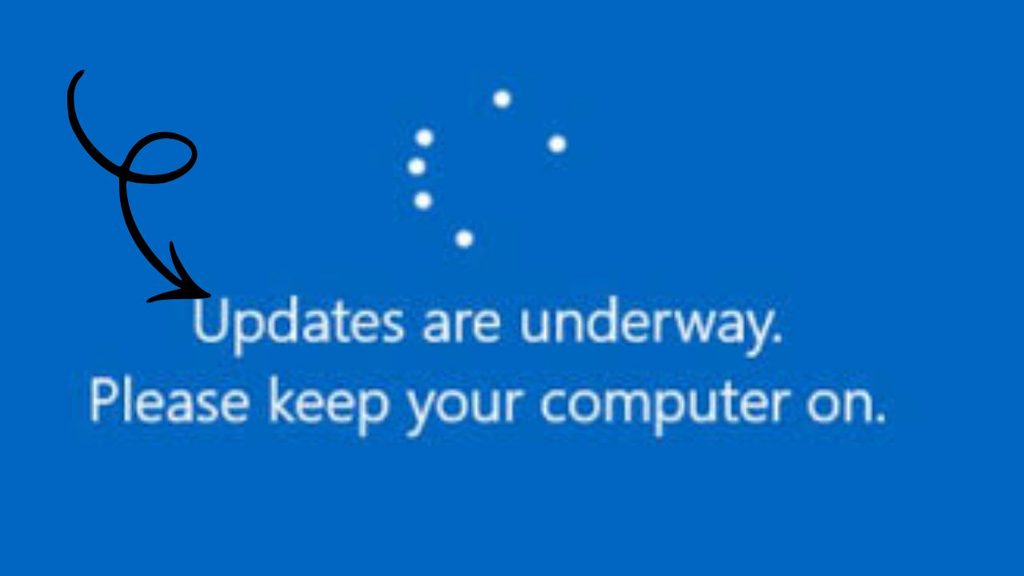
To fix a Windows PC stuck on “Updates are underway,” follow these steps:
- Wait for the update to finish, especially if it has been running for less than a few hours.
- Check whether the computer shows signs of activity, such as a changing progress percentage or storage activity.
- Disconnect unnecessary USB devices and external peripherals.
- Restart the computer only if the update appears genuinely frozen and there is no indication of progress.
- Enter the Windows Recovery Environment if Windows cannot start normally.
- Run Startup Repair or uninstall the latest update from the recovery options.
- Start Windows in Safe Mode and repair corrupted system files if necessary.
- Reset Windows Update components if the problem continues.
Important: If the update is progressing, leave the computer connected to power and give it time. Interrupting an active update can cause additional startup problems.
Step 1: Wait for Windows to Complete the Update
The first thing you should do is determine whether Windows is actually frozen. The message “Updates are underway. Please keep your computer on” does not necessarily indicate an error. Windows may be applying system changes, replacing files, configuring drivers, or completing a cumulative update in the background.
If the percentage changes occasionally, the screen refreshes, or the computer shows other signs of activity, allow the process to continue. Some updates take longer than others, particularly on older computers with mechanical hard drives or devices with limited storage space.
Keep your laptop connected to its charger. If you are using a desktop computer, make sure its power supply is stable. Avoid closing the laptop lid if doing so would put it to sleep.
If the screen remains unchanged for a long time, do not immediately assume the installation has failed. However, if there has been no progress for several hours and there are no signs of activity, you can move on to the next troubleshooting step.
Step 2: Check Whether Your Computer Is Responding
Sometimes, the update screen appears frozen even though Windows is still working. Checking for signs of activity can help you decide whether to wait or troubleshoot.
Look at the progress percentage, if one is displayed. Check whether the spinning animation is still moving and whether the storage activity light on your computer is blinking, if your device has one.
You can also listen for normal fan or drive activity, although these signs alone cannot confirm that an update is progressing.
If the computer is responsive and the update appears to be working, give it more time. If the screen has remained completely unchanged for several hours, the system may be experiencing a problem.
Do not repeatedly press keys, close the lid, or disconnect the power supply while Windows is installing updates. These actions may interrupt the process and make recovery more difficult.
Step 3: Disconnect Unnecessary External Devices
Connected peripherals can occasionally interfere with startup or update configuration, particularly if a USB device, external storage drive, or accessory has a driver or compatibility problem.
If Windows has remained stuck for several hours, disconnect unnecessary devices such as USB flash drives, external hard drives, printers, docking stations, and other accessories. Keep essential equipment connected, including the keyboard and mouse if needed.
Do not disconnect the computer’s internal storage or attempt to remove internal hardware.
If Windows eventually completes the update, reconnect your devices one at a time and check whether the problem returns.
This method is particularly useful if the issue began after connecting new hardware or installing a device driver.
Step 4: Perform a Forced Restart if the Update Is Truly Frozen
If your computer has remained on the same update screen for several hours without any sign of progress, a forced restart may be necessary. However, this should be a last resort while the update screen is active because interrupting an update can leave Windows unable to start normally.
If the computer is clearly unresponsive, press and hold the physical power button until it shuts down. The exact time varies by device, but it may take several seconds.
Wait briefly, then press the power button again to start the computer.
Windows may resume the update, undo recent changes, or display an automatic repair screen. Allow any recovery or rollback process to finish without interruption.
If Windows starts successfully, sign in and check Settings > Windows Update to see whether the update completed or failed.
If the computer returns to the same frozen screen or fails to boot, proceed to the recovery methods below.
Step 5: Enter the Windows Recovery Environment
If Windows cannot start normally after the restart, use the Windows Recovery Environment (WinRE) to access repair tools.
On some computers, Windows automatically opens recovery options after repeated unsuccessful startup attempts. If it does not, you may need to interrupt startup. Turn on the computer and, when Windows begins loading, hold the power button to shut it down. Repeat this process only as necessary to trigger recovery, rather than repeatedly interrupting an active update. The recovery screen may appear after several failed starts.
If recovery does not appear, use Windows installation media created on another computer to boot into the setup environment and select the repair option.
When the recovery screen appears, navigate to:
Troubleshoot > Advanced options
You may see options such as Startup Repair, Uninstall Updates, and Startup Settings.
The available options depend on your Windows installation and recovery configuration. If BitLocker is enabled, you may need your recovery key to access certain recovery tools.
Step 6: Run Startup Repair
If Windows remains stuck during startup, Startup Repair can check for common problems that prevent the operating system from loading correctly.
From the Windows Recovery Environment, navigate to Troubleshoot > Advanced options > Startup Repair.
Select your Windows installation if prompted and follow the on-screen instructions. If your account password is requested, enter the appropriate credentials.
Startup Repair examines certain startup-related issues and attempts to fix them automatically. It may repair problems involving boot configuration or other files needed to start Windows.
Once the process finishes, restart your computer and check whether Windows loads normally.
Keep in mind that Startup Repair does not fix every Windows Update problem. If the issue began immediately after installing a particular update, uninstalling that update may be more effective.
Step 7: Uninstall the Latest Windows Update
A recently installed update may be responsible for the startup problem if the installation failed or introduced a compatibility issue.
Open the Windows Recovery Environment and select Troubleshoot > Advanced options > Uninstall Updates.
Depending on the recovery options available, you may see Uninstall latest quality update and Uninstall latest feature update.
A quality update typically includes security fixes, reliability improvements, and other regular maintenance changes. A feature update introduces a newer version of Windows.
Start with Uninstall latest quality update if the issue appeared immediately after a regular Windows Update. Follow the instructions and provide your account credentials if requested.
If the problem began after a major Windows version upgrade, uninstalling the latest feature update may be appropriate instead.
After the removal process finishes, restart your computer.
Note: Windows may not allow every update to be removed. If the uninstall option is unavailable or the operation fails, return to Advanced options and try another recovery method.
Step 8: Start Windows in Safe Mode
Safe Mode starts Windows with a limited set of drivers and services. It can help you troubleshoot problems caused by certain drivers, applications, or startup components.
From the recovery screen, navigate to Troubleshoot > Advanced options > Startup Settings > Restart.
After the computer restarts and displays the startup options, press the appropriate number for Safe Mode. In many configurations, pressing 4 or F4 starts Safe Mode, while 5 or F5 starts Safe Mode with Networking.
If Windows opens successfully, back up important files before making additional repairs. Then check Windows Update history for failed updates and consider removing a recently installed driver or application if it appears connected to the problem.
You can also open an elevated Command Prompt and run the system repair commands described in the next step.
If Safe Mode does not load, return to the recovery options and try another available repair method.
Step 9: Repair Windows System Files
Corrupted system files can prevent Windows from completing updates or starting normally. Microsoft provides System File Checker (SFC) and Deployment Image Servicing and Management (DISM) to help repair Windows components.
If you can access Windows normally or through Safe Mode, search for Command Prompt, right-click it, and select Run as administrator.
Enter the following command:
sfc /scannow
Press Enter and wait for the scan to finish. SFC checks protected system files and attempts to repair corrupted copies.
Next, run:
DISM /Online /Cleanup-Image /RestoreHealth
Allow DISM to complete. It may require access to Windows Update or another compatible repair source.
When DISM finishes, run sfc /scannow again and restart your computer.
If Windows cannot boot into either normal mode or Safe Mode, do not assume these commands will work unchanged in the recovery Command Prompt. The offline Windows installation may use a different drive letter, and offline repair requires different command parameters.
Step 10: Reset Windows Update Components
If Windows starts but repeatedly gets stuck while installing updates, resetting the update components may resolve the issue.
Open Command Prompt as an administrator and enter these commands individually:
net stop wuauserv
net stop bits
net stop cryptsvc
These commands stop services associated with Windows Update and background downloads. If a service is already stopped, continue with the next command.
Rename the update cache folders:
ren C:\Windows\SoftwareDistribution SoftwareDistribution.old
ren C:\Windows\System32\catroot2 catroot2.old
If the commands complete successfully, restart the services:
net start cryptsvc
net start bits
net start wuauserv
Restart the PC and open Settings > Windows Update > Check for updates.
If a folder is in use or the rename operation fails, do not force the change. Check whether the relevant services stopped successfully and resolve the reported error first.
Resetting these components can clear downloaded update files and affect the displayed update history, but it does not normally remove installed updates or personal files.
FAQs
1. How long should Windows stay on Updates are underway?
The duration depends on the update size, computer performance, storage type, and number of changes being applied. Some updates finish within minutes, while others take considerably longer. If there is no progress for several hours, investigate the problem rather than assuming the screen is still working.
2. Is it safe to turn off my PC when Windows is updating?
It is best to avoid turning off your PC during an active update. A forced shutdown should be considered only when the computer appears genuinely frozen and has shown no progress for an extended period.
3. Why does Windows keep returning to Updates are underway?
This can happen when an update repeatedly fails, system files are corrupted, a driver causes a conflict, or Windows cannot complete its startup configuration. Removing the problematic update or repairing Windows may resolve the issue.
4. Will I lose my files if I restart my computer during an update?
A forced restart does not automatically delete personal files, but interrupting an update can cause startup errors or require Windows to roll back changes. Back up your important data as soon as you regain access to Windows.
5. What if Windows is stuck on Updates are underway after every restart?
Try the Windows Recovery Environment, run Startup Repair, and uninstall the latest quality update if the problem began after an update. If Windows starts successfully, repair system files and reset the Windows Update components.
6. Should I reinstall Windows to fix the problem?
Reinstalling Windows should be a last resort. Try the recovery tools, update removal, and system repair methods first. If these options fail, back up your files and consider a Windows repair installation or reset, depending on the condition of your system.
Final Words
The Windows stuck on Updates are underway problem can occur when an update takes longer than expected or Windows encounters an issue while applying system changes. The most important step is to determine whether the computer is genuinely frozen before forcing it to shut down.
Start by allowing enough time for the update to finish. If the screen remains unchanged for several hours, disconnect unnecessary peripherals and consider a forced restart only when the system appears unresponsive.
If Windows cannot start normally, use the Windows Recovery Environment to run Startup Repair, uninstall the latest update, or access Safe Mode. When Windows loads but updates continue to fail, repairing system files and resetting the update components may help.
Work through these solutions carefully, and avoid interrupting recovery operations once they begin.