
The “Class Not Registered” error on Windows 11 is a common issue that usually appears when a system file, app component, or Windows service fails to register correctly. This error may occur while opening photos, web browsers, File Explorer, PDF files, or even built-in Windows apps. In many cases, users see messages like “Class not registered”, “Explorer.exe Class not registered”, or apps suddenly stop responding.
This problem is mainly connected to broken DLL registrations, damaged system files, corrupted user profiles, or faulty Windows services.
In this guide, I have explained the safest and easiest methods to resolve this problem on Windows 11.
Let’s go for it!
Fix “Class Not Registered” Error on Windows 11
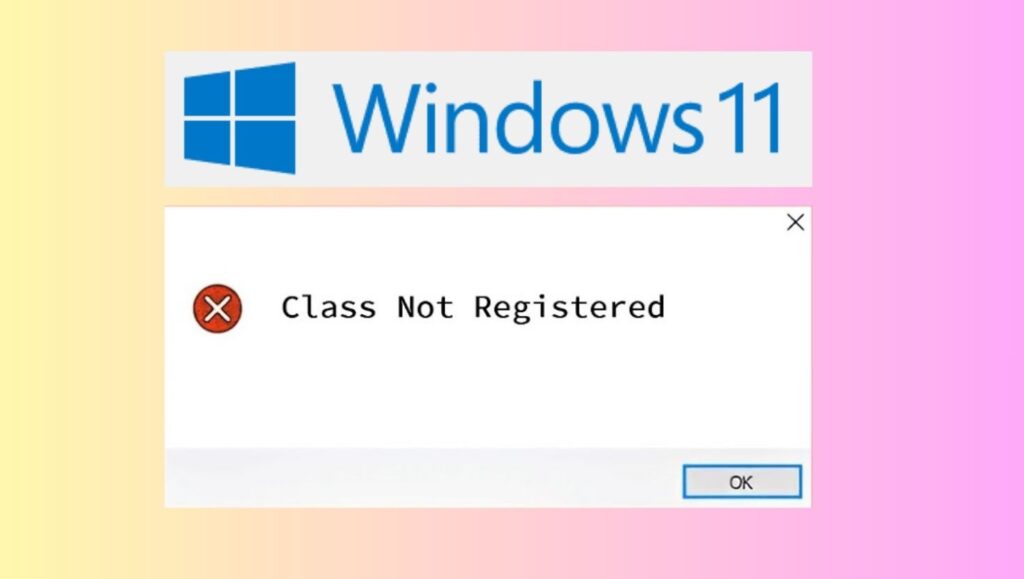
Follow these steps to resolve the “Class Not Registered” error on Windows 11:
- Restart your computer and check whether the error disappears.
- Update Windows 11 to install missing fixes and drivers.
- Restart Windows Explorer from Task Manager.
- Run the System File Checker scan.
- Repair Windows image files using the DISM command.
- Re-register important DLL files.
- Reset the default apps connected to the error.
- Create a new user account if the current profile is corrupted.
- Perform a clean boot to identify software conflicts.
- Use System Restore if the problem started recently.
Let’s explore in detail!
Method 1: Restart Windows Explorer
Sometimes the error appears because the Windows Explorer process stops working correctly. Restarting it refreshes the desktop, taskbar, and file management services.
Step 1: Open Task Manager
Press Ctrl + Shift + Esc together on your keyboard. This opens the Task Manager window.
Step 2: Find Windows Explorer
Inside Task Manager, scroll down under the “Processes” section until you see Windows Explorer.
Step 3: Restart the Process
Right-click on Windows Explorer and choose Restart. Your screen may flicker for a few seconds. This is normal.
Now try opening the app or file that previously showed the error.
If the problem still exists, continue to the next method.
Method 2: Restart Your Computer Properly
A temporary system glitch can also trigger the “Class Not Registered” message.
Step 1: Open the Start Menu
Click the Start button located on the taskbar.
Step 2: Select Power Options
Click the Power icon.
Step 3: Choose Restart
Select Restart instead of Shut Down. Restarting reloads system services completely.
After the computer starts again, check whether the error is fixed.
If the issue remains, move to the next solution.
Method 3: Update Windows 11
Missing updates may contain bugs that cause registration issues with apps and services.
Step 1: Open Windows Settings
Press Windows + I to open the Settings app.
Step 2: Go to Windows Update
From the left side menu, click Windows Update.
Step 3: Check for Updates
Click the Check for updates button. Windows will search for available updates automatically.
Step 4: Install Available Updates
Download and install all pending updates. Restart the PC when asked.
Once updated, test the application again.
If you still see the same message, continue with the next method.
Method 4: Run the System File Checker Scan
Corrupted system files are one of the biggest reasons behind this error. Windows includes a built-in tool called System File Checker that repairs damaged files automatically.
Step 1: Open Command Prompt as Administrator
Click the Start menu and type cmd.
Right-click Command Prompt and choose Run as administrator.
Step 2: Run the SFC Command
In the Command Prompt window, type the following command:
sfc /scannow
Press Enter.
Step 3: Wait for the Scan to Finish
The scan may take several minutes. Do not close the window during the process.
If corrupted files are found, Windows repairs them automatically.
Step 4: Restart Your Computer
After the scan completes, restart the PC and check if the error disappears.
If the issue continues, try the next method.
Method 5: Repair Windows Image Files Using DISM
If the System File Checker cannot repair everything, the DISM tool can restore damaged Windows image components.
Step 1: Open Command Prompt with Admin Rights
Search for Command Prompt from the Start menu and select Run as administrator.
Step 2: Enter the DISM Command
Type the following command:
DISM /Online /Cleanup-Image /RestoreHealth
Press Enter.
Step 3: Let the Scan Complete
The process may take 10 to 20 minutes, depending on your system speed.
Step 4: Restart the Computer
After completion, restart Windows and test the affected app again.
If you still face the problem, continue reading.
Method 6: Re-register DLL Files
The error often appears when important DLL files lose their registration in Windows.
Step 1: Open Command Prompt as Administrator
Search for cmd, right-click it, and select Run as administrator.
Step 2: Register Explorer-Related DLL Files
Enter the following commands one by one:
regsvr32 ExplorerFrame.dll
Press Enter.
Then type:
regsvr32 Shell32.dll
Press Enter again.
Step 3: Restart Windows
Restart your computer after completing the commands.
Check whether the error message is gone.
If not, move to the next fix.
Method 7: Reset Default Apps
Sometimes Windows cannot open a file properly because the default application settings are broken.
Step 1: Open Settings
Press Windows + I.
Step 2: Access Default Apps
Click Apps, then select Default apps.
Step 3: Reset App Preferences
Scroll down and click Reset under the section called “Reset all default apps”.
Step 4: Test the File Again
Try opening the same file or application.
If the problem still appears, continue further.
Method 8: Restart Internet Explorer ETW Collector Service
Even on Windows 11, some system components still depend on older browser-related services.
Step 1: Open Services
Press Windows + R, type:
services.msc
Press Enter.
Step 2: Locate the Service
Find Internet Explorer ETW Collector Service from the list.
Step 3: Start the Service
Right-click the service and select Start. If it is already running, choose Restart.
Step 4: Close Services Window
Close the window and check whether the error is fixed.
If you continue facing the issue, try the next method.
Method 9: Create a New User Account
A corrupted user profile can also trigger the “Class Not Registered” problem.
Step 1: Open Settings
Press Windows + I.
Step 2: Go to Accounts
Click Accounts from the left panel.
Step 3: Add a New User
Select Family & other users and click Add account.
Step 4: Create a Local Account
Choose I don’t have this person’s sign-in information and continue with a local account setup.
Step 5: Sign In to the New Account
Restart the computer and log in using the new account.
Check whether the error still appears.
If the issue disappears, your old user profile was likely corrupted.
Method 10: Perform a Clean Boot
Third-party startup apps may interfere with Windows services and create registration conflicts.
Step 1: Open System Configuration
Press Windows + R, type:
msconfig
Then press Enter.
Step 2: Hide Microsoft Services
Go to the Services tab and check “Hide all Microsoft services”.
Step 3: Disable Startup Services
Click Disable all.
Step 4: Disable Startup Apps
Open the Startup tab and click Open Task Manager.
Disable unnecessary startup applications one by one.
Step 5: Restart the PC
Restart your computer and check if the issue is resolved.
If the error disappears after a clean boot, one of the disabled applications is causing the conflict.
Method 11: Use System Restore
If the problem started recently after a software installation or update, restoring Windows to an earlier point may help.
Step 1: Search for Recovery
Open the Start menu and type Recovery.
Step 2: Open System Restore
Click Open System Restore.
Step 3: Choose a Restore Point
Select a restore point created before the error appeared.
Step 4: Start Restoration
Follow the on-screen instructions to restore Windows.
The system will restart automatically.
After the restoration process finishes, check whether the issue is solved.
Method 12: Reinstall the Problematic Application
If the error appears only with one app, reinstalling it may repair broken registrations.
Step 1: Open Installed Apps
Press Windows + I, then go to Apps and select Installed apps.
Step 2: Uninstall the App
Find the problematic application, click the three dots, and choose Uninstall.
Step 3: Restart the PC
Restart your computer after removing the application.
Step 4: Install the Latest Version
Download and install the newest version of the app from its official source.
Now test the application again.
Additional Tips to Prevent “Class Not Registered” Errors
Avoid forcing the shutdown of your PC frequently because it may corrupt system registrations.
Keep Windows 11 updated regularly to receive stability patches.
Install apps only from trusted sources.
Use reliable antivirus software to prevent malware-related corruption.
Run system scans monthly to maintain healthy Windows files.
Create restore points before making major system changes.
FAQs
What does “Class Not Registered” mean on Windows 11?
This error means Windows cannot properly locate or load a required software component, DLL file, or system registration needed to open an app or perform an action.
Is the “Class Not Registered” error dangerous?
The error itself is not dangerous, but it may indicate corrupted system files or damaged app registrations that should be repaired quickly.
Can corrupted DLL files cause this problem?
Yes. Damaged or missing DLL files are one of the most common causes of the error.
Will resetting Windows fix the issue?
Yes. Resetting Windows usually fixes the problem, but it should only be used as a last option after trying other troubleshooting methods.
Why does the error appear while opening photos or browsers?
Apps like Photos, Edge, or File Explorer rely on registered system components. If these components become corrupted, Windows displays the error.
Can malware create “Class Not Registered” errors?
Yes. Malware infections may damage Windows registry entries and important system files.
Do I need technical knowledge to fix this issue?
No. Most methods in this guide are beginner-friendly and can be performed step by step.