
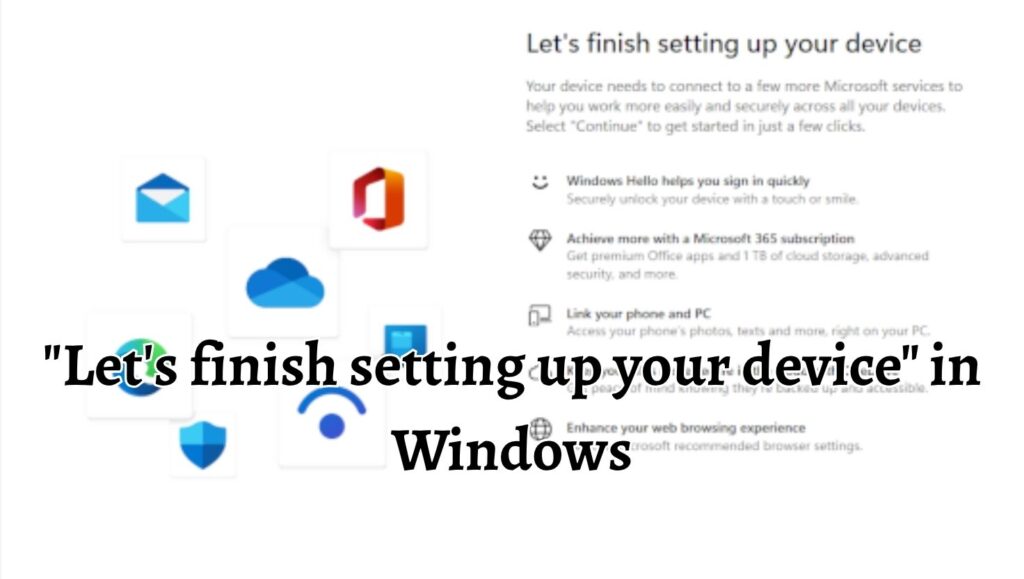
Many Windows 11 users notice a full-screen message called “Let’s finish setting up your device” after signing in to their computer. This prompt usually appears after a Windows update, system restart, or during the first few logins after installation. Microsoft uses this screen to encourage users to complete additional setup tasks such as connecting a Microsoft account, enabling OneDrive, setting up Microsoft 365, or choosing privacy settings.
This guide explains multiple methods to disable “Let’s finish setting up your device” in Windows 11.
Disable “Let’s finish setting up your device” in Windows 11
Quick Steps to Perform
- Open Settings in Windows 11.
- Go to System and then select Notifications.
- Scroll down and open Additional settings.
- Turn off the options related to Windows welcome experience and setup suggestions.
- Restart your computer and check if the message is gone.
If the prompt still appears, try the advanced methods explained below.
Now, let’s learn all the methods in detail!
Method 1: Turn Off Windows Welcome Experience Notifications
This is the easiest and most effective method for most users. Windows 11 includes a setting that controls setup reminders and welcome screen suggestions.
Step 1: Open the Settings App
Press the Windows + I keys together on your keyboard. This shortcut instantly opens the Settings app.
You can also click the Start Menu and select Settings manually.
The Settings window allows you to control system features, notifications, privacy, updates, and many other Windows options.
Step 2: Open Notification Settings
Inside the Settings window, click System from the left side panel.
After that, select Notifications from the right side.
This section controls how Windows displays alerts, reminders, suggestions, and pop-up messages.
Step 3: Open Additional Settings
Scroll down to the bottom of the Notifications page.
You will see a section called “Additional settings”. Click it to expand more options.
This hidden section contains settings related to Windows tips, welcome messages, and setup prompts.
Step 4: Disable Windows Setup Suggestions
Now uncheck the following options carefully:
“Show me the Windows welcome experience after updates and when signed in to show what’s new and suggested.”
“Suggest ways to get the most out of Windows and finish setting up this device.”
You can also disable:
“Get tips and suggestions when using Windows.”
Turning these options off prevents Windows 11 from showing repeated setup reminders.
Step 5: Restart Your Computer
Close the Settings app and restart your PC.
After restarting, sign in normally and check whether the “Let’s finish setting up your device” screen still appears.
For most users, this method solves the issue immediately.
Method 2: Disable Notifications Using Registry Editor
If the notification still appears, you can use the Windows Registry Editor. This method is more advanced but very effective.
Be careful while editing the registry because incorrect changes can affect Windows behavior.
Step 1: Open Registry Editor
Press Windows + R to open the Run dialog box.
Type regedit and press Enter.
If you see a User Account Control prompt, click Yes.
The Registry Editor window will open.
In the Registry Editor, go to the following path:
HKEY_CURRENT_USER\Software\Microsoft\Windows\CurrentVersion\UserProfileEngagement
You can copy and paste the path into the Registry Editor address bar for faster access.
This section controls Windows engagement and setup notifications.
Step 3: Locate the Notification Value
On the right side, look for a value named:
ScoobeSystemSettingEnabled
This setting controls the Windows setup experience messages.
Step 4: Modify the Registry Value
Double-click ScoobeSystemSettingEnabled.
Change the value data from 1 to 0.
Click OK to save the changes.
Setting the value to 0 disables the setup notification system.
Step 5: Restart Windows
Close Registry Editor and restart your computer.
After restarting, Windows should stop showing the setup completion screen.
Method 3: Disable Setup Notifications Through Group Policy Editor
This method is useful for Windows 11 Pro, Enterprise, and Education editions.
If you are using Windows 11 Home, the Group Policy Editor may not be available.
Step 1: Open Group Policy Editor
Press Windows + R to open the Run dialog box.
Type gpedit.msc and press Enter.
The Local Group Policy Editor window will appear.
Inside Group Policy Editor, go to:
Computer Configuration > Administrative Templates > Windows Components > Cloud Content
This section manages Microsoft suggestions and cloud-based recommendations inside Windows.
Step 3: Find the Windows Consumer Features Policy
On the right side, locate:
Turn off Microsoft consumer experiences
Double-click the policy to open it.
Step 4: Enable the Policy
Select the Enabled option.
Click Apply and then click OK.
Even though the wording says “Enabled”, this actually disables Microsoft’s consumer suggestions and setup prompts.
Step 5: Restart Your PC
Close the Group Policy Editor and restart your computer.
Check whether the setup screen has disappeared.
Method 4: Disable Device Setup Notifications During Startup
Some Windows 11 systems display setup reminders because of startup-related notification services. Disabling these reminders can help.
Step 1: Open System Settings
Press Windows + I to open Settings.
Select System and then choose Notifications.
Step 2: Disable Startup Notification Suggestions
Scroll down and click Additional settings again.
Turn off all options related to suggestions, welcome experiences, and tips.
These settings often trigger the setup notification after updates.
Step 3: Check Startup Apps
Press Ctrl + Shift + Esc to open Task Manager.
Click the Startup apps tab.
Look for Microsoft-related setup utilities that may launch automatically.
Disable unnecessary startup entries carefully.
Step 4: Restart Your Device
Restart your PC and monitor whether the notification returns.
This method is especially useful after major Windows updates.
Method 5: Complete the Setup Once and Disable Future Reminders
Sometimes Windows repeatedly asks you to finish setup because certain Microsoft services are incomplete. Completing or skipping them once can stop future reminders.
Step 1: Open the Setup Prompt
When the “Let’s finish setting up your device” screen appears, continue through the prompts.
Windows may ask you to:
Sign in with a Microsoft account
Set up OneDrive
Enable Microsoft 365
Choose backup preferences
Link your phone
Step 2: Skip Unwanted Services
Look carefully for options such as:
“Skip for now.”
“Remind me later.”
“Not now”
Use these options if you do not want the services.
Avoid selecting features you do not need.
Step 3: Finish the Setup Screen
Complete the remaining prompts until Windows returns to the desktop.
Sometimes simply dismissing the setup screen properly prevents it from appearing again.
Step 4: Disable Future Suggestions
After returning to the desktop, follow the notification disabling steps from Method 1.
This combination usually prevents future setup reminders.
Method 6: Disable Personalized Tips and Recommendations
Windows 11 often uses personalized recommendations to promote Microsoft services. Disabling these recommendations can reduce system prompts.
Step 1: Open Privacy Settings
Open Settings and select Privacy & security.
This section manages tracking, diagnostics, and personalized suggestions.
Step 2: Open General Settings
Under Windows permissions, click General.
You will see several personalization-related options.
Step 3: Disable Suggested Content
Turn off options related to:
Suggested content in Settings
Advertising ID
Personalized tips
App recommendations
These features can trigger Microsoft setup suggestions and promotional screens.
Step 4: Restart Your Computer
Restart Windows and verify whether the setup message still appears.
Common Reasons Why This Message Appears
Windows updates often reactivate setup suggestions after installing new features.
Using a local account instead of a Microsoft account may trigger repeated prompts.
An incomplete OneDrive or Microsoft 365 setup can also cause reminders.
Some privacy or notification settings may reset after updates.
Microsoft periodically promotes Windows features through onboarding screens.
Things to Avoid While Disabling These Notifications
Do not delete important system files.
Avoid downloading unofficial registry scripts from unknown websites.
Do not disable critical Windows services unless necessary.
Always create a restore point before major registry changes.
Be careful while modifying Group Policy settings.
How to Create a Restore Point Before Advanced Changes
Creating a restore point allows you to recover your system if something goes wrong.
Step 1: Open System Protection
Search for “Create a restore point” in the Start Menu.
Open the matching result.
Step 2: Enable Protection
Under the System Protection tab, select your system drive.
Click Configure and make sure protection is enabled.
Step 3: Create the Restore Point
Click Create.
Enter a name such as “Before disabling setup notifications”.
Click Create again.
Windows will save a backup of your current system settings.
FAQs
Is the “Let’s finish setting up your device” message harmful?
No. The message is not harmful. It is simply a Windows 11 setup reminder created by Microsoft to encourage users to configure additional services and features.
Can I permanently disable the setup notification?
Yes. In most cases, disabling notification suggestions through Settings or Registry Editor permanently removes the prompt.
Does disabling these notifications affect Windows updates?
No. Turning off setup notifications does not stop Windows updates or security patches.
Why does the message return after updates?
Major Windows updates sometimes reset notification preferences and enable setup reminders again.
Is Registry Editor safe to use?
Yes, but only if used carefully. Incorrect registry changes can affect Windows stability. Always create a restore point first.
Does Windows 11 Home support Group Policy Editor?
No. Group Policy Editor is normally unavailable in the Windows 11 Home edition.
Will disabling setup notifications improve performance?
The performance difference is usually very small, but disabling unnecessary notifications may slightly reduce background activity.
Can I re-enable the notifications later?
Yes. You can return to the same settings and enable the options again whenever needed.
Summary
The “Let’s finish setting up your device” notification in Windows 11 is mainly a promotional and onboarding feature designed to encourage users to configure Microsoft services. While helpful for some users, many prefer to disable it for a cleaner and interruption-free experience.
The easiest solution is to disable Windows welcome and suggestion notifications through the Settings app. If the prompt continues, advanced methods such as Registry Editor and Group Policy Editor provide stronger control over Windows setup reminders.