
Fractions are commonly used in school assignments, business documents, spreadsheets, recipes, engineering calculations, and everyday communication. While typing regular numbers is straightforward, many people struggle when they need to enter fractions such as 1/2, 1/4, 3/4, or more complex fractions like 7/16 and 15/32.
The good news is that modern operating systems provide several ways to type fractions directly from your keyboard. Depending on whether you use Windows, Mac, Chromebook, Android, or iPhone, you can insert fractions using keyboard shortcuts, character viewers, special symbols, or automatic formatting tools.
In this guide, you’ll learn the easiest methods to type fractions on different devices.
Type Fractions on the Keyboard
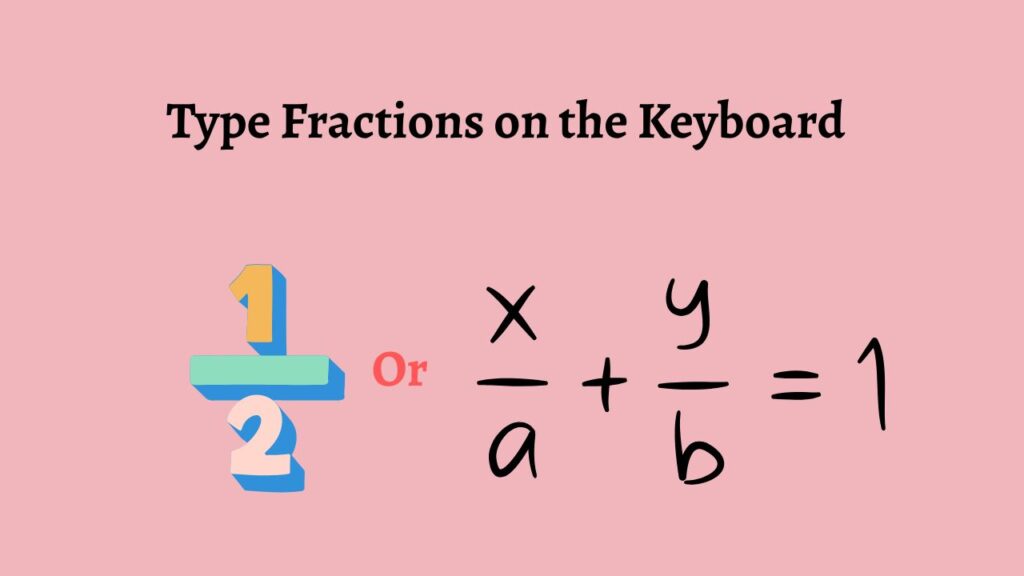
- Fractions can be typed using the forward slash symbol, such as 1/2 or 3/4.
- Windows users can insert fraction symbols through Character Map, Alt codes, or Microsoft Word shortcuts.
- Mac users can access fraction symbols through the Character Viewer.
- Mobile devices allow fractions to be typed using the number keyboard and slash key.
- Applications such as Microsoft Word can automatically convert common fractions into fraction symbols.
Type Fractions on Windows
Windows offers several methods for entering fractions. The easiest approach is typing the numerator, followed by a slash, and then the denominator. For example, typing 3/4 creates a readable fraction in almost any application.
If you need professional-looking fraction symbols such as ½, ¼, or ¾, Windows includes built-in tools that make this possible.
Microsoft Word also provides automatic fraction formatting. When AutoFormat is enabled, certain fractions can automatically convert into fraction symbols while you type.
For users who regularly work with technical documents, Character Map and Unicode characters provide additional flexibility.
Type Fractions on Mac
Mac computers include a built-in Character Viewer that contains hundreds of special symbols, including fraction characters.
You can also use standard fraction formatting by typing numbers separated by a slash. Many Mac applications recognize these entries and preserve them correctly.
Pages, Microsoft Word, and other productivity apps on macOS support advanced fraction formatting for professional documents.
Type Fractions on Chromebook
Chromebooks primarily rely on the standard slash method. Simply type the numerator, enter the forward slash, and then type the denominator.
Google Docs also offers formatting features that help improve the appearance of fractions when creating reports, homework assignments, or presentations.
Type Fractions on Android
Android devices make fraction typing simple through the on-screen keyboard.
Most Android keyboards provide access to the slash symbol through the numeric keypad. You can create fractions like 1/2, 5/8, or 7/16 by entering numbers around the slash.
Some keyboards also display special fraction symbols when certain number keys are pressed and held.
Type Fractions on iPhone and iPad
Apple devices provide both standard fraction entry and access to special fraction symbols.
Users can type fractions using the numeric keyboard and slash key. Certain apps may also automatically convert common fractions into formatted fraction symbols.
For professional documents, copying and inserting fraction symbols from the Character Viewer or text replacement shortcuts can save time.
Understand the Different Ways Fractions Can Be Typed
Before entering fractions, it’s important to understand the two main formats available.
The first format uses a regular slash.
- Open any document, email, spreadsheet, or text editor.
- Type the numerator of the fraction.
- Press the forward slash key (/).
- Type the denominator.
For example:
- Type 1/2
- Type 3/4
- Type 5/16
This method works everywhere and is universally supported.
The second format uses actual fraction symbols.
Examples include:
- ½
- ¼
- ¾
These symbols look cleaner and are often preferred in professional documents, reports, recipes, and printed materials.
Type Basic Fractions Using Your Keyboard
The simplest method requires no special tools.
- Place your cursor where you want the fraction to appear.
- Type the first number.
- Press the slash key.
- Type the second number.
For example:
- Type 2/3
- Type 7/8
- Type 15/32
This approach works in:
- Microsoft Word
- Google Docs
- Excel
- Notepad
- Email applications
- Web browsers
- Messaging apps
Because this method is universally accepted, it is often the preferred choice when sharing documents with others.
Use Microsoft Word’s Automatic Fraction Formatting
Microsoft Word includes an AutoFormat feature that can convert certain fractions automatically.
- Open Microsoft Word.
- Click File.
- Click Options.
- Select Proofing.
- Click AutoCorrect Options.
- Open the AutoFormat As You Type tab.
- Make sure automatic formatting options are enabled.
Now test a common fraction.
- Type 1/2.
- Press the Spacebar.
Word may automatically convert the fraction into ½.
The same may occur with:
- 1/4
- 3/4
This feature creates cleaner and more professional-looking documents.
Insert Fraction Symbols Using Character Map in Windows
Character Map gives Windows users access to special fraction characters.
- Press Windows + S.
- Type Character Map.
- Open the Character Map application.
- Select an available font.
- Scroll through the symbols.
- Locate a fraction such as ½, ¼, or ¾.
- Click the symbol.
- Select Copy.
- Return to your document.
- Press Ctrl + V to paste the symbol.
This method is useful when you need visually appealing fractions without memorizing shortcuts.
Use the Character Viewer on Mac
Mac users can insert fraction symbols through Character Viewer.
- Click the Edit menu.
- Select Emoji & Symbols.
- Open the Character Viewer.
- Search for “fraction.”
- Browse available fraction symbols.
- Double-click the desired symbol.
The symbol will immediately appear where your cursor is positioned.
This is one of the easiest ways to access professional fraction symbols on macOS.
Type Fractions in Google Docs
Google Docs supports standard fraction formatting and special symbols.
- Open your Google Docs document.
- Click where you want the fraction.
- Type the numerator.
- Type the slash.
- Type the denominator.
For special fraction characters:
- Click Insert.
- Select Special Characters.
- Search for “fraction.”
- Choose the desired symbol.
- Insert it into your document.
This method works particularly well for school assignments and collaborative documents.
Type Fractions on Android Devices
Android keyboards make fraction entry simple.
- Open any app where you want to type.
- Tap the text field.
- Switch to the numeric keyboard.
- Enter the numerator.
- Tap the slash key.
- Enter the denominator.
For example:
- 1/2
- 3/8
- 11/16
Some Android keyboards may display special fraction options when you press and hold certain number keys.
Testing your specific keyboard can reveal additional shortcuts.
Type Fractions on iPhone and iPad
Apple devices offer a straightforward process.
- Open the Notes app or any text field.
- Switch to the number keyboard.
- Enter the numerator.
- Tap the slash key.
- Enter the denominator.
To create faster access for commonly used fractions:
- Open Settings.
- Tap General.
- Tap Keyboard.
- Tap Text Replacement.
- Create shortcuts for frequently used fraction symbols.
For example, typing a custom shortcut could automatically insert ½ whenever needed.
Additional Tips
- Use standard slash fractions when sharing files with multiple people because they are supported everywhere.
- Use fraction symbols when creating professional documents, printed materials, recipes, or reports.
- Save commonly used fractions in text replacement tools to speed up data entry.
- Test document compatibility before sending files to ensure special symbols display correctly.
- Use Google Docs or Microsoft Word special character tools when advanced formatting is required.
- Keep Unicode fraction symbols handy if your work frequently involves measurements or mathematical notation.
FAQs
Can I type fractions directly from my keyboard?
Yes. The easiest method is typing the numerator, a forward slash, and the denominator. For example, 1/2 or 3/4.
How do I type the one-half symbol?
You can insert ½ using Character Map on Windows, Character Viewer on Mac, or by copying and pasting the symbol into your document.
Does Microsoft Word automatically format fractions?
Yes. Microsoft Word can automatically convert certain fractions such as 1/2, 1/4, and 3/4 into formatted fraction symbols when AutoFormat is enabled.
Can I type fractions in Google Docs?
Yes. You can type standard fractions using the slash key or insert special fraction symbols through the Special Characters menu.
What is the easiest way to type fractions on a phone?
Open the numeric keyboard, type the numerator, insert a slash, and then type the denominator.
Why do some fractions not convert automatically?
Automatic conversion usually works only for common fractions. More complex fractions, such as 13/32 or 17/64, generally remain in slash format unless manually formatted.