
If you are encountering Xbox Error Code 0x80070422, you are not alone. This issue commonly appears when trying to sign in to Xbox services, launch games, or access apps on your Windows PC or Xbox console. The error is typically linked to system services that are either disabled or not running properly. While the error code may look technical, the underlying causes are usually straightforward and fixable with a structured approach.
This guide walks you through what the error means, why it occurs, and how to fix it step by step!
Why am I Seeing Xbox Error Code 0x80070422?
The Xbox Error Code 0x80070422 is generally tied to a disabled or improperly configured Windows service. Specifically, it often points to issues with essential services like Windows Update, Xbox Live services, or background networking components.
Here are the most common causes:
A disabled Windows Update service can prevent Xbox-related services from functioning correctly because many Xbox features rely on updated system components.
Improper configuration of Xbox Live Auth Manager, Xbox Live Game Save, or Xbox Live Networking Service can block authentication and connectivity.
A firewall or security software may be restricting necessary connections.
Corrupted system files or outdated software can interfere with service dependencies.
Network-related issues, such as misconfigured settings, can also trigger this error.
Fix: Xbox Error Code 0x80070422
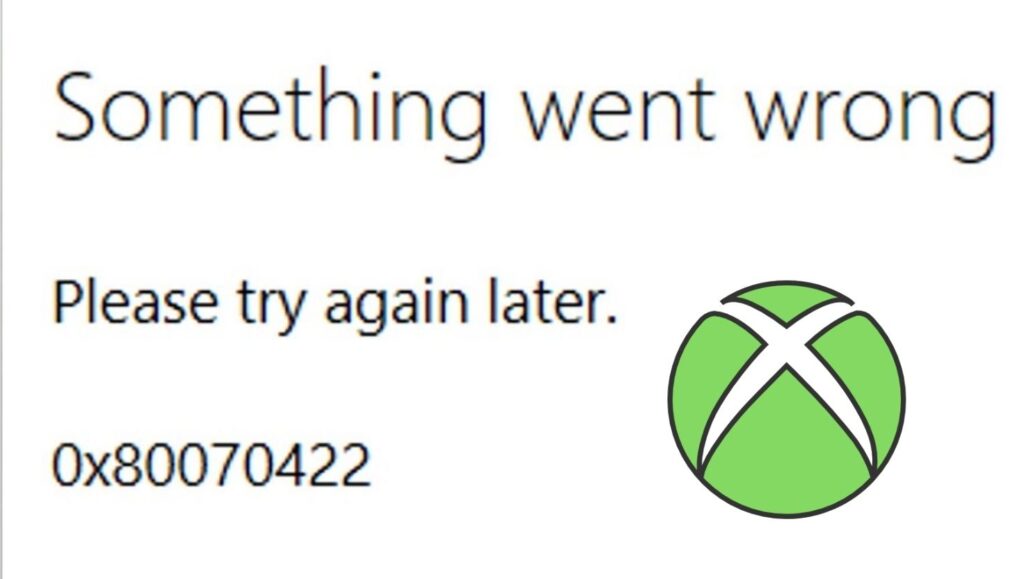
To fix Xbox Error Code 0x80070422, enable the Windows Update service and ensure all Xbox-related services are running. Then update your system, check network settings, and restart your device to restore proper functionality.
Step 1: Enable the Windows Update Service
The first and most critical step is to ensure that the Windows Update service is enabled. This service is essential for maintaining system integrity and enabling Xbox-related features.
Start by pressing the Windows key and typing “Services,” then open the Services application. This tool allows you to manage all background services running on your computer.
Scroll down until you find Windows Update. Double-click on it to open its properties. In the Startup type field, make sure it is set to Automatic. If the service status shows as stopped, click the Start button.
Click Apply and then OK to save your changes. This step ensures that your system can receive updates and maintain compatibility with Xbox services.
Restart your computer after completing this step to ensure the changes take effect.
Step 2: Restart Xbox Live Services
Xbox functionality depends heavily on several background services. If any of these are stopped or disabled, you may encounter error 0x80070422.
Open the Services window again and locate the following services: Xbox Live Auth Manager, Xbox Live Game Save, and Xbox Live Networking Service.
Double-click each service one at a time. Set the Startup type to Automatic. If the service is not running, click the Start button.
Make sure all three services are running before closing the Services window. These services handle authentication, game saves, and network connectivity, so they must be active.
Restart your system to ensure these services initialize properly.
Step 3: Check Your Windows Update Settings
Even if the Windows Update service is running, incorrect settings can still cause issues.
Go to Settings, then navigate to Update & Security, and select Windows Update. Click on Check for updates to ensure your system is fully up to date.
If updates are available, install them immediately. Updates often include bug fixes and improvements that resolve compatibility issues with Xbox services.
After installing updates, restart your computer. Keeping your system updated is a key factor in preventing this error from recurring.
Step 4: Verify Network Connectivity
Xbox services require a stable and properly configured internet connection.
Start by opening your network settings and confirming that you are connected to the internet. Try opening a website to ensure your connection is active.
If you are using Wi-Fi, consider switching to a wired connection for better stability. You can also restart your router by unplugging it for about 30 seconds and plugging it back in.
Additionally, check your network settings for any restrictions. Make sure that your connection is not set to metered, as this can limit background services.
A stable network ensures that Xbox services can communicate with servers without interruption.
Step 5: Disable Firewall or Antivirus Temporarily
Sometimes, security software can block Xbox services from functioning properly.
Temporarily disable your Windows Defender Firewall or any third-party antivirus software. After disabling, try accessing Xbox services again.
If the error disappears, it means your security software was blocking the connection. In that case, you should add exceptions for Xbox-related services instead of leaving your system unprotected.
Re-enable your firewall after testing to maintain system security.
Step 6: Run the Windows Troubleshooter
Windows includes built-in troubleshooters that can automatically detect and fix issues.
Go to Settings and navigate to Troubleshoot. Select Additional troubleshooters, then choose Windows Update and run the troubleshooter.
Follow the on-screen instructions. The tool will scan for problems and apply fixes automatically.
This step is especially useful for identifying hidden configuration issues that may not be immediately visible.
Step 7: Repair Corrupted System Files
Corrupted system files can interfere with services and cause persistent errors.
Open Command Prompt as an administrator by searching for it and selecting “Run as administrator.”
Type the following command and press Enter:
sfc /scannow
This command will scan your system for corrupted files and attempt to repair them. The process may take some time, so be patient.
Once the scan is complete, restart your computer. Repairing system files can resolve underlying issues that trigger error 0x80070422.
Step 8: Reset the Xbox App
If the issue persists, resetting the Xbox app can help restore its functionality.
Go to Settings, then navigate to Apps and find the Xbox app in the list. Click on it and select Advanced options.
Scroll down and click the Reset button. This will clear the app’s data and restore it to its default state.
After resetting, reopen the app and sign in again. This step can resolve issues caused by corrupted app data.
FAQs
What does Xbox Error Code 0x80070422 mean?
This error indicates that a required service is disabled or not running. It is commonly related to Windows Update or Xbox Live services.
Can I fix this error without technical knowledge?
Yes, the steps provided in this guide are designed for beginners. You only need to follow the instructions carefully.
Does this error only occur on Windows PCs?
No, but it is more common on Windows systems because it is closely tied to system services that manage Xbox functionality.
Will updating Windows fix the issue?
In many cases, yes. Updating Windows ensures that all required components and services are functioning correctly.
Is it safe to disable my firewall?
You can disable it temporarily for testing, but you should always re-enable it afterward to protect your system.