
Microsoft Edge offers several features that let you customize your browsing experience, but what if you want to try experimental features that are not available in the regular settings? That’s where Edge Flags (edge://flags) come in. These experimental settings allow you to test new browser features, change certain behaviors, and explore options that may not yet be available to everyone.
Whether you want to experiment with performance improvements, test a new browsing feature, or troubleshoot a browser issue, the Edge Flags page gives you access to additional configuration options. However, these features are experimental, so enabling the wrong setting can cause browser crashes, performance problems, or unexpected behavior.
In this guide, you’ll learn what Edge Flags are, how to access them, how to enable individual flags, and how to restore the default settings if something goes wrong.
What Are Edge Flags (edge://flags)?
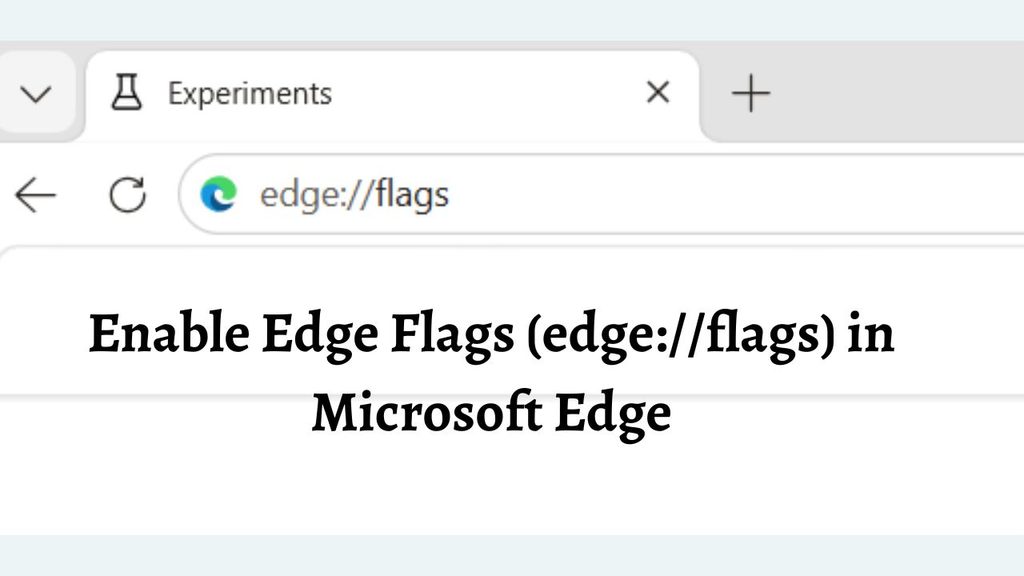
Edge Flags is a special configuration page in Microsoft Edge that contains experimental browser features. You can open it by entering edge://flags in the browser’s address bar.
Unlike regular Edge settings, which provide options for everyday browsing, flags let you test features that Microsoft is still developing, evaluating, or gradually introducing. Some flags may change how Edge handles graphics, downloads, rendering, security-related behavior, or other browser functions.
For example, a flag might let you experiment with a graphics feature or a change to how webpages are displayed. The available options can vary depending on your Microsoft Edge version, operating system, and device configuration.
It’s important to understand that not every flag is available on every computer. Some may be removed, renamed, enabled by default, or restricted by your organization. Enabling a flag also does not guarantee that the feature will work correctly.
Edge Flags are intended primarily for testing and troubleshooting, not for making permanent changes to your everyday browsing setup.
If you rely on Edge for work, banking, or other important activities, change experimental settings cautiously.
Enable Edge Flags (edge://flags) in Microsoft Edge
To enable Edge Flags in Microsoft Edge, follow these steps:
- Open Microsoft Edge on your computer.
- Click the address bar at the top of the browser.
- Type edge://flags and press Enter.
- Find the experimental feature you want to test using the search box.
- Open the dropdown menu next to the relevant flag.
- Select Enabled if that option is available.
- Click Restart or Relaunch when prompted to apply the change.
- Test the feature and return to the flags page to disable it if you experience problems.
You can use these steps on supported desktop versions of Microsoft Edge, although the available flags may differ between releases.
Step 1: Open Microsoft Edge on Your Computer
First, make sure Microsoft Edge is installed and opens correctly on your Windows 11 or Windows 10 computer. If you already use Edge as your default browser, simply launch it from the taskbar, Start menu, or desktop shortcut.
If you cannot find Edge, click Start and type Microsoft Edge in the search box. Select the browser from the search results to open it.
Before changing any experimental settings, it’s a good idea to check whether Edge is up to date. An outdated browser may have different flags or lack features available in newer versions.
To check for updates, open Edge and navigate to Settings and more (…) > Help and feedback > About Microsoft Edge. The browser will check for available updates and may download them automatically. Restart Edge if an update requires it.
Once the browser is ready, you can move on to the next step.
Step 2: Open the Edge Flags Page
The easiest way to access experimental settings is through Edge’s internal address.
Click the address bar at the top of the browser window. Type edge://flags and press Enter.
Edge will open a page titled Experiments. This is the main location where you can browse and manage experimental browser features.
You do not need to download a separate application, install an extension, or open Windows Settings to access this page. The address works directly within Microsoft Edge.
Navigation: Microsoft Edge > Address bar > edge://flags > Enter.
If the page does not open, check that you entered the address correctly. Make sure you are using Microsoft Edge rather than another browser. If your device is managed by your employer or school, certain experimental features may be restricted by organizational policies.
Step 3: Understand the Options on the Edge Flags Page
When you open edge://flags, you’ll see a list of available experimental features. Each entry typically includes a feature name, a short description, and a dropdown menu for changing its status.
Depending on the flag, the dropdown may include options such as Default, Enabled, and Disabled.
The Default option allows Edge to use the browser’s current default behavior for that feature. This does not necessarily mean the feature is turned off. It means you are not explicitly overriding its default configuration.
The Enabled option activates the experimental behavior when the browser supports it. The Disabled option turns off the experimental behavior controlled by that particular flag.
Some flags may provide additional choices, and others may not offer every option. Always read the description before changing a setting so you understand what it affects.
If you’re new to Edge Flags, avoid changing several settings at once. Testing one flag at a time makes it easier to identify the cause if Edge begins behaving unexpectedly.
Step 4: Search for the Experimental Feature You Want
The Edge Flags page can contain many entries, so scrolling through the entire list is not the most efficient way to find a particular feature.
Instead, use the Search flags box near the top of the page. Click the box and type the name of the feature or a relevant keyword.
For example, if you’re looking for a graphics-related experiment, try searching for a term associated with graphics or rendering. If you already know the exact flag name from a reliable guide, enter that name to narrow the results.
Edge will filter the list to show matching entries. If no results appear, the flag may not be available in your current version, may have been renamed, or may have been removed.
Remember that flag names and availability change over time. A tutorial written for an older Edge release may refer to an option you can no longer find.
Step 5: Enable the Selected Edge Flag
After locating the flag you want to test, read its description carefully. Make sure you understand the intended behavior and any limitations mentioned on the page.
Next, click the dropdown menu beside the flag. If the option is available, select Enabled.
The change may be saved immediately, but it usually will not take full effect until you restart the browser. If you change a flag accidentally, you can select Default to return control to Edge’s default configuration.
Avoid enabling a flag simply because its name sounds useful. Experimental settings may be unstable, and some can reduce performance or interfere with other browser features.
For example, a graphics experiment may work well on one computer but cause rendering glitches on another because of differences in hardware or drivers.
The safest approach is to enable only the specific flag you need and leave unrelated experimental options unchanged.
Step 6: Restart Microsoft Edge to Apply the Changes
After enabling a flag, look for the Restart or Relaunch button that appears on the Edge Flags page. Click it to restart the browser and apply the configuration change.
Edge will generally reopen your existing tabs, but you should save important work before restarting. Web-based forms, unsaved text, or active sessions may not always recover as expected.
Once Edge has restarted, test the feature you enabled. Check whether the intended behavior appears and whether the browser continues to work normally.
If you don’t notice any difference, the flag may require additional conditions, may not be supported by your hardware, or may have no visible effect in your current configuration.
Do not assume that every enabled flag produces an immediate or noticeable improvement. Some experiments are designed for testing specific technical behavior rather than adding an obvious new button or menu.
Disable an Edge Flag if It Causes Problems
If Edge becomes unstable after enabling an experimental feature, return to the flags page and reverse the change.
Open edge://flags, search for the flag you modified, and change its dropdown selection to Default. If you specifically need to turn off the experimental behavior, select Disabled when appropriate.
Click Restart or Relaunch to apply the change.
If Edge crashes too frequently to let you reach the flags page, try opening the browser again and accessing edge://flags as soon as it starts. If the browser remains unusable, you may need to troubleshoot the browser profile or reset Edge settings as a later option.
Be careful not to reset the entire browser unnecessarily. A full settings reset can change your startup page, search engine, pinned tabs, and extensions, even though it does not normally delete favorites or saved passwords.
Reset All Edge Flags to Their Default Settings
If you have changed several flags and no longer remember which ones you modified, Edge provides a convenient way to restore the flags page to its default configuration.
Open edge://flags and look for the Reset all button near the top of the page. Click it to return the flags to their default states.
Afterward, select Restart or Relaunch if prompted.
Resetting flags is useful when you’ve tested multiple experiments and want to return to a clean configuration. However, it does not reset every Microsoft Edge setting, clear all browsing data, or repair every possible browser issue.
If Edge continues to crash or display errors after resetting flags, check for browser updates, review recently installed extensions, and consider using Edge’s regular settings to troubleshoot the remaining problem.
FAQs
1. Is edge://flags safe to use?
Yes, the page itself is a legitimate Microsoft Edge configuration page. However, individual flags are experimental and may cause crashes, performance issues, or unexpected browser behavior. Change only the options you understand.
2. Why can’t I find a specific Edge flag?
Microsoft may have removed, renamed, or changed the availability of a flag. Some features are also limited to particular Edge versions, operating systems, or hardware configurations.
3. Do I need administrator access to enable Edge Flags?
Generally, you can change available flags without administrator access on a personal computer. However, a work or school device may have policies that restrict experimental features or prevent certain changes.
4. Do Edge Flags improve browser performance?
Some flags may help test performance-related changes, but enabling them does not guarantee faster browsing. Depending on the feature and your hardware, an experiment could have no effect or make performance worse.
5. Can I enable multiple Edge Flags at once?
Yes, you can change multiple flags, but doing so makes troubleshooting more difficult if something goes wrong. For better results, test one flag at a time and restart Edge after making your changes.
6. How do I turn off all experimental flags in Microsoft Edge?
Open edge://flags, click Reset all, and restart Edge when prompted. This returns the flags to their default states.
7. Does enabling Edge Flags affect my bookmarks and passwords?
Changing a flag generally does not delete your bookmarks or saved passwords. However, experimental settings may affect browser stability, so save important work before restarting Edge and keep your browser data backed up or synced appropriately.