
A Blue Screen while printing is one of the most frustrating problems on a Windows PC. In some cases, the error appears immediately after sending a document to a printer. Instead of printing normally, the system crashes and restarts automatically. This issue commonly occurs on both Windows 11 and Windows 10, especially after a Windows update, a corrupted printer driver installation, or conflicts with printer spooler services.
The problem may happen with printers from brands like HP, Canon, Brother, Epson, or Kyocera. The blue screen can display error messages such as APC_INDEX_MISMATCH, win32kfull.sys, KMODE_EXCEPTION_NOT_HANDLED, or SYSTEM_SERVICE_EXCEPTION. These errors usually point to faulty printer drivers, damaged system files, or incompatible updates.
Below, I have mentioned the way to resolve this issue and safely restore printing functionality without causing additional system problems.
Why Does a Blue Screen Appear While Printing?
When Windows sends a print command, it communicates with the printer through drivers and background services. If one of these components becomes unstable, the operating system may crash to protect itself from further damage.
The most common reasons include:
- Corrupted or outdated printer drivers.
- Conflicts caused by recent Windows updates.
- Damaged system files affecting print services.
- Faulty printer software or utility applications.
- Issues with the Print Spooler service.
- Incompatible network printing configurations.
- Third-party antivirus interference.
Now, let’s learn the steps to fix this issue!
Blue Screen on Printer When Printing on Windows 11/10 [Fix]
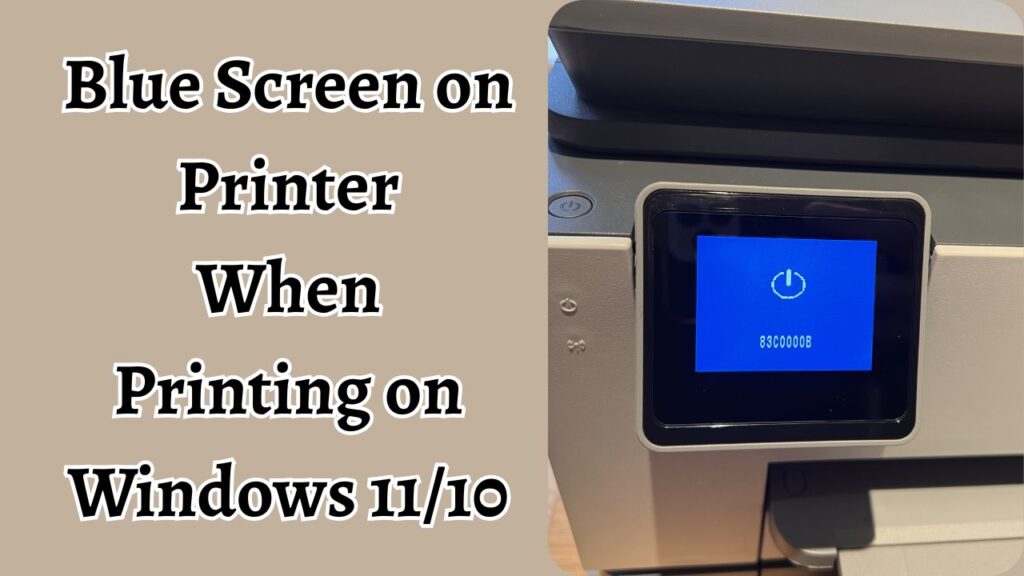
If you Printer is showing a Blue Screen, then:
- Restart the computer and printer to clear temporary glitches.
- Disconnect the printer and remove corrupted printer drivers.
- Run the Windows Printer Troubleshooter.
- Update or reinstall printer drivers from the manufacturer’s website.
- Restart the Print Spooler service.
- Install the latest Windows updates.
- Remove problematic updates if the issue started after an update.
- Repair corrupted system files using SFC and DISM scans.
- Switch to a universal or generic printer driver if the manufacturer’s driver fails.
Let’s explore these steps in detail!
1: Restart Your Computer and Printer
The first thing you should do is perform a complete restart of both your PC and printer. Temporary system glitches can interrupt communication between Windows and the printer driver, leading to a blue screen crash.
Turn off the printer completely and unplug its power cable from the wall socket. Next, shut down your computer normally from the Start menu. Wait for at least one minute before turning everything back on.
After restarting, reconnect the printer and try printing a small test document. If the issue was caused by a temporary memory conflict or a stuck print process, the problem may disappear immediately.
This simple method is often overlooked, but it works surprisingly well for random BSOD printing errors.
2: Disconnect the Printer and Remove Corrupted Drivers
A damaged or incompatible printer driver is one of the leading causes of blue screen crashes during printing. Removing the driver completely can stop Windows from loading faulty files.
Open Settings and go to Bluetooth & devices in Windows 11 or Devices in Windows 10. Select Printers & scanners, then choose your printer. Click Remove device.
Next, press Windows + R, type printmanagement.msc, and press Enter. If Print Management opens, expand Print Servers, select your computer name, and open Drivers.
Locate your printer driver, right-click it, and choose Remove Driver Package. Restart the computer afterward.
Removing the driver package ensures Windows does not reuse corrupted driver files during the next installation.
If Print Management is unavailable, you can also remove drivers through Device Manager. Expand Print queues, right-click the printer, and select Uninstall device.
3: Install the Latest Printer Driver
After removing the old driver, you should install the newest version directly from the printer manufacturer. Using outdated drivers from Windows Update can sometimes trigger system crashes.
Visit the official website of your printer brand and search for your exact printer model. Download the latest driver compatible with your version of Windows 11 or Windows 10.
Run the installer and follow the on-screen instructions carefully. During installation, connect the printer only when prompted.
Modern printer drivers include bug fixes, compatibility improvements, and security updates that help prevent BSOD issues.
Avoid downloading printer drivers from third-party websites because unofficial packages may contain modified or unstable files.
4: Run the Printer Troubleshooter
Windows includes a built-in troubleshooting tool that can automatically detect common printer-related problems.
Open Settings and navigate to System > Troubleshoot > Other troubleshooters in Windows 11. In Windows 10, go to Update & Security > Troubleshoot > Additional troubleshooters.
Find Printer and click Run.
The troubleshooter checks for problems related to printer connectivity, spooler services, permissions, and driver configurations. If Windows detects a problem, apply the recommended fix automatically.
Once the process finishes, restart the system and test the printer again.
Although the troubleshooter may not solve every BSOD issue, it can quickly repair minor configuration errors without requiring advanced technical knowledge.
5: Restart the Print Spooler Service
The Print Spooler service manages print jobs in Windows. If this service becomes corrupted or overloaded, printing may trigger a blue screen error.
Press Windows + R, type services.msc, and press Enter. Scroll down until you find Print Spooler. Right click the service and select Restart.
If restarting does not help, right-click again and select Properties. Set the Startup type to Automatic.
You can also clear stuck print jobs manually. Open File Explorer and navigate to:
C:\Windows\System32\spool\PRINTERS
Delete all files inside the folder. You may need administrator permission to complete the action.
After clearing the folder, restart the Print Spooler service and test printing again.
This method often resolves crashes caused by damaged print queue files.
6: Install the Latest Windows Updates
Microsoft regularly releases updates that fix printing bugs and system crashes. Running an outdated version of Windows may leave known printer problems unresolved.
Open Settings and go to Windows Update. Click Check for updates.
Download and install all available updates, including optional driver updates if they are recommended for your printer.
After installation, restart the computer.
Many printer-related BSOD problems were fixed in cumulative Windows updates released after major printing issues affected users worldwide. Keeping Windows fully updated improves compatibility with modern printer drivers.
7: Remove Problematic Windows Updates
In some situations, the issue starts immediately after installing a Windows update. Certain updates have historically caused printer crashes and blue screen errors.
If you recently updated Windows before the problem appeared, uninstall the latest update.
Go to Settings > Windows Update > Update history. Select Uninstall updates.
Locate the most recent update and click Uninstall.
Restart the computer after removal and test printing again.
If uninstalling the update resolves the issue, you can temporarily pause updates until Microsoft releases a stable fix.
Be careful not to uninstall security updates unnecessarily unless you are certain the update caused the printer crash.
8: Repair Corrupted System Files
Damaged Windows system files can interfere with printing services and trigger BSOD errors. Running system repair scans can restore missing or corrupted files automatically.
Open Command Prompt as Administrator. Type the following command and press Enter:
sfc /scannow
The scan may take several minutes to complete. Windows will automatically repair detected problems. After the scan finishes, run these commands one at a time:
DISM /Online /Cleanup-Image /RestoreHealth
Restart the computer once the process completes.
The System File Checker and DISM tools are powerful utilities for repairing Windows instability issues connected to printer services and drivers.
9: Use a Generic or Universal Printer Driver
Some manufacturer-specific drivers contain bugs that conflict with Windows. Switching to a generic printer driver can stabilize the system.
Open Settings > Printers & scanners and remove the current printer again.
Reconnect the printer and allow Windows to install a basic driver automatically.
You can also manually select a universal driver during installation. For example, many laser printers work correctly with PCL6 or Universal Print Drivers.
Although advanced features like scanning or ink monitoring may not work, generic drivers often eliminate blue screen crashes entirely.
This is an effective workaround if the official driver continues causing problems.
10: Disable Third-Party Antivirus Temporarily
Some antivirus programs monitor printer communications and can interfere with printing operations. This may result in system instability or BSOD errors.
Temporarily disable your antivirus software and test the printer again.
If printing works normally after disabling the antivirus, add the printer software and spooler service to the antivirus exclusion list.
Do not leave antivirus protection disabled permanently. Only use this step for troubleshooting purposes.
If the issue continues even with antivirus disabled, re-enable protection immediately and move to the next solution.
11: Check USB Cable or Network Connection
Faulty printer connections can also contribute to blue screen problems.
If you use a USB printer, disconnect the cable and inspect it for damage. Try a different USB port on the computer. Avoid using USB hubs during troubleshooting.
For wireless or network printers, ensure the printer and PC are connected to the same network. Restart the router if necessary.
Weak or unstable connections can corrupt communication between the printer driver and Windows, especially during large print jobs.
Testing with another cable or network connection can help isolate hardware-related problems.
12: Perform a System Restore
If the blue screen issue started recently and no solution works, restoring Windows to an earlier state may help.
Type Create a restore point in Windows Search and open it. Click System Restore.
Choose a restore point created before the printer issue began. Follow the instructions to restore the system.
System Restore does not delete personal files, but it removes recently installed drivers, updates, and software changes that may have caused the crash.
After restoration, reinstall the printer carefully and test printing again.
FAQs
Why does my computer show a blue screen when printing?
The problem usually occurs because of corrupted printer drivers, damaged system files, faulty Windows updates, or issues with the Print Spooler service.
Can outdated printer drivers cause BSOD errors?
Yes. Outdated or incompatible printer drivers are one of the most common causes of printing-related blue screen crashes in Windows 11 and Windows 10.
Is it safe to uninstall printer drivers?
Yes. Removing faulty drivers is a normal troubleshooting step. Windows allows you to reinstall updated drivers afterward.
What is the Print Spooler service?
The Print Spooler is a Windows service that manages print jobs sent from your computer to the printer. If it becomes corrupted, printing may fail or crash the system.
Should I update Windows to fix printer crashes?
Yes. Microsoft often releases updates that fix printer compatibility issues and BSOD-related bugs.
Can antivirus software cause printer blue screens?
In some cases, yes. Certain antivirus applications interfere with printer communication and trigger system crashes during printing.
Will System Restore delete my files?
No. System Restore mainly affects system settings, drivers, and installed applications. Personal files usually remain untouched.