
Need to insert a PDF into a Word document as an image? You can do it pretty easily, and you do not need to turn the entire PDF into editable Word text first.
This method is especially useful when you want to place a PDF page, diagram, chart, screenshot, scanned document, or form directly inside a Microsoft Word file while keeping its original appearance. Instead of inserting the PDF as an editable object, you can convert the page into an image and then insert that image into Word like any other picture.
There are several ways to do this, depending on whether you need one PDF page, multiple pages, or the entire PDF.
In this guide, we will walk through the easiest methods step by step.
Insert PDF Into Word Document as Image [4 Easy Methods]
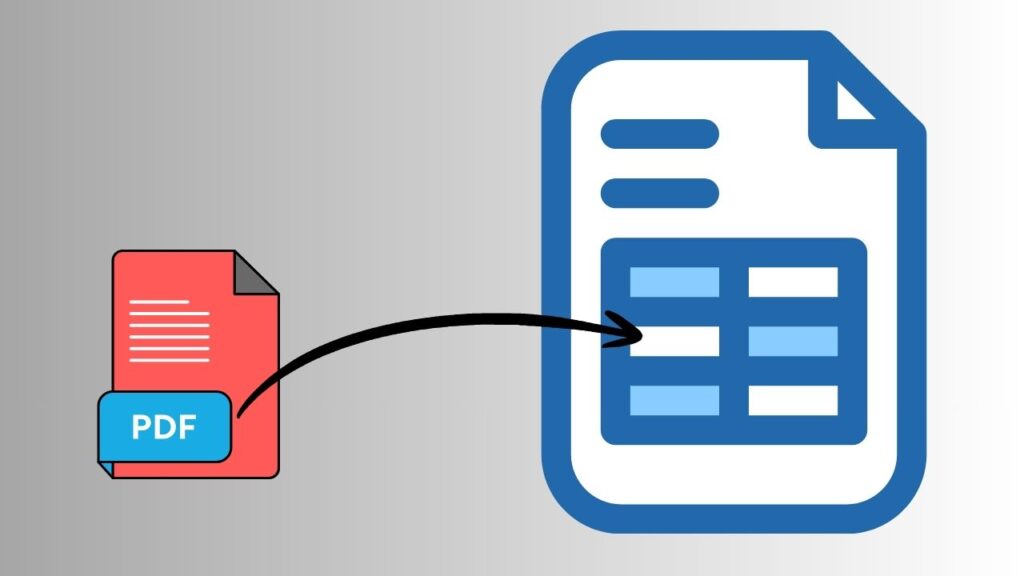
I have mentioned 4 very easy methods to insert a PDF into your Word document as an Image. Let’s learn them one by one in detail!
Method 1: Take a Screenshot of the PDF Page
The quickest option is to use a screenshot when you only need one PDF page or a small section.
Step 1: Open the PDF
First, open the PDF file using your preferred PDF reader. You can use Microsoft Edge, Adobe Acrobat Reader, or another PDF application installed on your Windows PC.
Navigate to the PDF page that you want to place inside your Word document.
Step 2: Display the Page Clearly
Adjust the PDF’s zoom level so the content you need is clearly visible. A higher zoom level can produce a sharper screenshot, although you should make sure the entire area you want to capture fits on the screen.
If you are capturing an entire page, try to display as much of the page as possible without making the text too small.
Step 3: Capture the PDF as an Image
On Windows 11 or Windows 10, press Windows + Shift + S to open the Snipping Tool capture interface.
Select the area containing the PDF content you want to capture. Windows will copy the captured area to your clipboard.
Step 4: Open Microsoft Word
Now open the Word document where you want to insert the PDF content.
Place your cursor at the exact location where you want the PDF image to appear.
Step 5: Paste the Screenshot
Press Ctrl + V to paste the screenshot into Word.
The PDF content will now appear as an image. You can resize it, move it, or adjust its layout just like any other picture in Word.
This method is convenient, but there is one important limitation. A screenshot is only as good as the resolution of the captured image. If the PDF contains small text, the result may not look sharp when enlarged.
Method 2: Convert the PDF Page to an Image
For better quality, you can convert the PDF page into an image before inserting it into Word.
This is generally the better approach when you are working with important documents, diagrams, charts, or high-resolution PDF pages.
Step 1: Open Your PDF
Open the PDF in a PDF application that supports exporting or converting pages to image formats.
Look for an option such as Export, Convert, or Save As.
Step 2: Choose an Image Format
Select a suitable image format, such as PNG or JPEG.
For documents containing text, diagrams, and sharp lines, PNG can often provide better visual quality. JPEG can be useful when file size is more important than maximum image quality.
Step 3: Export the PDF Page
Choose the PDF page you want to convert and export it as an image.
If your PDF has multiple pages, check whether your application allows you to export specific pages rather than converting the entire document.
Save the resulting image somewhere you can easily find it.
Step 4: Insert the Image Into Word
Open your Word document and select the Insert tab.
Choose Pictures, then select the option for inserting a picture from your computer. Browse to the location where you saved the converted PDF image.
Select the image and click Insert.
The PDF page will now appear inside your Word document as a regular image.
Step 5: Resize and Position the Image
Click the inserted image to display Word’s Picture Format options.
You can drag the corner handles to resize the image while maintaining its proportions. Avoid dragging only the side handles unless you intentionally want to stretch the image.
You can also use Wrap Text to control how the surrounding text interacts with the PDF image.
For example, In Line with Text keeps the image positioned like a character within your document. Square or Tight can give you more flexibility when positioning the image beside text.
Method 3: Insert a PDF Page Using Snipping Tool
Windows’ Snipping Tool provides another practical way to turn a PDF page into an image.
Step 1: Open the PDF
Open your PDF and navigate to the page you want to insert.
Step 2: Launch Snipping Tool
Press Windows + Shift + S.
Choose the rectangular snip option and select the PDF content you want to capture.
Step 3: Save the Capture
After capturing the content, open the Snipping Tool notification or application and save the screenshot as a PNG or JPEG file.
Give it a recognizable filename so you can locate it quickly.
Step 4: Insert It Into Word
Return to Word and select Insert > Pictures.
Choose This Device and select your saved image.
Click Insert, and Word will place the PDF page into your document as an image.
Method 4: Insert the PDF Directly as an Object
There is another option if you want the PDF file itself attached to your Word document rather than converted into an image.
Open Word and select Insert > Object. Choose Create from File, browse to your PDF, and insert it.
However, this is different from inserting a PDF as an image. Depending on your Word version and system configuration, the PDF may appear as an object or icon rather than as a normal picture.
If your goal is to have the PDF page visibly displayed within the document, converting the page to an image is usually the more reliable approach.
How to Get Better Image Quality
If the inserted PDF image looks blurry, the problem is usually related to resolution.
Avoid taking a small screenshot and then enlarging it significantly in Word. Instead, export the PDF page at a higher resolution before inserting it.
For text-heavy documents, PNG is often a good choice because it preserves sharp edges and text more effectively than heavily compressed JPEG images.
You should also avoid repeatedly copying, resizing, and resaving the image because repeated image processing can reduce quality.
If your Word file becomes extremely large after inserting several PDF pages, consider compressing the pictures. In Word, select a picture and use the Picture Format options to access picture compression settings.
How to Insert Multiple PDF Pages as Images
If you need to insert several PDF pages, you will generally get the best results by converting each page into an image first.
For example, a five-page PDF can be converted into five separate PNG or JPEG files. You can then insert those images into Word in the same order as the original PDF.
This approach gives you more control over page placement, image size, captions, and surrounding text.
It also makes it easier to remove or rearrange individual PDF pages later.
Faqs
Can I insert a PDF directly into Word as a picture?
Yes. The easiest approach is to convert the PDF page into an image and then insert that image through Word’s Insert > Pictures option.
Can I insert an entire PDF into Word as images?
Yes. You can convert each PDF page into an individual PNG or JPEG image and then insert the images into Word in sequence.
What is the best image format for a PDF page?
For pages containing text, charts, diagrams, or line art, PNG is often a strong choice because it can preserve sharp details. JPEG can be useful when you want a smaller file size.
Why does my PDF image look blurry in Word?
A blurry image usually means the original screenshot or exported image has low resolution. Try exporting the PDF page at a higher resolution instead of enlarging a small screenshot.
Can I edit the PDF text after inserting it as an image?
No. Once the PDF page is inserted as an image, its text is part of the picture and cannot be edited as normal Word text. You would need OCR or text conversion if you want editable content.
Can I resize the PDF image in Word?
Yes. Select the image and drag its corner handles to resize it. Using the corners helps maintain the original aspect ratio.
Does inserting a PDF as an image make the Word file larger?
It can. High-resolution images can significantly increase the Word document’s file size, especially when you insert many PDF pages.
Summary
When you need to insert a PDF into a Word document as an image, you have several practical options. For a quick job, Windows + Shift + S lets you capture a PDF page and paste it directly into Word. For better quality, converting the PDF page to a PNG or JPEG image before inserting it is usually the better choice.
If you need multiple pages, convert each page into an image and insert them into Word in the correct order. Once inserted, you can resize, reposition, and wrap text around the images using Word’s picture formatting tools.
For the best results, prioritize high-resolution images, especially when the PDF contains small text or detailed graphics.
This keeps the inserted content clear while giving you the flexibility of working with the PDF page as a normal Word image.