
Seeing the message “Your PC Ran Into a Problem and Needs Restart” on your Windows computer can be frustrating, especially if it happens while you’re working, gaming, or simply browsing the web. This error, commonly known as the Blue Screen of Death (BSOD), is Windows’ way of protecting your computer from serious system damage. Instead of allowing Windows to continue running with a critical problem, it automatically stops the system and restarts your PC.
Whether it’s caused by a faulty driver, corrupted system files, outdated Windows updates, failing hardware, or software conflicts, you can identify and fix the issue by following a few proven troubleshooting steps.
In this guide, you’ll learn exactly why your PC keeps restarting with this error, what it means, and how to resolve it.
Why Does This Error Appear?
The “Your PC Ran Into a Problem and Needs Restart” message appears when Windows encounters a critical system error that prevents it from operating safely. Instead of risking data corruption or hardware damage, Windows immediately stops all processes and restarts the computer.
Several different issues can trigger this error. Corrupted system files can prevent Windows from loading important components correctly. Outdated or damaged device drivers may cause hardware to communicate improperly with the operating system. Faulty RAM, failing storage drives, overheating, incompatible software, malware infections, or incomplete Windows updates can also result in repeated blue screen crashes.
Your PC Ran Into a Problem and Needs Restart: Complete Guide to Resolve
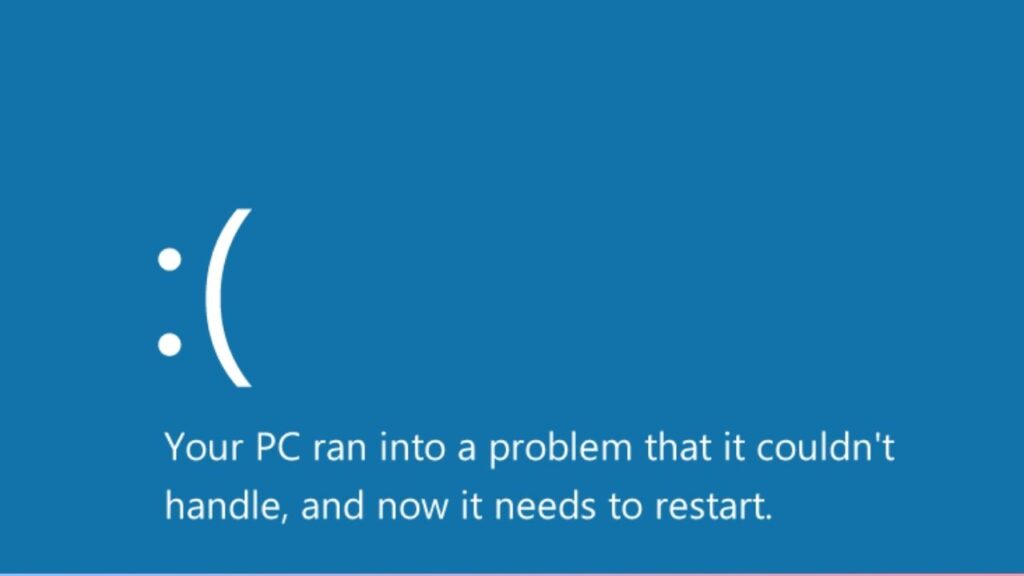
To fix the “Your PC Ran Into a Problem and Needs Restart” error in Windows, restart your computer, disconnect external devices, boot into Safe Mode if necessary, update device drivers, repair corrupted system files using SFC and DISM, check your hard drive and RAM for errors, uninstall recently installed software, update Windows, and perform a System Restore if the problem continues. If none of these solutions work, resetting or reinstalling Windows may be necessary.
The following steps are arranged in a logical order so you can troubleshoot the problem efficiently.
Step 1: Restart Your Computer and Disconnect External Devices
The first thing you should do is perform a clean restart. Temporary Windows glitches can sometimes trigger a BSOD even when nothing is seriously wrong.
Completely shut down your computer instead of simply pressing Restart. Once the PC powers off, disconnect all unnecessary external devices, including USB drives, printers, webcams, external hard drives, game controllers, and docking stations. Leave only your keyboard, mouse, and monitor connected.
Turn your computer back on and use it normally for a while. If the error no longer appears, reconnect one device at a time until you identify the hardware causing the conflict. In many situations, outdated USB device drivers or faulty accessories are responsible for unexpected system crashes.
Step 2: Note the Stop Code
When Windows displays a blue screen, it usually shows a Stop Code near the bottom of the screen.
This code provides valuable information about what caused the crash. Examples include MEMORY_MANAGEMENT, CRITICAL_PROCESS_DIED, SYSTEM_SERVICE_EXCEPTION, IRQL_NOT_LESS_OR_EQUAL, or PAGE_FAULT_IN_NONPAGED_AREA.
Write down the exact stop code or take a picture with your phone before your PC restarts. This information can help narrow down whether you’re dealing with a memory issue, driver problem, storage failure, or another system error.
Step 3: Start Windows in Safe Mode
If your computer crashes every time Windows loads, booting into Safe Mode is the best way to continue troubleshooting.
Safe Mode starts Windows with only essential drivers and services. Since unnecessary software doesn’t load, you can safely diagnose many startup issues.
If Windows won’t boot normally, interrupt the startup process several times until the Windows Recovery Environment appears. Select Troubleshoot, then Advanced Options, followed by Startup Settings, and finally choose Restart. After your computer restarts, press the appropriate key to launch Safe Mode.
If your PC works normally in Safe Mode, the issue is likely caused by a driver, startup application, or third-party software rather than Windows itself.
Step 4: Update or Roll Back Device Drivers
Faulty drivers are among the most common causes of repeated blue screen errors.
Open Device Manager and look for any hardware displaying a yellow warning symbol. Expand each category and update drivers for important components such as your graphics card, storage controller, chipset, network adapter, and display adapter.
If the problem began immediately after updating a driver, open the device properties, select the Driver tab, and choose Roll Back Driver if the option is available. Returning to the previous version often resolves compatibility issues introduced by newer driver releases.
Always install drivers designed specifically for your computer model and Windows version to ensure maximum compatibility.
Step 5: Install the Latest Windows Updates
Microsoft regularly releases updates that improve system stability, fix bugs, and resolve known BSOD issues.
Open Settings, select Windows Update, and check for available updates. Download and install every important update, including optional driver updates if they’re recommended for your hardware.
After installation finishes, restart your computer and monitor whether the problem returns.
Keeping Windows fully updated helps eliminate software conflicts and improves compatibility with newer hardware.
Step 6: Repair Corrupted Windows System Files
Corrupted Windows files frequently cause unexpected crashes and restart loops.
Open Command Prompt as an administrator and run the following command:
sfc /scannow
The System File Checker scans protected Windows files and automatically repairs corrupted versions.
After the scan finishes, run these additional commands one at a time:
DISM /Online /Cleanup-Image /CheckHealth
DISM /Online /Cleanup-Image /ScanHealth
DISM /Online /Cleanup-Image /RestoreHealth
These DISM commands repair the Windows image itself, allowing damaged system components to be restored successfully.
Restart your computer after all scans finish.
Step 7: Check Your Hard Drive for Errors
A failing SSD or hard drive can cause Windows to crash unexpectedly.
Open Command Prompt with administrator privileges and run:
chkdsk C: /f /r
Windows may ask to schedule the scan during the next restart. Type Y, restart your computer, and allow the disk check to complete.
The utility scans for damaged sectors, repairs file system errors, and attempts to recover readable data from problematic areas of the drive.
If disk errors continue appearing repeatedly, your storage device may be developing hardware problems and should be tested further or replaced.
Step 8: Test Your Computer’s Memory
Faulty RAM is another common cause of recurring blue screen errors.
Press Windows + R, type mdsched.exe, and press Enter. Choose Restart now and check for problems.
Your PC will restart and automatically test the installed memory for hardware issues.
If Windows reports memory errors, you may need to reseat the RAM modules, test each stick individually, or replace the defective memory.
Stable RAM is essential because Windows constantly reads and writes information to memory while running.
Step 9: Remove Recently Installed Programs
If the problem started after installing new software, that application may be causing system instability.
Open Settings, navigate to Apps, and review recently installed programs.
Temporarily uninstall antivirus software, hardware utilities, performance tuning applications, RGB control software, virtualization tools, or system optimization utilities that were installed shortly before the crashes began.
Restart your PC after each removal so you can determine whether the application was responsible.
Step 10: Scan for Malware
Some malware modifies Windows system files or drivers, leading to serious operating system errors.
Run a complete system scan using Microsoft Defender Antivirus or another trusted security application.
Allow the scan to remove or quarantine any detected threats before restarting your computer.
Keeping your system free from malware helps maintain both security and overall Windows stability.
Step 11: Perform a System Restore
If the error appeared recently, System Restore may return Windows to a stable condition.
Search for Create a Restore Point, open System Restore, and choose a restore point created before the crashes started.
Windows will restore system files, drivers, and settings without deleting your personal files.
This method is especially useful after problematic driver installations or Windows configuration changes.
Step 12: Reset or Reinstall Windows
If you’ve completed every troubleshooting step and the blue screen continues, resetting Windows may be the best solution.
Open Settings, navigate to System, then Recovery, and choose Reset this PC.
Selecting Keep my files reinstalls Windows while preserving your personal documents. However, installed applications will need to be reinstalled afterward.
If even a reset doesn’t solve the problem, a clean Windows installation or hardware inspection may be necessary, especially if the issue is related to failing components.
FAQs
Is “Your PC Ran Into a Problem and Needs Restart” a virus?
Not usually. This message typically indicates a Windows system error, hardware issue, corrupted driver, or damaged system file. Although malware can occasionally contribute to the problem, it is not the most common cause.
Can outdated drivers cause this error?
Yes. Outdated, incompatible, or corrupted device drivers are one of the leading causes of blue screen crashes in Windows.
Will resetting Windows fix the problem?
In many cases, yes. Resetting Windows replaces damaged system files and restores default settings, making it an effective solution when software corruption is causing repeated crashes.
Can bad RAM trigger repeated blue screens?
Absolutely. Faulty memory can corrupt data being processed by Windows, resulting in frequent BSOD errors and unexpected restarts.
Should I replace my hard drive if CHKDSK finds errors?
Not immediately. Minor file system errors can often be repaired successfully. However, if your drive continues reporting bad sectors or SMART warnings, replacing the storage device is strongly recommended.
How do I prevent this error from happening again?
Keep Windows updated, install only reliable drivers, avoid questionable software, monitor your PC’s temperature, scan regularly for malware, and periodically check your storage drive and memory for hardware issues.
Summary
The “Your PC Ran Into a Problem and Needs Restart” error may seem alarming, but it is usually Windows protecting your system from more serious damage. In most cases, the issue is linked to corrupted system files, faulty drivers, memory problems, disk errors, or software conflicts rather than permanent hardware failure.
By following this guide step by step, starting with simple solutions like restarting your PC and disconnecting external devices before moving on to advanced troubleshooting such as Safe Mode, SFC, DISM, CHKDSK, memory diagnostics, driver updates, and System Restore, you can identify the root cause and restore your computer to stable operation.
If the problem still persists after completing every step, performing a Windows reset or checking your hardware components is the next logical solution.