
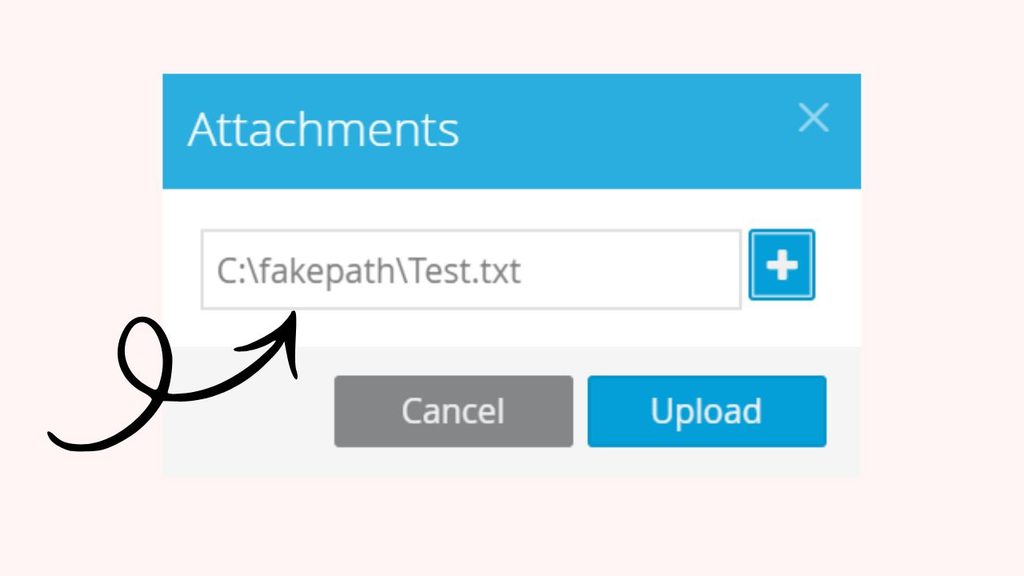
Have you ever tried to upload a photo, document, or other file to a website and noticed something unusual in the file path? Instead of showing the actual location of your file, the browser displays something like C:\fakepath\myfile.jpg.
At first, this can look confusing. You might wonder whether the file is missing, whether the browser has changed its location, or whether something went wrong during the upload process.
Here is the good news. The C:\fakepath\ text is usually normal browser behavior, not an error or a sign of a security problem.
When you select a file using an HTML file upload field, modern browsers generally hide the file’s full local path from the website. They may display a placeholder path beginning with C:\fakepath\ instead. This behavior helps protect your privacy by preventing websites from automatically learning the exact folder locations on your computer.
In this detailed guide, you will learn what fakepath means, why browsers display it, how file uploads work, whether it affects your files, and what you can do if you encounter it while uploading a document.
Let’s break it down step by step.
What Is Fakepath in File Uploads? (Detailed Explanation)
What Does Fakepath Mean?
Fakepath is a placeholder path displayed by a browser when a user selects a file through an HTML file upload field. It commonly appears as C:\fakepath\filename.ext, where filename.ext represents the selected file’s name.
For example, imagine you want to upload a document named resume.pdf to a job application website.
Your actual file might be stored here:
C:\Users\Jordan\Documents\resume.pdf
However, when you select the file using the website’s upload field, the browser may display:
C:\fakepath\resume.pdf
Notice the difference. The actual path includes the user folder and the Documents directory, while the displayed path uses the word fakepath.
The browser is not telling you that your file has moved to a folder called fakepath. It is showing a privacy-preserving representation of the selected file’s path.
The file remains in its original location until an application or operating system action moves or copies it.
Why Do Browsers Use Fakepath?
The main reason is user privacy and security.
In the past, exposing local file paths could reveal information about a person’s computer, including usernames, folder structures, and other details that a website does not need to know.
For instance, a real path might contain a person’s name or the name of a company where the file is stored. Sharing that information unnecessarily could expose details about the user’s environment.
Modern browsers restrict access to this information. When a website uses a standard HTML file input, the browser can provide the selected file’s name and file data without exposing the full local path.
This is why you may see C:\fakepath\ instead of the actual location.
The important distinction is that the browser protects the local path, not the file itself. If you select a file and submit it, the website can still receive the file’s contents if the upload succeeds and the site is designed to process it.
How Does Fakepath Work During a File Upload?
To understand Fakepath properly, it helps to look at the upload process one step at a time.
Step 1: You Open a Website’s Upload Field
Suppose you visit a website that allows you to upload a profile picture, a PDF document, or a spreadsheet.
The website may use an HTML element like this:
<input type=”file” name=”document”>
The type=”file” setting tells the browser to display a file selection control.
Step 2: You Select a File
When you click the upload control, your operating system opens a file picker. You can browse folders and select the file you want to upload.
For example, you might select report.pdf from your Downloads folder.
At this point, the browser has access to the selected file through its file input mechanism, subject to the browser’s security restrictions.
Step 3: The Browser Displays the Selected Filename
After you choose the file, the upload field may display:
C:\fakepath\report.pdf
This display is not the file’s actual location. It is a compatibility-related representation that avoids revealing the full local path.
In JavaScript, the file input’s value property commonly returns a string in this format.
Step 4: The Website Accesses the Selected File
If the website uses JavaScript, it can access the selected file through the input element’s files property.
For example:
const input = document.querySelector(‘input[type=”file”]’);
if (input.files.length > 0) {
const file = input.files[0];
console.log(file.name);
}
This code retrieves the selected file object and displays its filename.
Notice that the code uses input.files, not the fakepath string, to access the selected file. This is the appropriate approach when a website needs information about a selected file.
Step 5: The Website Uploads the File
When you submit the form, the browser can send the selected file’s data to the website’s server using an appropriate HTTP request.
For a traditional HTML form, this often involves multipart/form-data encoding.
The server receives the uploaded file data and processes it according to the website’s functionality.
The fakepath text itself is not the file being uploaded. It is simply a displayed value associated with the browser’s file input.
Is Fakepath a Real Folder on Your Computer?
No. In this context, C:\fakepath\ is not a real folder that the browser creates to store your selected files.
If you search your computer for a folder named fakepath, you generally will not find one created for this purpose.
Your selected file stays wherever you saved it unless you or an application explicitly move or copy it.
For example, if photo.jpg is stored in your Pictures folder, seeing C:\fakepath\photo.jpg does not mean the image has been moved to another directory.
Does Fakepath Mean the Upload Failed?
No. Seeing fakepath does not indicate an upload failure.
The placeholder may appear as soon as you select a file, before you even submit the form. It can also appear when the website has not yet uploaded anything to its server.
To determine whether the upload succeeded, look for a confirmation message, a completed upload indicator, a preview of the uploaded file, or the document appearing in your account.
If the upload fails, the reason could be an unsupported file format, a file-size restriction, a network problem, a server error, or a website validation issue.
The fakepath text alone does not tell you which situation applies.
How Should Developers Handle Fakepath?
If you are developing a website, do not use the file input’s value property as the actual file location.
Instead, use the files property to access the selected file and its available metadata.
For example:
const input = document.querySelector(‘#upload’);
input.addEventListener(‘change’, () => {
const file = input.files[0];
if (file) {
console.log(‘Filename:’, file.name);
console.log(‘File size:’, file.size);
console.log(‘File type:’, file.type);
}
});
This example retrieves the filename, size, and MIME type reported by the browser for the selected file.
If your application needs to upload the file, send the file object through an appropriate upload request, such as a FormData object.
Developers should also remember that client-side file checks are not a substitute for server-side validation. The server should validate the file type, size, permissions, and content according to the application’s security requirements.
Faqs
Why does my file path show C:\fakepath?
Your browser displays a placeholder path to avoid exposing the full local path of a selected file. This is normal behavior in modern browsers.
Can I remove fakepath from the file upload field?
You generally cannot change the browser’s standard file input value to reveal the actual local path. If you are building a website, you can display the selected filename separately using JavaScript.
Does fakepath affect my uploaded file?
No. Fakepath does not change the file’s contents or location. It is a representation of the selected file path, not a physical folder.
Can a website access my actual file path?
Standard browser file input controls are designed to restrict access to the full local path. A website can typically access the selected file and its metadata through authorized browser APIs, but it does not automatically receive the full local path.
Is fakepath a virus or malware?
No. The fakepath string itself is not a virus, malware, or warning sign. However, you should still upload files only to websites you trust because a website may receive the contents of files you deliberately submit.
Why does fakepath appear even before I upload a file?
Selecting a file updates the browser’s file input control. The displayed placeholder can appear immediately, even though you have not submitted the form or sent the file to a server.
How can I get the filename without fakepath in JavaScript?
Use the selected file object’s name property:
const file = document.querySelector(‘input[type=”file”]’).files[0];
if (file) {
console.log(file.name);
}
This returns the filename, such as report.pdf, without the placeholder path.
Does fakepath appear in every browser?
The exact display can vary by browser and operating system. The C:\fakepath\ format is commonly associated with HTML file inputs in modern browsers, but the underlying privacy principle is broadly applicable.
Final Thoughts
Fakepath in file uploads is a normal browser security feature, not an actual folder or an indication that something has gone wrong. When you see a path such as C:\fakepath\document.pdf, the browser is protecting your local file path while allowing the website to work with the file you selected.
For everyday users, there is usually nothing you need to fix. Select your file, submit the form, and check whether the website confirms the upload.
For developers, the key lesson is straightforward: use the file input’s files property to access the selected file instead of relying on its value property to determine the file’s location.
Once you understand this distinction, fakepath becomes much less confusing.