
Have you ever visited a Facebook profile and noticed that the person’s profile is locked, making it difficult to view their profile photo or download it? If so, you’re not alone. Facebook’s profile lock feature is designed to give users more control over their personal information, photos, and profile visibility.
When you try to open a locked Facebook profile, you may find that the profile photo is restricted, appears smaller, or doesn’t provide the same viewing options as a public profile. This can be frustrating, especially when you’re trying to identify someone you know or view a photo they have shared.
The good news is that there are legitimate ways to check whether a profile photo is publicly available, find photos that the person has intentionally shared, or request a copy directly from the profile owner. However, you cannot reliably bypass Facebook’s privacy restrictions to access private photos without permission.
In this guide, you’ll learn how to view locked Facebook profile photos using legitimate methods, how to download photos when Facebook provides access, and which approaches you should avoid.
How to View Locked Facebook Profile Photos (Download Photos)
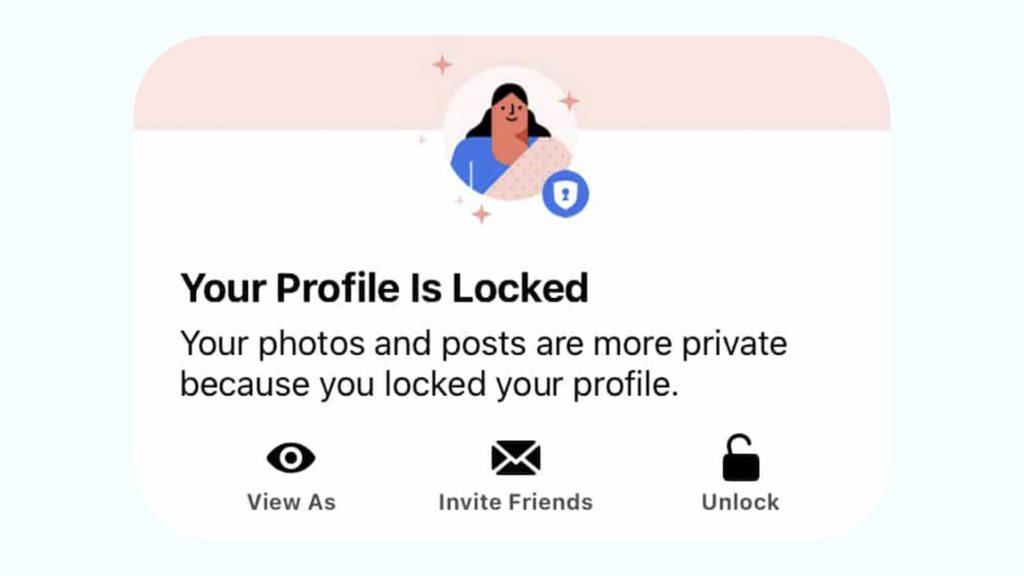
To view or download a locked Facebook profile photo, follow these steps:
- Open Facebook and search for the profile whose photo you want to view.
- Visit the person’s profile and check whether the profile photo is publicly visible.
- Look for other publicly shared photos, posts, or profile images.
- Check whether the same photo is available on a public Facebook post or another authorized source.
- Ask the profile owner to share the original photo if it is restricted.
- Download the photo only when Facebook provides access or the owner gives you permission.
- Avoid websites and tools that claim to unlock private Facebook photos by bypassing privacy settings.
Facebook’s Profile Lock feature limits how people outside a user’s Facebook friends list can access certain profile information. Depending on Facebook’s current interface and the user’s privacy settings, you may see a profile picture without being able to open or download the original image.
It is important to understand the difference between viewing a publicly available profile photo and trying to access a photo that the profile owner has restricted. A public image can sometimes be opened and saved through Facebook’s normal features. A private or restricted image should not be accessed through methods that attempt to defeat those controls.
The following steps explain how to explore available options without compromising another person’s privacy.
1: Open Facebook and Find the Locked Profile
The first step is to locate the Facebook profile whose profile photo you want to view. You can use Facebook through a web browser on your Windows 11 or Windows 10 computer, or through the Facebook mobile app on your phone.
Open your browser and go to Facebook, or launch the Facebook app. Sign in to your account if necessary. Then, select the Search option and enter the person’s name, username, or another relevant search term. Choose the correct profile from the search results.
Once you reach the profile, check whether you see a Profile Locked message or a lock symbol. Facebook’s interface may vary depending on the platform and account settings.
If the profile is locked, do not assume that every photo associated with that person is unavailable. Some information, such as a profile picture or certain public interactions, may still be visible. Your next step is to identify which content Facebook allows you to access.
2: Check Whether the Profile Photo Is Publicly Visible
After opening the profile, look at the person’s current profile picture. Depending on the privacy settings and Facebook’s interface, you may be able to see a small version of the photo, while the larger image or additional viewing options remain restricted.
Select the profile picture only if Facebook presents it as an accessible image. If the platform allows you to open the photo, check whether it provides options such as viewing the image, sharing it, or saving it. These options depend on the photo’s availability and Facebook’s current features.
If the photo cannot be opened in a larger view, do not treat that as an error that needs to be bypassed. A locked profile may intentionally limit access to the original image.
Important: Seeing a thumbnail does not automatically mean that you have permission to obtain the original, high-resolution photo. The visible image and the downloadable original may have different access restrictions.
Sometimes, a person uses the same picture as their Facebook profile photo and in a separate post, cover image, or publicly visible album. Checking content that the user has intentionally made public can help you find an accessible version of the photo.
To explore available content, open the person’s profile and look for any visible posts, shared images, or public activity. Depending on Facebook’s privacy settings, you may be able to navigate through options such as Posts, Photos, or other sections.
On a browser, you can follow the navigation path:
Facebook > Search > Person’s Profile > Publicly Visible Posts or Photos
The exact sections shown may vary based on the profile’s privacy settings and Facebook’s interface.
If you find the same image in a public post, open that post and check whether Facebook provides an option to view or save the photo. Only use the options that Facebook makes available to you.
Do not assume that a photo appearing in a public post gives you permission to reuse it for commercial purposes, repost it without consent, or distribute it to other people. Public visibility and ownership are not the same thing.
Another way to locate an accessible version of a profile picture is to check whether the image was shared in a post by the profile owner or someone else. This method does not unlock a private profile. It simply helps you find an image that may already be available through an authorized sharing context.
For example, a person might upload a photograph to a public event post, a community group, or a shared celebration. If you can legitimately access that post, you can check whether the image is available there.
Open Facebook and navigate through the visible post or shared content:
Facebook > Search > Public Post > Open Photo > Check Available Options
If Facebook allows you to open the photo, you may see a menu with options for sharing or saving it. The available controls depend on the post’s permissions and the device you are using.
If the photo is restricted to a specific audience, do not try to change its privacy settings or use an unauthorized method to retrieve it. Instead, consider asking the person who shared it for permission.
If the profile photo is locked and you cannot access a downloadable version, contacting the profile owner is the most direct option. This approach respects the person’s privacy and can help you obtain the original photo in better quality.
You can send a Facebook Messenger message if the person’s settings allow messages from you. Explain why you want the photo and ask whether they would be comfortable sharing it.
For example, you might say that you would like to see the photo more clearly or save a copy for a specific personal reason. Keep the request polite and allow the person to decide whether they want to share it.
If the person agrees, they can send you the photo through Messenger or another method they choose. Once you receive the image with permission, you can save it using the download options provided by your device or messaging platform.
This method is especially useful when the profile picture is not available in full resolution through Facebook’s public interface.
6: Download the Photo Only When Access Is Available
If Facebook allows you to open a photo and provides a saving option, you can download it using the platform’s available controls. The exact process depends on whether you’re using Facebook on a computer, Android phone, or iPhone.
Download a Facebook Photo on Windows 11 or Windows 10
Open Facebook in your browser and navigate to the accessible photo. If the image opens in a larger view, look for the available menu or download option. If Facebook provides a Download option, select it and follow your browser’s instructions.
Some photos may not have a direct download button. In that situation, the available options depend on Facebook’s current interface and the permissions associated with the image.
Do not use third-party tools to circumvent restrictions if Facebook does not provide a legitimate download option.
Download a Photo on Android
Open the Facebook app and navigate to the accessible image. If Facebook offers a download or save option, follow the displayed instructions. Depending on the app version, the image may be saved to your phone’s gallery or another location.
If you receive the photo directly through Messenger, you can use the available save or download controls in the conversation, provided you have permission to retain the image.
Download a Photo on iPhone
Open Facebook or Messenger on your iPhone and access the photo you are authorized to view. Check the available sharing or saving controls. If the application provides an option to save the image, follow the on-screen instructions.
The exact menu names can change with app updates, so use the options that are currently displayed on your device.
7: Avoid Websites That Claim to Unlock Facebook Profile Photos
You may come across websites, browser extensions, or online tools that claim they can view locked Facebook profile photos in full size. Some may advertise profile unlocking, private photo viewing, or high-resolution downloads.
You should be cautious with these services. A website’s claim that it can unlock a private profile does not establish that it has legitimate access to Facebook’s restricted content.
Some suspicious services may ask you to enter your Facebook username and password, download an unknown program, install a browser extension, or complete multiple surveys. These requests can expose you to phishing, unwanted software, or privacy risks.
Never provide your Facebook login credentials to an untrusted third-party website. You should also avoid installing software simply because it promises access to restricted photos.
If you have already entered your password into a suspicious website, review your Facebook account security settings and consider changing your password through Facebook’s official account controls.
Can You Use Google Search to Find the Full Profile Photo?
Google Search may index publicly available images and pages, but it does not provide a legitimate method for bypassing Facebook’s profile privacy settings.
You can search for a person’s name or publicly shared content if you have a valid reason to do so. However, search results may be incomplete, outdated, or unrelated to the profile you are looking for.
If a photo has not been made publicly available, you should not assume that search engines or third-party services can legitimately retrieve it.
Additional Methods to View Locked Facebook Profile Photos
The following three methods are often discussed in tutorials about viewing locked Facebook profile photos. However, they do not guarantee access to restricted images, and some of the instructions may no longer work because Facebook changes its website structure and privacy controls.
You can include these methods in your guide to explain how they work, their limitations, and the security considerations beginners should understand. The important distinction is that examining publicly delivered webpage content is different from bypassing Facebook’s access restrictions.
Use the Inspect Option in Google Chrome to Examine Available Images
Google Chrome’s Inspect option, also known as Developer Tools, allows you to examine the webpage elements and resources that your browser receives. This feature is useful for understanding how Facebook displays images, but it does not automatically unlock private profile photos or cover photos.
If you are trying to inspect an image that Facebook has already made available to your browser, you can use Chrome’s developer tools to examine the relevant webpage elements.
Open the Facebook Profile in Google Chrome
Launch Google Chrome on your Windows 11 or Windows 10 computer. Open Facebook and sign in to your account if necessary. Use the search bar to find the profile whose publicly accessible photo you want to examine.
Navigate to the profile and check whether the profile picture or cover photo is visible. If the image is not available to your account, opening Developer Tools will not grant additional permissions.
Open the Inspect Option
Once the Facebook page is open, right-click an appropriate area of the webpage and select Inspect. Alternatively, you can press Ctrl + Shift + I on your Windows keyboard to open Chrome Developer Tools.
The developer console will appear, usually on the right side or bottom of your browser window. Its layout may vary depending on your Chrome settings.
Follow this navigation path:
Google Chrome > Facebook Profile > Right-Click > Inspect
The Inspect option lets you examine the HTML and other resources associated with the webpage. It is not a Facebook privacy-unlocking feature.
Examine Publicly Delivered Image Elements
Within Developer Tools, you can use the Elements tab to examine the webpage structure. If the profile contains an image that your account is already authorized to view, the relevant image element may be visible in the page’s HTML.
The Sources tab can also display resources loaded by the webpage. Depending on Facebook’s current website architecture, the available folders and resource names may differ from older tutorials.
Some older guides mention folders beginning with scontent or specific Facebook content delivery URLs. These references should not be treated as a guaranteed method for finding locked profile images. A resource appearing in Developer Tools does not establish that it contains a restricted original photo or that you are authorized to access it.
Important: Do not use Developer Tools to attempt to circumvent access restrictions, retrieve resources that your account is not authorized to access, or expose another person’s private content.
Online Facebook Profile Picture Viewer Websites
You may find websites that advertise themselves as Facebook profile picture viewers. These services often claim that you can enter a Facebook profile link and view the profile picture in full size, even when the profile is locked.
Some websites may display a publicly accessible image, while others may be unreliable, outdated, or unable to provide the promised result. A website’s claim that it can unlock a profile picture does not verify that it has legitimate access to restricted Facebook content.
Search for Information About a Profile Viewer
If you encounter an online profile viewer, review its claims carefully before interacting with it. Avoid entering your Facebook password, security codes, or other account credentials into an unfamiliar website.
A website that asks you to complete a CAPTCHA, click multiple advertisements, install software, or provide personal information should be treated with caution. A CAPTCHA alone does not establish that a service is trustworthy.
You can examine whether the website offers a legitimate explanation of its service, but do not assume that its claims have been verified.
Entering a Facebook Profile Link
Some profile viewer websites ask you to copy a Facebook profile URL and paste it into a text field. Although copying a public profile link is generally straightforward, submitting it to an unknown third-party service can raise privacy and security concerns.
If a website promises to retrieve a restricted photo, there is no guarantee that the result is accurate, authorized, or safe to download. Avoid services that require your Facebook login credentials or ask you to install untrusted browser extensions.
Downloading an Image From a Third-Party Website
If a third-party website displays an image, you should not automatically assume that the image is the original profile photo or that you have permission to save and distribute it.
Before downloading or reusing an image, consider whether it is publicly available, whether the source is trustworthy, and whether you have permission from the photo owner. For restricted profile photos, asking the profile owner to share the image is the more appropriate approach.
Security reminder: Do not rely on online Facebook profile picture viewers to bypass privacy settings. Their functionality and safety cannot be assumed simply because they appear in search results.
Understand the Basic Version of Facebook (mbasic)
Older Facebook tutorials sometimes recommend using the Basic version of Facebook, commonly associated with the mbasic.facebook.com address. This version was designed around a simpler interface, and some older guides claimed that it could make profile pictures easier to access.
However, using an alternative Facebook interface does not automatically remove a person’s privacy settings. The availability, functionality, and behavior of Facebook’s basic website may change over time, and older instructions may no longer work as described.
Open Facebook Through Your Mobile Browser
If you want to check whether Facebook offers an alternative accessible interface, open your smartphone’s browser and navigate to Facebook’s official website. Sign in using the official Facebook login page rather than entering your credentials into an unfamiliar third-party website.
Search for the profile you want to view and check what content is available to your account.
Understand the mbasic Address
Older tutorials may refer to addresses that begin with mbasic.facebook.com. However, you should not assume that adding mbasic to a Facebook URL will provide access to locked profile images or that the older interface is still available in the same form.
If the address redirects, fails to load, or does not display the expected page, it may reflect changes to Facebook’s website or the availability of that interface.
Save a Photo Only When Facebook Allows Access
If Facebook displays a publicly accessible image and provides an appropriate saving option, you can use the controls available in your browser or app. On some devices, a long press on an accessible image may display a Save Image or similar option, but the menu depends on the browser, app, and image permissions.
Do not interpret the presence of a save option as authorization to access a restricted original photo. If the image is not available to you, use an authorized alternative, such as requesting a copy from the profile owner.
Note for beginners: The basic version of Facebook is not a guaranteed solution for viewing locked profile photos. An older interface may display content differently, but it does not provide a reliable way to bypass privacy restrictions.
Which of These Methods Should You Use?
The three methods above have different purposes and limitations. Understanding these differences can help you avoid wasting time or exposing your Facebook account to unnecessary risks.
| Method | What It Can Do | Important Limitation |
| Chrome Inspect | Examine webpage elements and publicly delivered resources | Does not guarantee access to restricted photos |
| Online profile viewer | May claim to display profile pictures | Unverified services may be unsafe or unreliable |
| Basic Facebook / mbasic | Provides an older or alternative interface when available | Does not guarantee access to locked images |
The Inspect option is useful for learning about webpage elements and examining images that you are already authorized to view. Online profile viewers should be approached cautiously because their claims and security practices vary. The Basic Facebook method is an older approach that may no longer function as described in previous tutorials.
If your goal is simply to obtain a clearer copy of someone’s profile photo, the most direct option is to ask the person to share it with you.
Final Security and Privacy Reminder
Facebook’s privacy controls exist to give users control over their personal information. A locked profile does not mean that a photo is available for anyone to retrieve through alternative website interfaces, browser tools, or third-party services.
Use the Inspect option for legitimate webpage inspection, avoid untrusted profile viewer websites, and do not rely on older Facebook interface tricks to bypass privacy restrictions. When a photo is not accessible, requesting permission from the profile owner remains the most appropriate way to obtain a copy.
FAQs
Can I view a locked Facebook profile picture in full size?
It depends on what Facebook makes available to you. You may be able to view a limited version of a profile picture, but access to a larger or original image may be restricted. There is no guaranteed, legitimate method for unlocking every private profile photo.
Can I download a locked Facebook profile photo?
You can download a photo when Facebook provides an appropriate saving option or when the profile owner shares the image with you. If the photo is restricted, you should not use tools designed to bypass the person’s privacy settings.
Does Facebook notify someone when I view their profile picture?
Facebook does not generally provide a standard notification that tells users who viewed their personal profile. However, interactions such as likes, comments, and certain story views may have different visibility rules. Avoid assuming that all Facebook activity is completely anonymous.
Can I use a third-party website to unlock Facebook profile photos?
You may encounter websites that make this claim, but you should not rely on them to bypass privacy restrictions. Websites that request your Facebook credentials or require suspicious downloads can create security risks.
Why can’t I open someone’s Facebook profile picture?
The profile may be locked, the image may have restricted visibility, or Facebook may have changed how the photo can be opened. The person’s privacy settings and Facebook’s current interface affect the available options.
Can I ask someone to send me their locked profile photo?
Yes. You can politely ask the profile owner to share the photo if they are comfortable doing so. They can choose whether to send it and which version they want to share.
Can I screenshot a visible Facebook profile photo?
A screenshot may be technically possible on some devices, but the ability to capture an image does not automatically give you permission to distribute or reuse it. Respect the profile owner’s privacy and consider asking for permission before saving or sharing the photo.