
A write-protected USB drive can quickly become frustrating when you cannot copy, delete, edit, or move files. In many cases, Windows displays errors such as “The disk is write-protected” or “Remove the write protection or use another disk.” This issue can occur due to hardware locks, corrupted settings, registry issues, disk errors, or malware infections.
The good news is that most write protection problems can be fixed using simple Windows tools. You do not always need third-party software or advanced technical skills.
By following the correct steps, you can restore full access to your USB drive and use it normally again.
Let’s learn the steps!
Why Does a USB Drive Become Write-Protected?
A USB drive may become write-protected because of physical damage, corrupted file systems, incorrect registry settings, malware infections, or accidental permission changes. Some USB drives also include a physical lock switch that prevents data modification.
Windows uses write protection as a safety feature to stop unauthorized file changes. However, when this feature activates incorrectly, users lose the ability to manage files on the drive.
The following methods will help you remove the restriction safely.
The Disk is Write-Protected: Remove Write Protection from a USB Drive [Easy Ways]
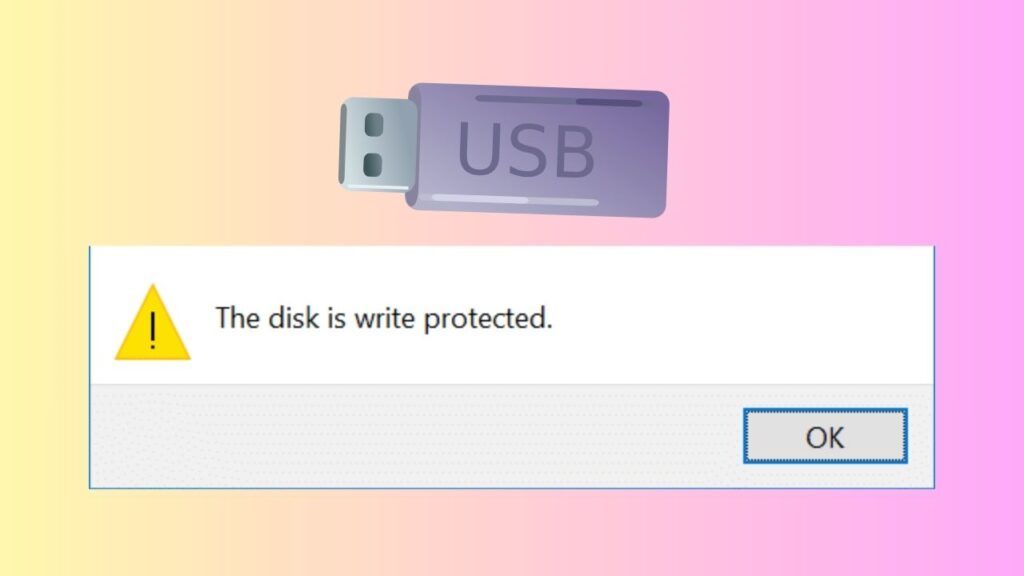
To Remove Write Protection from a USB Drive:
- Check if the USB drive has a physical lock switch and unlock it.
- Reconnect the USB drive to another USB port or computer.
- Use DiskPart in Command Prompt to clear the read-only attribute.
- Disable write protection using the Windows Registry Editor.
- Change USB drive permissions through Windows Security settings.
- Scan the USB drive for malware or corrupted files.
- Run CHKDSK to repair disk errors.
- Format the USB drive if none of the methods work.
Step 1: Check the Physical Lock Switch on the USB Drive
Some USB flash drives include a small physical switch that enables or disables write protection. This is one of the most common and easiest fixes.
Carefully remove the USB drive from your computer and inspect both sides of the device. Look for a tiny switch labeled Lock, Unlock, or something similar.
If the switch is in the locked position, slide it to the unlocked position. After that, reconnect the USB drive to your computer and try copying or deleting a file.
Many users overlook this simple solution because the switch is often very small. If your USB drive does not have a lock switch, continue with the next method.
Step 2: Reconnect the USB Drive to Another USB Port
Sometimes the issue is caused by a faulty USB port rather than the USB drive itself. Windows may incorrectly detect the device as write-protected because of connection problems.
Safely remove the USB drive from your computer. Wait a few seconds and connect it to another USB port. If possible, avoid using external USB hubs because they can sometimes create communication issues.
You should also test the USB drive on another computer. If the drive works normally on another system, the problem may be related to your Windows settings instead of the USB drive itself.
This quick test helps identify whether the issue is hardware-related or software-related.
Step 3: Remove Write Protection Using DiskPart Command
DiskPart is a built-in Windows utility that allows you to manage storage devices through Command Prompt. This method is highly effective for removing read-only restrictions from USB drives.
First, connect the USB drive to your computer.
Go to Start Menu, type Command Prompt, right-click Command Prompt, then select Run as administrator.
In the Command Prompt window, type the following commands one by one and press Enter after each command:
diskpart
list disk
You will now see a list of storage devices connected to your computer. Identify your USB drive carefully by checking its storage size.
Next, type:
select disk X
Replace X with the correct disk number for your USB drive.
After selecting the drive, type:
attributes disk clear readonly
If the process is successful, Windows will display a confirmation message saying the disk attributes were cleared successfully.
Now type:
exit
Close the Command Prompt and test the USB drive again.
This method removes software-based write protection from many USB devices.
Step 4: Disable Write Protection Through Registry Editor
Incorrect registry settings can sometimes force Windows to treat removable drives as read-only devices.
Before editing the registry, create a backup because incorrect changes may affect your system.
Go to the Start Menu, type Run, then open the Run dialog box.
Type:
regedit
Press Enter.
Inside the Registry Editor, follow this path carefully:
HKEY_LOCAL_MACHINE > SYSTEM > CurrentControlSet > Control > StorageDevicePolicies
Look for a value called WriteProtect on the right side.
Double-click WriteProtect and change the value from 1 to 0.
Click OK and restart your computer.
If you do not see the StorageDevicePolicies folder, you can create it manually.
Right-click the Control folder, then select New, then Key, then name it StorageDevicePolicies.
Inside that folder, right-click the empty area, then choose New, then DWORD (32-bit) Value. Name it WriteProtect and set the value to 0.
Restart your computer and reconnect the USB drive.
This method works well when system-level settings cause the write protection problem.
Step 5: Change USB Drive Security Permissions
Sometimes you cannot edit files because your Windows user account does not have full permissions for the USB drive.
- Connect the USB drive to your computer.
- Go to This PC, right-click your USB drive, then select Properties.
- Open the Security tab.
- Click your username under the Group or user names section.
- Check whether Full Control is allowed under permissions.
- If Full Control is not enabled, click Edit.
- Select your username again and enable Full Control.
- Click Apply and then click OK.
- Reconnect the USB drive and test whether you can now modify files.
Permission issues commonly happen after using the USB drive on multiple computers.
Step 6: Scan the USB Drive for Malware
Viruses and malware can sometimes change storage settings and trigger write protection errors.
Windows Security provides a built-in scanning tool that can help detect malicious files.
- Connect your USB drive to the computer.
- Go to the Start Menu, type Windows Security, then open the application.
- Select Virus & threat protection.
- Click Scan options, then choose Custom scan.
- Select your USB drive and begin the scan.
If Windows detects malware, follow the recommended steps to remove the infected files.
After the scan is complete, disconnect and reconnect the USB drive.
Malware removal may restore normal access to the drive.
Step 7: Repair Disk Errors Using CHKDSK
File system corruption can also cause write protection errors. Windows includes a built-in repair utility called CHKDSK that scans and fixes disk problems.
Connect your USB drive to the computer.
Go to Start Menu, type Command Prompt, right-click Command Prompt, and choose Run as administrator. Type the following command:
chkdsk X: /f /r
Replace X with the drive letter of your USB drive. Press Enter.
The scan may take several minutes, depending on the size and condition of the drive. Once the process finishes, restart your computer and test the USB drive again.
This method helps repair bad sectors and corrupted file system structures.
Step 8: Update USB Drivers in Device Manager
Outdated or corrupted USB drivers may interfere with how Windows communicates with storage devices.
- Connect the USB drive to your computer.
- Go to the Start Menu, type Device Manager, then open it.
- Expand the Disk drives section.
- Right-click your USB drive, then select Update driver.
- Choose Search automatically for drivers.
- Windows will search for the latest compatible driver.
You can also uninstall the device and reconnect it so Windows reinstalls the drivers automatically.
After updating the drivers, restart your computer.
Driver updates can resolve compatibility problems and remove false write protection errors.
Step 9: Format the USB Drive
If none of the previous methods work, formatting the USB drive may solve the issue. Keep in mind that formatting deletes all stored data, so back up important files first if possible.
- Connect the USB drive to your computer.
- Go to This PC, right-click the USB drive, then select Format.
- Choose the preferred file system, such as FAT32, exFAT, or NTFS.
- Leave the Quick Format option enabled for faster formatting.
- Click Start.
Wait until the process finishes.
If Windows cannot complete the format, use DiskPart for advanced formatting.
Open Command Prompt as administrator and type:
diskpart
list disk
select disk X
clean
create partition primary
format fs=ntfs quick
assign
exit
After formatting, the USB drive should work normally again.
Step 10: Check if the USB Drive Is Damaged
In some situations, the USB drive itself may be failing. Physical damage, worn memory cells, or internal hardware problems can permanently trigger write protection.
Common signs of a failing USB drive include:
- Frequent disconnections
- Extremely slow transfer speeds
- Files disappearing automatically
- Inability to format the drive
- Repeated write protection errors after fixes
If your USB drive shows these symptoms, replacing it may be the best option.
Using professional data recovery software may help recover important files before the drive stops working completely.
FAQs
Why does my USB drive suddenly become write-protected?
A USB drive can become write-protected because of corrupted settings, malware infections, damaged file systems, hardware failure, or accidental activation of a physical lock switch.
Can Command Prompt remove write protection from a USB drive?
Yes. Using the DiskPart utility in Command Prompt is one of the most effective ways to remove software-based write protection from USB drives.
Will formatting remove write protection?
Formatting can remove write protection if the issue is related to file system corruption or software settings. However, formatting erases all stored data on the drive.
What should I do if DiskPart says the media is write-protected?
If DiskPart cannot clear the read-only status, try editing the Windows Registry, updating USB drivers, repairing disk errors, or testing the USB drive on another computer.
Can viruses cause write protection on USB drives?
Yes. Certain malware programs modify storage permissions and restrict access to files, making the USB drive appear write-protected.
Is a write-protected USB drive permanently damaged?
Not always. Many write protection issues are software-related and can be fixed. However, if the USB drive has physical hardware damage, the problem may be permanent.
Summary
Removing write protection from a USB drive in Windows is usually straightforward when you follow the correct troubleshooting methods. Simple fixes like checking the physical lock switch or reconnecting the device often solve the problem immediately. More advanced solutions, such as using DiskPart, editing the Windows Registry, repairing disk errors, and updating drivers, can resolve deeper software-related issues.
If the USB drive still remains write-protected after trying every method, formatting the device may restore functionality. However, persistent issues after formatting often indicate hardware failure. In that case, replacing the USB drive is usually the best long-term solution.