
If you manage a website hosted on Internet Information Services (IIS), you will eventually need to restart IIS to apply configuration changes, recover from service issues, or bring a stopped web server back online. While the IIS Manager provides a graphical way to manage IIS, using the Command Prompt is often much faster, especially for system administrators, developers, and IT professionals.
One of the most commonly used commands for IIS management is iisreset. Within this command, iisreset /start is specifically designed to start IIS services after they have been stopped. Understanding how this command works can help you manage your Windows web server more efficiently and avoid unnecessary downtime.
In this guide, you’ll learn what iisreset /start does, when you should use it, how to run it correctly, and what to do if the command doesn’t work as expected. Everything is explained in simple, conversational US English, making it easy for beginners to follow.
Understanding the iisreset /start Command
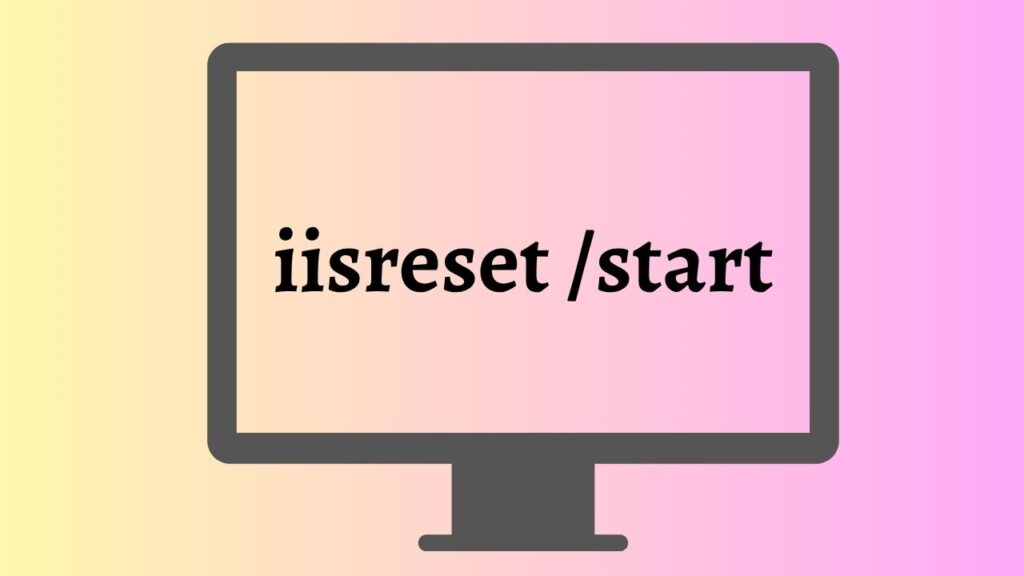
To start IIS from the Command Prompt, open Command Prompt with administrator privileges, type iisreset /start, and press Enter. This command starts all IIS services if they are currently stopped. If IIS is already running, the command typically informs you that the services are already active. Always run the command from an elevated Command Prompt to avoid permission-related errors.
What Is iisreset /start?
The iisreset utility is a built-in Windows command-line tool used to manage Internet Information Services. It allows administrators to stop, start, or restart IIS services without opening the IIS Manager interface.
The /start parameter specifically tells Windows to start IIS services. Unlike a complete IIS restart, this command only starts the services if they are currently stopped. It does not stop and restart services that are already running.
This makes iisreset /start useful when IIS has been intentionally stopped for maintenance or when it has stopped unexpectedly due to a service issue.
Before you use this command, make sure IIS is already installed on your Windows computer or Windows Server. If IIS is not installed, Windows will not recognize the command.
When Should You Use iisreset /start?
There are several situations where this command becomes useful.
If IIS services were manually stopped during maintenance, iisreset /start quickly brings them back online.
If your web server failed to start after a Windows restart, this command can manually start the necessary IIS services.
If you’re troubleshooting website availability and discover that IIS services are stopped, this command provides a quick way to restore normal operation.
It is also commonly used after server maintenance windows where administrators intentionally stop web services before making system changes.
Restart IIS via Command Line
Step 1: Open Command Prompt as Administrator
The first thing you need to do is launch Command Prompt with administrator permissions. Since IIS manages system-level services, standard user permissions are not enough.
Go to Start > Windows Tools > Command Prompt. Right-click Command Prompt, then choose Run as administrator. If the User Account Control window appears, click Yes.
Another quick method is to press Windows + S, type cmd, right-click Command Prompt, and choose Run as administrator.
Once the elevated Command Prompt window opens, you’ll be ready to enter IIS management commands. Running the command without administrator privileges usually results in an Access is denied error, so always verify that the Command Prompt window has elevated permissions before continuing.
Step 2: Run the iisreset /start Command
With the administrator Command Prompt open, type the following command exactly as shown:
iisreset /start
Press Enter.
Windows immediately checks the status of the IIS services. If IIS is currently stopped, Windows starts the required services, including the World Wide Web Publishing Service, along with other dependent IIS components.
If everything starts successfully, you’ll receive a confirmation message indicating that the Internet services have been started successfully.
If IIS is already running, Windows may display a message indicating that the services are already active. This simply means no additional action is needed.
The entire process usually takes only a few seconds unless the server is heavily loaded or additional services need extra time to initialize.
Step 3: Verify That IIS Started Successfully
After running the command, it’s a good idea to verify that IIS is actually running.
Go to Start > Windows Tools > Internet Information Services (IIS) Manager.
Open IIS Manager and expand your server name in the left navigation pane. Select Sites, then verify that your website displays a Started status.
You can also open your preferred web browser and enter either:
http://localhost
or
http://127.0.0.1
If IIS is working correctly, the default IIS page or your hosted website should load without errors.
If your website uses a custom hostname, enter that address instead to verify that the application is responding correctly.
Taking a moment to verify the server ensures that IIS services started successfully and that your websites are available to users.
Check IIS Service Status if the Command Does Not Work
Sometimes iisreset /start may not produce the expected results. In that case, checking the IIS services directly can help identify the issue.
Go to Start > Windows Tools > Services.
Locate World Wide Web Publishing Service in the list.
Verify that the Status shows Running.
If the service is stopped, right-click it and select Start.
Also check the Windows Process Activation Service, since IIS depends on this service to function correctly. If this service is stopped, IIS may fail to start even when you run iisreset /start.
If both services are running but websites remain unavailable, additional troubleshooting may be required.
Confirm Your Website Is Responding Properly
Starting IIS services is only part of the process. You should also confirm that your website is functioning normally.
Go to Start > Windows Tools > Internet Information Services (IIS) Manager > Sites.
Select your website and verify that the State displays Started.
Open a browser and test multiple pages of your website instead of only the homepage. If you’re hosting web applications such as ASP.NET, verify that the application loads correctly and database connections work as expected.
Checking the complete website helps ensure that IIS services started successfully and that your users can access every part of your application.
Common Errors When Using iisreset /start
One common issue is the ‘iisreset’ is not recognized as an internal or external command error. This usually means IIS is not installed, or the required IIS management components are missing.
Another common error is Access is denied. This almost always happens when the Command Prompt was not opened with administrator privileges.
Sometimes IIS starts successfully, but websites still do not load. In this situation, the problem may be related to application pools, firewall settings, DNS configuration, SSL certificates, or website bindings rather than IIS itself.
If the command appears to hang for an extended period, restarting the affected IIS services individually through the Services console or reviewing the Event Viewer logs may provide additional details.
Difference Between iisreset, iisreset /start, and iisreset /stop
Understanding the differences between these commands helps you choose the correct one.
The iisreset command performs a complete restart by stopping all IIS services and then starting them again. This is commonly used after making configuration changes.
The iisreset /start command only starts IIS services if they are currently stopped. It does not interrupt services that are already running.
The iisreset /stop command shuts down all IIS services without automatically starting them again. This is useful during maintenance or before performing certain administrative tasks.
Using the appropriate command minimizes unnecessary service interruptions and reduces website downtime.
FAQs
Is iisreset /start the same as restarting IIS?
No. iisreset /start only starts IIS services if they are stopped. A full restart uses the iisreset command without additional parameters.
Do I need administrator privileges to run iisreset /start?
Yes. You should always open Command Prompt as an administrator before running the command.
Does iisreset /start restart websites?
No. It only starts IIS services that are currently stopped. It does not restart services that are already running.
Can I use iisreset /start on Windows 11?
Yes. As long as Internet Information Services (IIS) is installed, the command works on supported versions of Windows 11, Windows 10, and Windows Server.
What should I do if iisreset /start fails?
Verify that IIS is installed, confirm you’re running an elevated Command Prompt, check that the World Wide Web Publishing Service and Windows Process Activation Service are available, and review Event Viewer for detailed error information.
Summary
Understanding iisreset /start is an essential skill for anyone managing websites on Internet Information Services. Unlike a full IIS restart, this command simply starts IIS services that are currently stopped, making it a quick and efficient way to restore web server functionality without unnecessarily interrupting running services.
By opening an elevated Command Prompt, running iisreset /start, verifying that IIS has started correctly, checking service status when needed, and confirming that your websites are responding properly, you can confidently manage IIS from the command line.
Once you become comfortable with this command, routine IIS administration becomes faster, simpler, and much more efficient.