
The ability to put a person’s profile directly on the Windows taskbar has changed over time. On supported versions of Windows 10, Microsoft provided a People experience that allowed users to access contacts from the taskbar. This feature was designed for quickly starting conversations with people you contacted frequently.
Windows 11 has a different taskbar design and does not include the same People taskbar experience. Therefore, if you are following an older Windows 10 tutorial and cannot find a People icon on Windows 11, your computer is not necessarily having a problem. The feature itself is different in Windows 11.
Fortunately, you can still create a convenient workflow for your favorite contacts. Depending on your communication method, you can use Microsoft Teams, a web-based messaging service, or a shortcut associated with your preferred communication application.
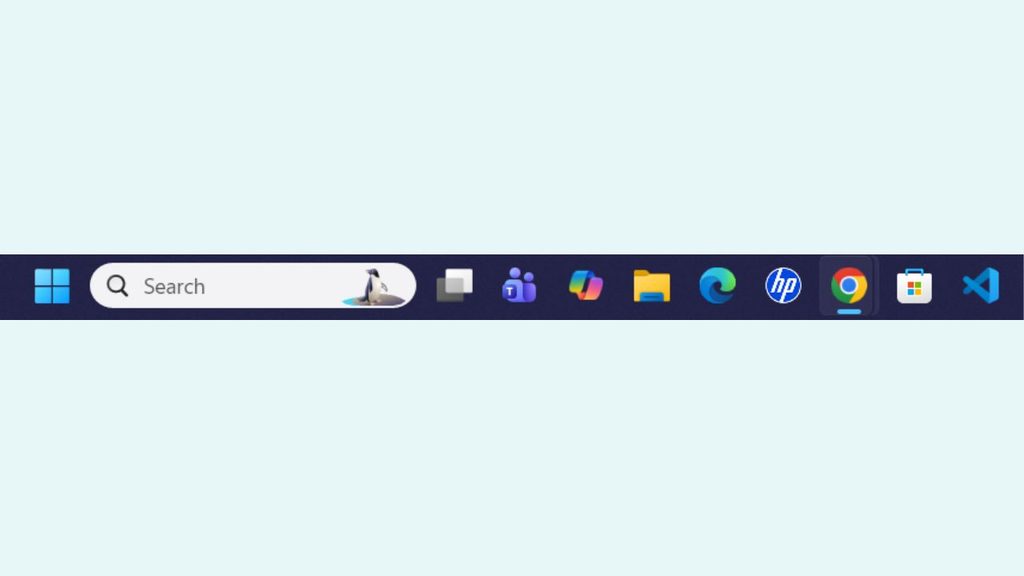
Pin Your Favorite Contacts to the Taskbar in Windows 11/10
To do this, follow these steps:
- Check whether you are using Windows 10 or Windows 11 because contact-pinning options differ between the two versions.
- In Windows 10, open the People feature from the taskbar if it is available.
- Select a frequently used contact and choose the option to pin the contact to the taskbar.
- In Windows 11, use a supported communication app such as Microsoft Teams and pin the person within that app for faster access.
- If direct taskbar contact pinning is unavailable, create an app shortcut or taskbar shortcut for the service you use to communicate with that person.
Let’s explore in detail!
Step 1: Check Your Windows Version
Before changing anything, determine whether your computer is running Windows 10 or Windows 11. This is important because the traditional People taskbar feature was associated with Windows 10 and is not part of the standard Windows 11 taskbar experience.
Press Windows + I to open Settings. In Windows 11, go to System > About. In Windows 10, open Settings > System > About. Look under the Windows specifications section to identify your Windows edition and version.
Once you know your version, you can follow the appropriate method. If you are using Windows 10 and see references to People, you may be able to use the older contact-pinning method. If you are using Windows 11, move to a communication app or shortcut-based approach instead.
Step 2: Enable People on Windows 10
If you are using a Windows 10 version that supports the People feature, you can check whether it is available on your taskbar.
Right-click an empty area of the taskbar and look for the Show People on the taskbar option. Select it if it is available. You can also reach related taskbar settings through Settings > Personalization > Taskbar > People on supported Windows 10 installations.
After enabling the feature, a People icon can appear in the notification area of the taskbar. Select it to open the contact interface.
If you do not see any People-related setting, your particular Windows 10 version may no longer provide the feature. In that situation, do not worry. You can use a communication application or shortcut instead.
Step 3: Select a Favorite Contact in Windows 10
After opening the People interface, you can look through the contacts associated with your connected accounts. The available contacts can depend on the accounts and applications configured on your PC.
Select the person you communicate with most frequently. Depending on your Windows version and configuration, you may see an option for pinning the contact to the taskbar.
The general navigation path is Taskbar > People > Find a contact > Select the contact > Pin to taskbar.
Once the contact is pinned, you can select the person’s icon from the taskbar to access the available communication options. This can make frequently used contacts much easier to reach without repeatedly searching through your contact list.
Step 4: Use Microsoft Teams in Windows 11
Windows 11 does not provide the same People taskbar feature found in supported Windows 10 versions. Instead, users who communicate through Microsoft Teams can use Teams to keep important conversations easy to find.
Open Microsoft Teams and sign in with the account you normally use. Find the person you want to access quickly, then use the available conversation options to pin the chat within Teams.
The navigation can generally be described as Microsoft Teams > Chat > Find the contact > More options > Pin.
This does not place the individual person’s profile directly on the Windows 11 taskbar. Instead, it keeps the conversation at the top of your Teams chat list, reducing the time required to locate the person.
You can also pin Teams itself to the taskbar. Right-click the Teams icon when it is running and select Pin to taskbar if the option is available.
Step 5: Create a Shortcut for a Frequently Used Contact
If your preferred communication service does not offer direct contact pinning, creating a shortcut can be a useful alternative. This approach is particularly helpful when you regularly communicate with someone through a specific website or web application.
For example, you can create a shortcut for a frequently used web-based communication page and then keep that shortcut accessible from your desktop or taskbar, depending on the browser and shortcut type.
In Microsoft Edge, open the relevant page and use Settings and more > Apps > Install this site as an app when the option is available. After creating the app, you can use Windows Search > Find the app > Right-click > Pin to taskbar.
The exact options can vary depending on the website, browser, and account. The key idea is to create a dedicated access point for the service you use to contact that person.
Step 6: Pin the Communication App to the Taskbar
If your goal is simply to reach favorite contacts quickly, pinning the communication application itself can be almost as convenient as pinning individual contacts.
Open the application you use for messaging or calling. When its icon appears on the taskbar, right-click it and select Pin to taskbar.
The navigation is: Open the communication app > Find its taskbar icon > Right-click the icon > Pin to taskbar.
Now you can launch the application with one click. Once it opens, you can select your favorite contact from the application’s pinned chats, favorites, or recent conversations.
This approach works well on Windows 11 because it follows the current taskbar design rather than relying on the discontinued People experience.
Keep Your Favorite Contacts Organized
After setting up quick access, take a few minutes to organize your contacts inside the communication app. Keeping your most frequently contacted people near the top can make the workflow considerably faster.
For example, if you regularly communicate with a family member, coworker, or client, use the application’s Favorites or Pinned chats feature when available. This gives you a predictable location for important conversations.
You can also keep your taskbar organized by pinning only the applications you use regularly. A less crowded taskbar makes it easier to locate the communication app when you need it.
FAQs
Can I directly pin a contact to the Windows 11 taskbar?
Windows 11 does not provide the same People taskbar feature that supported Windows 10 versions offered. You can instead pin the communication application to the taskbar and use its contact or chat-pinning features.
Why can’t I find People on my Windows 11 computer?
The People taskbar experience was removed from Windows 11. If you are following an older Windows 10 tutorial, the instructions may not match your current operating system.
Can I pin a contact to the Windows 10 taskbar?
On supported Windows 10 versions, the People feature could provide contact access from the taskbar. If the People settings are available on your PC, you can enable the feature and check whether your contacts can be pinned.
What if the People option is missing from Windows 10?
Your Windows 10 version may not support the feature, or the feature may no longer be available in your configuration. In that case, using a communication app, pinned chat, or shortcut is a practical alternative.
Can I pin Microsoft Teams to the taskbar?
Yes. Open Teams, locate its taskbar icon, right-click it, and select Pin to taskbar when the option appears. You can then use Teams’ own contact and chat features to reach your favorite people.
Is pinning a contact the same as pinning an app?
No. Pinning an app places the application icon on your taskbar. Pinning a contact or chat keeps a specific person or conversation readily available inside the communication application.
Can I pin several favorite contacts?
This depends on the application you are using. Some communication services allow multiple pinned conversations or favorites, while Windows 11 itself does not provide a general feature for placing individual contacts directly on the taskbar.
Final Words
The easiest way to pin your favorite contacts to the taskbar in Windows 11/10 depends largely on your Windows version. Supported Windows 10 systems may offer the older People taskbar experience, while Windows 11 uses a different approach.
If you are using Windows 11, the most practical solution is to pin your communication app to the taskbar and then use its pinned chats, favorites, or contact shortcuts. This keeps your frequently used conversations close without depending on an outdated Windows feature.
For Windows 10 users, check whether People is available before trying alternative methods.
If it is missing, a pinned communication application or shortcut can still give you quick access to the people you contact most often.