
When you pin an app to the taskbar, Windows creates a permanent shortcut for that application on the taskbar. This means you don’t have to search for the program each time you want to use it.
For example, if you frequently use Google Chrome, Microsoft Edge, Microsoft Word, or File Explorer, keeping those apps on the taskbar can save you several clicks throughout the day.
The taskbar is also useful because your pinned applications remain available even after you close them. An app that is currently running can usually be identified by the visual indicator underneath or around its taskbar icon, depending on your version of Windows.
You can also rearrange pinned apps by dragging their icons into the order you prefer.
This is helpful if you want your most frequently used applications positioned near the Start button or in another convenient location.
Let’s learn the complete process!
Pin Your Favorite Apps to the Taskbar in Windows
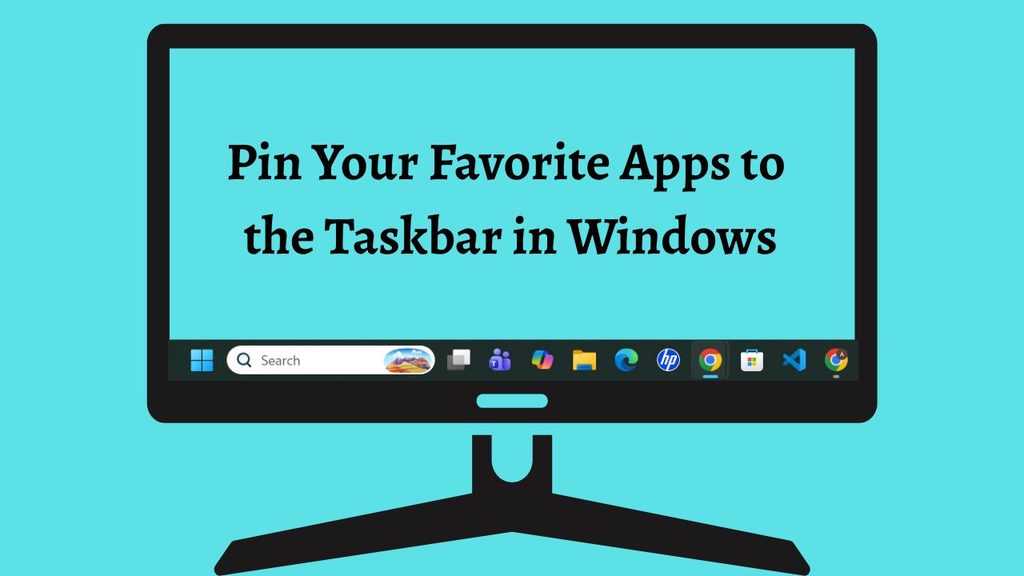
If you want to quickly pin your favorite apps to the taskbar in Windows, you can use the Start menu or Windows Search. The exact process depends slightly on whether you’re using Windows 10 or Windows 11.
- To do this, open Start and find the app you want to pin.
- Right-click the app and select Pin to taskbar.
- If you cannot find the app, use Windows Search to locate it.
- Right-click the search result and select Pin to taskbar.
- You can also open the app, right-click its taskbar icon, and select Pin to taskbar.
Step 1: Open the Start Menu
The easiest way to begin is by opening the Start menu. On Windows 11, select the Start button from the center or left side of the taskbar, depending on your taskbar settings. On Windows 10, the Start button is normally located on the left side of the taskbar.
You can also press the Windows key on your keyboard to open Start. Once the menu appears, look through your available applications and find the program you want to place on the taskbar. In Windows 11, you may need to select All apps before you can see the complete list of installed applications.
The navigation path is Start > All apps > Find your app. Take your time here, especially if you have many applications installed. You don’t need to open the application yet.
Step 2: Right-Click the App
After locating the application, right-click its name or icon. This opens a context menu containing different actions you can perform with that app.
On Windows 11, you may see options such as Open, Run as administrator, Uninstall, and Pin to taskbar, depending on the application. On Windows 10, the available options can look slightly different, but the Pin to taskbar option is generally easy to identify.
The navigation path is Start > All apps > Right-click the app > Pin to taskbar.
If you don’t see the option immediately, look carefully through the context menu. Some applications may have additional menus that you need to open before the pinning option appears.
Step 3: Select Pin to Taskbar
Now select Pin to taskbar from the context menu. Windows should immediately place the application’s icon on your taskbar.
You don’t need to restart your computer for the change to take effect. Once the app is pinned, you can simply click its icon whenever you want to launch it.
The navigation path is Start > All apps > Right-click the app > Pin to taskbar.
If you have successfully pinned the application, close the Start menu and check your taskbar. You should see the new app icon alongside your other pinned applications.
Step 4: Pin an App Using Windows Search
Another convenient method is to use Windows Search. This can be especially helpful when you have many applications and don’t want to scroll through the Start menu.
Select the Search button on the taskbar, or press Windows + S on your keyboard. Enter the name of the application you want to pin. Windows will display matching results as you type.
Once you see the correct application, right-click it and look for the Pin to taskbar option. Select it to add the application to your taskbar.
The navigation path is Search > Type the app name > Right-click the app > Pin to taskbar.
Make sure you’re selecting the actual application rather than a document, web result, or unrelated search result. This is particularly important when several results have similar names.
Step 5: Pin an App That Is Already Running
Windows also lets you pin an application directly while it is running. This can be one of the quickest methods if you’ve already opened the program.
First, open the application normally. Once it is running, look at the taskbar and find the application’s icon. Right-click the icon to open its taskbar menu.
Look for Pin to taskbar and select it. If the app is already pinned, you may see Unpin from taskbar instead. That tells you the application is already permanently placed on your taskbar.
The navigation path is Open the app > Taskbar > Right-click the app icon > Pin to taskbar.
This method is particularly convenient when you open an application for the first time and immediately decide that you want easier access to it in the future.
Step 6: Rearrange Your Pinned Apps
After adding several applications, you may want to organize them according to your workflow. Windows allows you to change the position of pinned taskbar icons by dragging them.
Click and hold the icon you want to move, then drag it to your preferred location on the taskbar. Release the mouse button when the icon reaches the desired position.
For example, you might keep your browser first, followed by File Explorer, email, productivity applications, and communication tools. Creating an order that matches your routine can make the taskbar easier to use.
The navigation path is Taskbar > Select and hold an app icon > Drag the icon > Release at the preferred location.
Unpin an App You No Longer Need
Your taskbar can become crowded if you pin too many applications. Fortunately, removing an app from the taskbar does not uninstall it from your computer.
To remove a pinned application, right-click its taskbar icon and select Unpin from taskbar. The application will disappear from the taskbar, but you can still find and open it through Start or Search.
The navigation path is Taskbar > Right-click the app > Unpin from taskbar.
This is a useful way to keep your taskbar organized without deleting applications you may need later.
FAQs
Can I pin any app to the Windows taskbar?
Most regularly installed desktop applications can be pinned to the taskbar. The exact options can vary depending on the application and how it was installed. If Pin to taskbar isn’t available, try launching the app first and then right-clicking its taskbar icon.
Why can’t I find the Pin to taskbar option?
If the option isn’t available, make sure you are right-clicking the actual application rather than a file, document, or unrelated search result. You can also open the application first and right-click its icon directly on the taskbar.
Can I pin an app to the taskbar in Windows 11?
Yes. Windows 11 supports taskbar app pinning. Open Start, locate the application, right-click it, and select Pin to taskbar when the option is available.
Can I pin apps to the taskbar in Windows 10?
Yes. Windows 10 also lets you pin applications to the taskbar. You can use Start, Windows Search, or an application’s running taskbar icon to access the pinning option.
Does pinning an app install it?
No. Pinning an app does not install or reinstall the application. It simply creates an easily accessible taskbar shortcut to an application that is already available on your computer.
Can I remove a pinned app without uninstalling it?
Yes. Selecting Unpin from taskbar only removes the shortcut from the taskbar. The application remains installed and can still be opened through Start or Search.
How many apps should I pin to the taskbar?
There isn’t a fixed number you need to follow. However, it’s generally better to pin the apps you use most frequently rather than filling the taskbar with every application on your computer. Keeping it organized makes it easier to find what you need.