
Trying to figure out how to pair a Roku remote with your TV can feel a little confusing, especially when the remote does not connect automatically. The good news is that pairing a Roku remote is usually pretty straightforward once you know which type of remote you have and what to look for during setup.
A Roku remote can connect to a Roku TV, Roku streaming player, or another compatible Roku device. Depending on the model, you may need to use a pairing button, insert fresh batteries, or follow an on-screen pairing prompt. Some Roku remotes can also control basic functions on your television, such as power and volume, after you configure the TV controls.
In this guide, you will learn how to pair a Roku remote, how to connect it to different Roku devices, how to set it up with your TV, and what to do if the remote refuses to pair.
Quick Steps
- To pair a Roku remote, turn on your Roku device or Roku TV and place the remote close to it.
- To pair a Roku remote with a pairing button, press and hold the Pairing button for about five seconds until the status light starts flashing.
- To pair a Roku remote without a pairing button, remove the batteries, unplug the Roku device, reconnect it, and reinstall the batteries when the pairing screen appears.
- Wait for the pairing notification to appear on your Roku screen and allow the remote to connect.
- To control your TV with the Roku remote, go to Settings > Remotes & devices > Remotes > Set up remote for TV control and follow the on-screen instructions.
- If pairing does not work, replace the batteries, restart the Roku device, move the remote closer, and repeat the pairing process.
How to Pair Roku Remote (To All Devices Including TV)
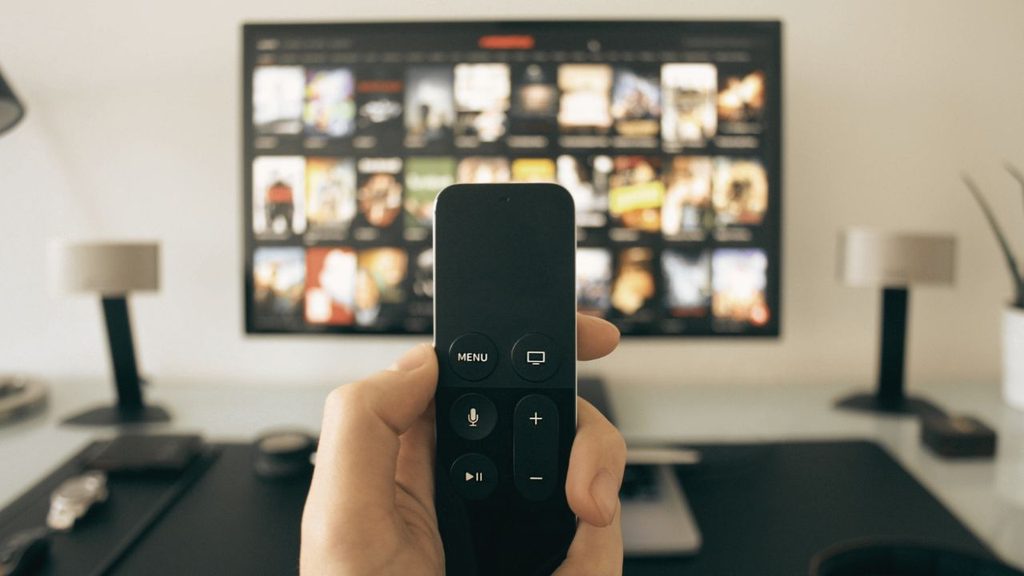
Let’s learn in detail!
Step 1: Identify Your Roku Remote
Before you start pairing, take a quick look at your Roku remote. This matters because Roku has several remote designs, and the pairing process can vary slightly between them.
Check the battery compartment and the front o back of the remote for a small pairing button. On many compatible Roku remotes, the button is located inside the battery compartment or near it. Some newer remotes do not have a traditional pairing button and use a different automatic pairing process.
If your remote has a pairing button, you can usually start pairing by holding that button. If you do not see one, do not worry. You can still pair the remote by following the alternative setup process.
Step 2: Turn On Your Roku Device
Next, make sure your Roku device or Roku TV is turned on. If you are using a Roku streaming player, check that it is connected to your television and receiving power.
Turn on your TV and select the HDMI input connected to your Roku player. For example, if your Roku is connected to HDMI 1, switch your TV to HDMI 1.
If you are using a Roku TV, simply turn on the television and wait for the Roku interface to appear.
Keep the Roku remote fairly close to the device during setup. Staying within a few feet can make the initial connection easier.
Step 3: Install or Replace the Batteries
Open the battery compartment on your Roku remote and make sure the batteries are installed correctly. Check the positive and negative markings inside the compartment and match them with the battery ends.
If the remote is new, remove any protective packaging or battery tabs that may prevent the batteries from making contact.
If you are trying to reconnect an older remote, consider installing fresh batteries. Weak batteries can cause pairing problems, delayed button responses, or a remote that appears completely unresponsive.
Once the batteries are installed, keep the battery compartment open if you need access to the pairing button.
Step 4: Put the Roku Remote Into Pairing Mode
If your remote has a pairing button, press and hold it for about five seconds. Watch for the status light on the remote to begin flashing.
A flashing light generally means the remote has entered pairing mode and is searching for a compatible Roku device.
Keep the remote close to your Roku device while this happens. You normally do not need to point a Roku remote directly at the TV because compatible wireless Roku remotes communicate with the Roku device rather than relying entirely on infrared signals.
If the remote does not enter pairing mode, release the button and try again. Also check that the batteries are properly installed.
Step 5: Pair a Roku Remote Without a Pairing Button
Some Roku remotes do not have a dedicated pairing button. In this situation, you can restart the pairing process using the remote and Roku device.
Start by removing the batteries from the remote. Then disconnect your Roku device from its power source. Wait several seconds before reconnecting the Roku device.
Turn on the TV and wait until the Roku startup screen or pairing screen appears. When appropriate, reinstall the batteries into the remote.
The Roku device should detect the remote and begin the pairing process. Follow any instructions displayed on your TV.
This method can be particularly useful when you have a compatible Roku remote that does not provide an obvious pairing button.
Step 6: Wait for the Pairing Process to Finish
After you place the remote into pairing mode, give the Roku device a moment to establish the connection.
You may see a message on the television indicating that the remote is connecting or pairing. Avoid repeatedly pressing buttons during this process because doing so can make it harder to tell whether the pairing process has completed.
Once the pairing finishes, try pressing the Home button or navigating through the Roku menu.
If the Roku responds immediately, your remote is successfully connected.
Step 7: Set Up Roku Remote to Control Your TV
Pairing your Roku remote with the Roku device is only part of the setup. If you want the remote to control your TV’s power and volume, you may need to configure the TV controls separately.
Using the Roku interface, go to Settings > Remotes & devices > Remotes > your remote > Set up remote for TV control. The exact wording can vary depending on the Roku software version and remote model.
Follow the instructions shown on your television. Roku may ask you to test whether your TV responds to the remote’s volume and power controls.
When prompted, confirm that the buttons work correctly. If the first code does not control your TV properly, Roku may provide another option to try.
Keep in mind that not every Roku remote supports every TV control feature. The available controls depend on the Roku remote model and television.
Step 8: Test Every Important Button
Once your Roku remote has been paired, test the buttons you use most often.
Press Home, Back, and the directional buttons to make sure you can move through the Roku menus. Open an app and test the playback controls. Then try the volume buttons and Power button if you configured TV control.
Testing everything now can save you time later. If only certain buttons fail, the problem may not be the pairing itself. It could be related to the remote, batteries, TV compatibility, or a specific button.
Step 9: Restart the Roku Remote if Pairing Fails
If your Roku remote will not pair, start with the simplest troubleshooting steps.
Remove the batteries, wait a few seconds, and reinstall them. Restart your Roku device by disconnecting its power, waiting briefly, and reconnecting it.
Once the Roku device starts up again, place the remote into pairing mode and try again.
Also make sure there are no obvious obstacles or sources of interference between the remote and Roku device. Keep the remote nearby during the initial pairing process.
If you are using rechargeable batteries, try a fresh set of standard batteries to rule out a battery-related problem.
Step 10: Pair a Replacement Roku Remote
If your original remote is lost or damaged, you can pair a compatible replacement Roku remote with your Roku device.
Install the batteries and follow the pairing instructions for that remote. If it has a pairing button, press and hold it until the indicator light flashes. Then wait for the Roku device to recognize it.
Once connected, test the remote and configure TV control if the remote supports that feature.
The replacement remote needs to be compatible with your Roku device. Not every Roku remote works with every Roku product, so compatibility is important when replacing a lost remote.
Faqs
Why won’t my Roku remote pair?
A Roku remote may fail to pair because of weak batteries, incorrect battery installation, an incompatible remote, or a Roku device that needs to be restarted. Replace the batteries, restart the Roku device, and repeat the pairing process.
How do I put my Roku remote into pairing mode?
If your remote has a pairing button, press and hold it for about five seconds until the status light flashes. The remote should then attempt to connect to your Roku device.
Can I pair a Roku remote without Wi-Fi?
Yes, the initial remote-to-Roku connection does not necessarily require your home Wi-Fi network. Compatible Roku remotes can establish their connection directly with the Roku device. However, some Roku features and Roku mobile-app functions depend on your network connection.
Can one Roku remote control my TV?
Yes, a compatible Roku remote can control certain TV functions, such as power and volume. You generally need to complete the TV control setup through the Roku settings before those buttons will work.
Remove the remote’s batteries, restart the Roku device, and reinstall the batteries when the Roku pairing screen appears. Follow the on-screen instructions to complete the connection.
How close should my Roku remote be when pairing?
Keep the remote close to the Roku device during pairing. Staying within a few feet is a practical approach and can help avoid connection issues during the initial setup.
Why does my Roku remote keep disconnecting?
Repeated disconnections can be caused by low batteries, wireless interference, software issues, or a problem with the remote itself. Start by replacing the batteries and restarting the Roku device. If the issue continues, try pairing the remote again.
Can I use the Roku mobile app instead of a remote?
If your Roku device and smartphone are connected to the same Wi-Fi network, the Roku mobile app can provide remote-control functionality on supported devices. This can be useful when your physical remote is unavailable.
Bottom Lines
Learning how to pair a Roku remote is usually a quick process once you identify your remote type. Start by checking the batteries, turn on your Roku device, and use the pairing button if your remote has one. For remotes without a pairing button, restarting the Roku device and reinstalling the batteries can help trigger the pairing process.
If you also want to control your television, complete the TV control setup through the Roku settings. After pairing, test the navigation, playback, volume, and power buttons to make sure everything works as expected.
When pairing fails, do not immediately assume the remote is defective. Fresh batteries, a Roku restart, proper pairing mode, and remote compatibility are the first things to check.
In most cases, these simple steps can get your Roku remote connected and ready to use.