
SuperBox is a popular Android-based streaming device that allows users to access entertainment apps, streaming services, and other applications directly on their TV. While most SuperBox devices come with a built-in app marketplace, some users look for additional app stores to access a wider range of applications.
If you’re wondering how to download the App Store to the SuperBox, the process is usually straightforward. Since SuperBox runs on an Android operating system, you can install an app store such as Google Play Store or another Android-compatible app marketplace by adjusting a few settings and downloading the required files.
This guide walks you through each step in a simple and beginner-friendly way.
How to Download the App Store to the SuperBox?
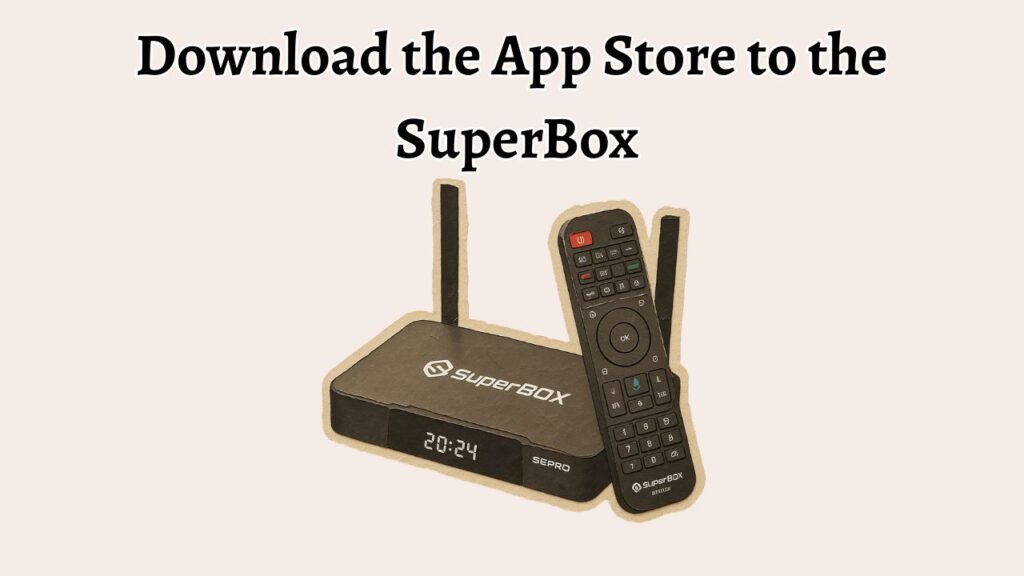
To download an app store on a SuperBox device:
- Connect your SuperBox to the internet.
- Enable installation from unknown sources in Settings.
- Open the built-in browser on the SuperBox.
- Download the desired app store APK file from a trusted source.
- Install the APK file on the device.
- Open the newly installed app store.
- Sign in if required and begin downloading apps.
Following these steps allows you to add the app marketplace to your SuperBox and expand your app selection.
Step 1: Connect Your SuperBox to the Internet
The first thing you’ll need to do is verify that your SuperBox has an active internet connection.
Go to Home Screen > Settings > Network & Internet > Wi-Fi. Then select your wireless network from the available list. Enter your Wi-Fi password and wait for the connection to be established.
If you’re using an Ethernet cable, connect it directly to your router and the SuperBox. Once connected, return to the network settings page and confirm that the device shows an active internet connection.
A stable internet connection is essential because you’ll need it to download the app store installation file. If your connection is slow or unstable, the download may fail or become corrupted during installation.
Before moving to the next step, open the built-in browser or another installed application to confirm that the internet is working correctly.
Step 2: Enable Installation from Unknown Sources
Most Android-based devices block installations from external sources by default. To install a new app store, you’ll need to allow applications from outside the device’s built-in marketplace.
Go to Settings > Security > Unknown Sources. Then locate the option that allows installations from external sources and turn it on.
Depending on your SuperBox model and software version, the setting may appear under Settings > Apps > Special Access > Install Unknown Apps.
Once you find the setting, enable permission for the browser or file manager you’ll use to download the APK file.
This step is important because Android devices require user permission before allowing manual application installations. Without enabling this setting, the APK installation will not proceed.
After enabling the option, save the changes and return to the home screen.
Step 3: Open the Browser and Search for the App Store APK
Now it’s time to download the app store installation package.
Go to Home Screen > Browser. Then enter the name of the app store you want to install, followed by the words “APK download.”
Carefully review the search results and choose a trusted website. Make sure the version you download is compatible with Android devices and supports your SuperBox operating system.
Once you locate the correct download page, select the download button and wait for the APK file to finish downloading.
The download time will vary depending on your internet speed. Most app store APK files are relatively small and usually download within a few minutes.
Avoid downloading multiple versions of the same file because this can create confusion during installation.
Step 4: Locate the Downloaded APK File
After the download is complete, you’ll need to find the installation file.
Go to Home Screen > File Manager > Downloads. Then look for the APK file you downloaded in the previous step.
Most files will appear with the name of the app store followed by the “.apk” extension. If you downloaded multiple files, check the download date and file size to identify the correct one.
Selecting the file will start the installation process.
If you cannot find the file, return to your browser’s download history and verify that the download completed successfully. In some cases, the file may be stored in a different folder, such as Documents or Internal Storage.
Step 5: Install the App Store
Once you’ve located the APK file, you can begin installation.
Go to File Manager > Downloads > APK File. Then select the file and choose Install.
The SuperBox system will display information about the application and the permissions it requires. Review the details carefully and select Install again to continue.
The installation process usually takes less than a minute. During this time, avoid turning off the device or disconnecting it from the internet.
When the installation finishes, you’ll see a confirmation message indicating that the app store was installed successfully.
Select Done if you want to return to the file manager, or choose Open to launch the app store immediately.
Step 6: Launch the App Store
After installation is complete, you’ll need to open the newly installed app store.
Go to Home Screen > Apps > Installed Applications. Then locate the app store icon and select it.
The first launch may take slightly longer than normal because the application is setting up required files and services.
Some app stores may request permissions for storage access or application management. Review these permissions and grant access if necessary.
Once the app opens successfully, you’ll gain access to a larger selection of Android applications that can be downloaded directly to your SuperBox.
Step 7: Sign In and Update the App Store
Many app stores work best when you’re signed into an account.
Go to App Store > Sign In. Then enter your account credentials if required.
After signing in, navigate to the settings section and check for updates. Installing the latest version helps improve performance, compatibility, and security.
Keeping the app store updated ensures you have access to the newest features and the latest application releases.
If updates are available, download and install them before proceeding with any additional app installations.
Step 8: Download and Install Applications
With the app store successfully installed, you can begin downloading applications.
Go to App Store > Search Bar. Then enter the name of the application you want to install.
Select the application from the search results and choose Install. Wait for the download and installation process to complete.
After installation, the application will appear in your SuperBox app list and can be launched directly from the home screen.
Repeat this process whenever you want to add new applications to your device.
FAQs
Can I install the Google Play Store on SuperBox?
Yes, many SuperBox devices support the installation of the Google Play Store if the required services and compatible APK files are installed. However, compatibility may vary depending on the device model and software version.
Is it safe to install an app store using an APK file?
It can be safe when the APK file comes from a trusted and reputable source. Downloading files from unknown websites may expose your device to security risks.
Why won’t the APK file install?
The most common reasons include disabled unknown source permissions, an incompatible APK version, insufficient storage space, or a corrupted download file.
Do I need an internet connection to install the app store?
Yes, an internet connection is required to download the APK file and may also be necessary for account sign-in and updates.
Will installing another app store affect my SuperBox?
In most cases, installing an additional app store does not affect the normal operation of the device. However, installing incompatible applications may cause performance issues.
How do I update the installed app store?
Open the app store, go to its settings section, and check for available updates. Some app stores update automatically, while others require manual updates.