
Drop-down lists in Microsoft Excel are useful when you want people to choose from a predefined set of options instead of typing information manually. They can make spreadsheets cleaner, reduce typing mistakes, and keep data consistent. For example, a cell might have a drop-down containing options such as Yes, No, and Pending.
However, you may eventually need to remove a drop-down list. Perhaps you no longer need the selection menu, you are changing the spreadsheet layout, or you want users to enter any value instead of selecting from specific choices.
Fortunately, removing a drop-down list in Excel is straightforward. The key is to use the Data Validation settings because Excel creates most drop-down lists through data validation.
In this guide, you will learn how to delete a drop-down list in Excel without accidentally deleting the information already stored in your cells.
How to Delete a Drop-Down List in Excel
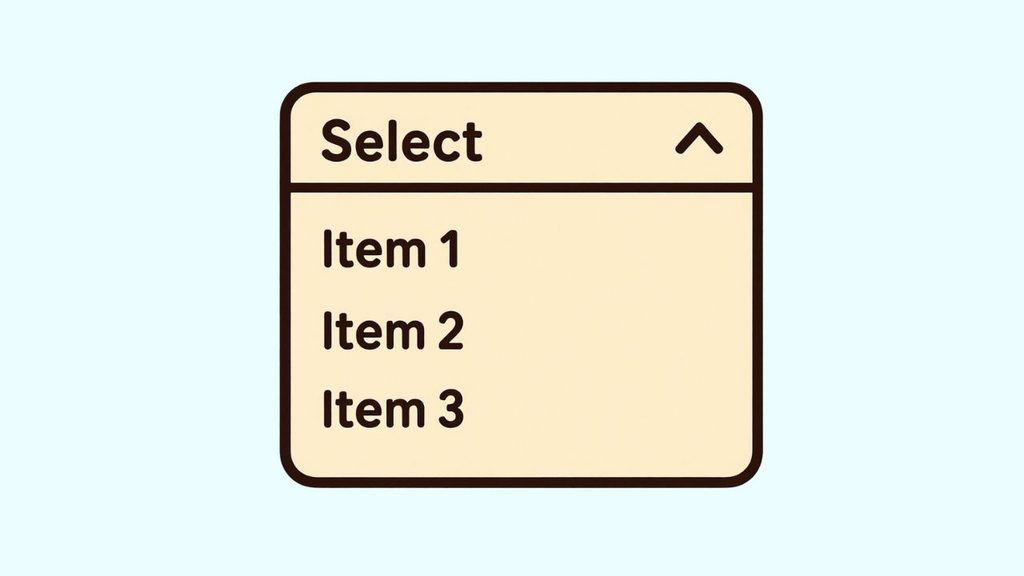
- Select the cell or cells containing the drop-down list you want to remove.
- Go to the Data tab on the Excel ribbon and select Data Validation.
- In the Data Validation window, open the Settings tab.
- Select Clear All to remove the validation rule associated with the selected cells.
- Click OK to apply the change.
- Click the cell again to confirm that the drop-down arrow has disappeared.
A drop-down menu in Excel is generally created using Data Validation. The validation rule tells Excel what type of information can be entered into a particular cell. When the validation setting is configured as a List, Excel displays a drop-down arrow when that cell is selected.
Deleting the drop-down does not normally delete the value currently stored in the cell. It removes the data validation rule, allowing the cell to accept information without the previous drop-down restriction.
The following steps explain the process in detail.
Step 1: Select the Cell With the Drop-Down List
Start by opening the Excel workbook that contains the drop-down list. Find the worksheet where you want to remove it.
Click the cell containing the drop-down menu. When you select the cell, you should normally see a small drop-down arrow on the right side of the cell. Clicking that arrow displays the available choices.
If you only want to remove the drop-down from one cell, selecting that individual cell is enough. If the same drop-down has been applied to multiple cells, you can select the entire range instead.
For example, suppose cells B2 through B20 contain a drop-down list for choosing a department. You can select the entire range from B2 if you want to remove the drop-down from all those cells at once.
Be careful when selecting the range. If you select more cells than intended, the data validation settings can be removed from those additional cells as well.
Step 2: Open the Data Validation Settings
Once you have selected the appropriate cell or range, go to the Data tab at the top of the Excel window.
Look for the Data Tools section. From there, select Data Validation.
Depending on your version of Excel and the size of your window, the button may appear directly as Data Validation, or you may need to open a related menu to find it.
When you select Data Validation, Excel opens a window containing settings for controlling what information can be entered into the selected cells.
This is where you can view the rule responsible for the drop-down list. If the selected cell contains a standard Excel drop-down list, the Allow field in the settings should generally show List.
You do not need to manually delete each option from the list. The goal is to remove the validation rule itself.
Step 3: Open the Settings Tab
In the Data Validation window, make sure you are viewing the Settings tab.
This tab shows the validation rule applied to your selected cells. If the cell has a drop-down list, you may see List in the Allow box.
You may also see the source of the list. The source could contain values typed directly into the validation settings, such as Yes,No,Pending, or it could point to a range of cells elsewhere in the workbook.
At this point, do not worry about changing the source. If your goal is simply to remove the drop-down, there is an easier option.
Look toward the bottom of the Data Validation window for the Clear All button.
Step 4: Select Clear All
Select Clear All in the Data Validation window.
This removes the validation settings from the selected cell or range. In practical terms, Excel is no longer instructed to restrict the cell to the choices contained in the previous drop-down list.
This is different from simply deleting the contents of the cell.
For example, imagine cell C5 contains the word Pending and has a drop-down list containing Pending, Approved, and Rejected. If you use Clear All on C5, the validation rule is removed, but the word Pending normally remains in the cell.
This distinction is important because many beginners assume that removing a drop-down will also erase the cell’s existing information. It does not normally do that.
After selecting Clear All, click OK to save the change.
Step 5: Confirm That the Drop-Down Has Been Removed
Now click the cell again.
Previously, selecting the cell should have displayed the drop-down arrow. After removing data validation, the arrow should no longer appear.
Try typing something into the cell that was not part of the old list. If Excel accepts the new entry without displaying the previous list restriction, the drop-down list has been successfully removed.
For example, if the old list contained Low, Medium, and High, you should now be able to type another value directly into the cell.
If the arrow is still visible, check whether you selected the correct cell or range. You may also need to reopen Data Validation and verify that the validation rule was actually cleared.
Step 6: Remove Drop-Down Lists From Multiple Cells
If a worksheet contains the same drop-down list across many cells, you do not have to remove each one individually.
Select the entire range containing the drop-down lists. You can click and drag across the cells or enter the range in Excel’s Name Box if you know the exact range.
For example, if the drop-down appears in D2, select that range and then go to Data > Data Validation.
Select Clear All, and then click OK.
Excel will remove the validation settings from the selected range.
This approach can save a lot of time when working with large spreadsheets. However, make sure the selected range only includes the cells where you actually want to remove the drop-down.
Step 7: Check Whether Different Validation Rules Exist
Sometimes a worksheet contains several types of Data Validation. A cell may have a drop-down list, while another cell may have a rule that only permits numbers, dates, or specific text.
If you select a large range and choose Clear All, you may remove other validation rules along with the drop-down lists.
For that reason, take a moment to understand what is selected before clearing the settings.
If you only want to remove a particular drop-down, select only the relevant cells. This is especially important in spreadsheets used for budgets, inventory tracking, employee records, forms, and financial calculations, where validation rules may be intentionally applied to different sections.
Step 8: Save the Excel Workbook
After removing the drop-down list, save your workbook.
Select File > Save, or use the appropriate keyboard shortcut for saving your Excel file.
If you are working with an important spreadsheet, it is a good idea to check a few affected cells before closing the workbook. Confirm that the old drop-down arrows are gone and that the existing cell values remain intact.
If you accidentally remove a validation rule that you still need, use Undo immediately after the change. Excel can usually restore the previous validation setting through the Undo command.
Faqs
Can I remove a drop-down list without deleting the cell’s value?
Yes. Removing a drop-down list through Data Validation > Clear All normally removes the validation rule without deleting the existing value in the cell.
Why is the drop-down arrow still showing after I removed it?
First, make sure you selected the correct cell or range. Then open Data > Data Validation and check whether a validation rule is still present. You may have removed the rule from one cell while another cell still contains the drop-down.
Can I remove a drop-down list from an entire column?
Yes. You can select the relevant cells in the column and remove their Data Validation settings. Be careful when selecting the entire column because other cells may have validation rules that you want to keep.
Will removing a drop-down delete my data?
No. Clear All in the Data Validation window removes the validation settings. It does not normally remove the existing text or number stored in the cell.
Can I remove a drop-down list from several cells at once?
Yes. Select all the relevant cells or the required range, open Data Validation, choose Clear All, and select OK.
If Data Validation is unavailable or you cannot change the settings, check whether the worksheet is protected. Worksheet protection can prevent certain changes. You may need to remove or modify the protection before changing the validation settings.
Can I create the drop-down again later?
Yes. After removing it, you can create another drop-down list by selecting the cells and configuring Data Validation with List as the allowed input type.
Final Lines
Removing a drop-down list in Excel is mainly a matter of removing the Data Validation rule that controls the cell. Select the appropriate cell or range, go to Data > Data Validation, choose Clear All, and then select OK.
The most important thing to remember is that removing a drop-down is not the same as deleting the cell’s contents. Your existing information will normally remain in place while the selection restriction disappears.
If you are working with a large spreadsheet, pay close attention to the range you select before using Clear All.