
A Vizio soundbar is a simple way to improve your TV’s audio without setting up a full home theater system. Whether you’re watching movies, streaming shows, playing games, or listening to music, a soundbar can deliver louder and clearer audio than many built-in TV speakers.
The good news is that connecting a Vizio soundbar to a TV usually takes only a few minutes. You can connect the two devices using HDMI ARC or eARC, an optical cable, Bluetooth, or, on some setups, an RCA or 3.5mm audio connection.
The best method depends on the ports available on your TV and Vizio soundbar.
In most cases, HDMI ARC or eARC is the recommended option because it can carry high-quality audio and lets you control the soundbar’s volume with your TV remote.
Connect a Vizio Soundbar to TV
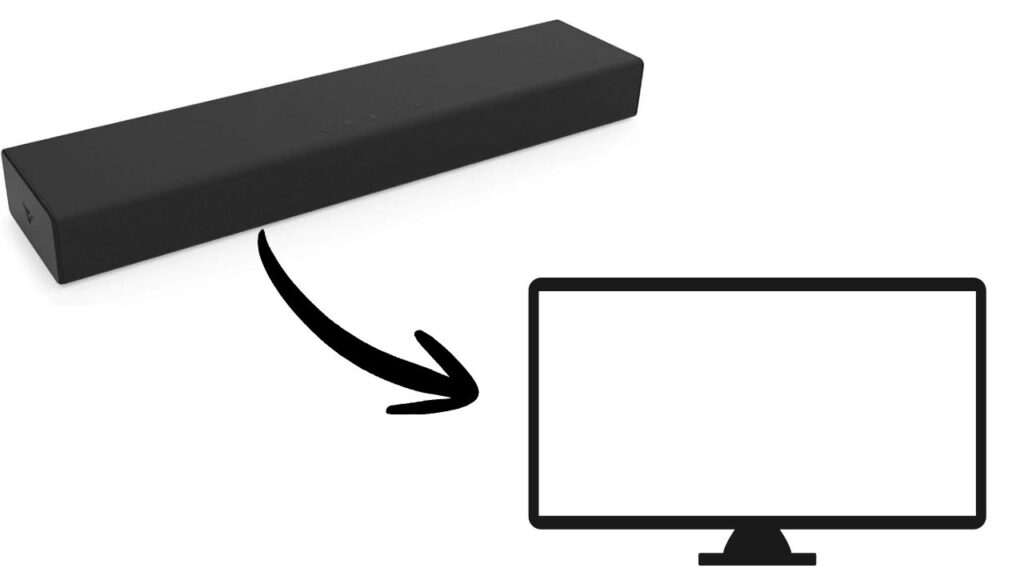
To connect a Vizio soundbar to a TV, first check which audio connections are available on both devices. For the best overall connection, plug an HDMI cable into the TV’s HDMI ARC or eARC port and the soundbar’s HDMI ARC or eARC port. Then select the correct HDMI input on the soundbar and enable CEC and ARC/eARC in the TV’s settings if necessary. If your TV does not support ARC, use an optical cable instead.
You can also connect compatible Vizio soundbars to a TV using Bluetooth.
Let’s learn the steps in detail!
Step 1: Check the Available Ports on Your TV and Soundbar
Start by checking which connections your TV and Vizio soundbar support. This helps you determine the easiest and most reliable way to connect them.
On your TV, look around the back or side panel for a port labeled HDMI ARC, HDMI eARC, Optical, Digital Audio Out, AUX, or Headphone. Your Vizio soundbar may have similar connections.
For example, if both devices have an HDMI ARC or eARC port, HDMI is usually the best choice. If your TV has an optical output but does not have ARC, an optical connection is a great alternative.
If you’re not sure which HDMI port to use, don’t just pick any HDMI port. Look specifically for the label ARC or eARC.
Step 2: Connect the Soundbar Using HDMI ARC or eARC
If your TV and Vizio soundbar support HDMI ARC or eARC, connect one end of an HDMI cable to the TV’s HDMI port labeled ARC or eARC.
Go to TV HDMI ports > Locate HDMI ARC/eARC > Connect HDMI cable.
Connect the other end of the HDMI cable to the corresponding HDMI ARC/eARC port on the Vizio soundbar.
Go to Soundbar HDMI ports > Locate HDMI ARC/eARC > Connect HDMI cable.
Make sure the cable is pushed firmly into both ports. A loose HDMI connection can result in no sound or intermittent audio.
Once connected, turn on the TV and soundbar. The soundbar should normally detect the HDMI ARC connection automatically. If you don’t hear anything, continue to the next step.
Step 3: Select HDMI ARC as the TV’s Audio Output
Your TV needs to know that you want audio sent to the soundbar instead of the built-in speakers.
Go to Settings > Sound or Audio > Audio Output > HDMI ARC/eARC.
The exact wording can vary depending on your TV brand and model. You may see options such as HDMI Audio, Receiver, External Speakers, Audio System, or ARC.
Select the option that sends audio through the connected HDMI device.
If your TV has an option called CEC, make sure it is enabled. Different TV manufacturers use different names for CEC, but the feature generally allows connected devices to communicate with each other.
Step 4: Select the Correct Input on the Vizio Soundbar
Your Vizio soundbar also needs to use the input where you connected the HDMI cable.
Press the Input button on the soundbar or its remote control until you reach the HDMI ARC input.
Go to Vizio Soundbar > Input > HDMI ARC.
Some Vizio soundbars may automatically switch to the correct source after detecting the TV. If yours does not, manually select HDMI ARC.
Now increase the TV volume and check whether sound comes through the soundbar.
Step 5: Use an Optical Cable if HDMI ARC Is Not Available
If your TV does not have HDMI ARC or eARC, you can use an optical audio cable. This is one of the easiest alternatives and works with many TVs and Vizio soundbars.
Connect one end of the optical cable to the TV’s Optical Out or Digital Audio Out port.
Go to TV > Optical Out/Digital Audio Out > Connect optical cable.
Then connect the other end to the Vizio soundbar’s Optical or Digital Optical input.
Go to Vizio Soundbar > Optical Input > Connect optical cable.
On the TV, change the audio output to the optical connection.
Go to Settings > Sound/Audio > Audio Output > Optical/Digital Audio.
Then use the Vizio remote to select the Optical input.
Step 6: Set the TV’s Digital Audio Format
If you’re connected through HDMI ARC or optical audio but still don’t hear sound, the TV’s digital audio format could be causing the problem.
Go to Settings > Sound/Audio > Digital Audio Output > PCM.
For troubleshooting, PCM is often a good starting point because it provides a widely compatible audio format. Once the soundbar is working, you can experiment with other available audio formats if your equipment supports them.
If you suddenly get sound after switching to PCM, the previous digital audio format may not have been compatible with your particular soundbar setup.
Step 7: Connect the Vizio Soundbar Using Bluetooth
Bluetooth is another option if both your TV and Vizio soundbar support it. It can be useful when you want to avoid running a cable between the TV and soundbar.
First, put the Vizio soundbar into Bluetooth pairing mode. On many Vizio models, you can do this by pressing and holding the Bluetooth button on the soundbar or remote.
Go to Vizio Soundbar > Bluetooth > Pairing Mode.
Next, open the TV’s Bluetooth audio settings.
Go to Settings > Sound/Audio > Audio Output > Bluetooth Speaker.
Wait for the TV to display the available Bluetooth devices. Select your Vizio soundbar from the list and wait for the pairing process to finish.
Once connected, play some audio to confirm that the TV is sending sound to the soundbar.
Keep in mind that Bluetooth can introduce a small amount of audio delay, depending on the TV and soundbar. For movies and regular TV watching, HDMI ARC or optical audio may provide a more consistent experience.
Step 8: Test the Connection and Adjust the Volume
After connecting the devices, test the soundbar with several types of content. Try a TV channel, streaming app, or video that contains clear dialogue and background audio.
Go to TV > Volume Controls > Increase Volume.
Make sure the sound comes from the Vizio soundbar instead of the TV’s internal speakers. If the soundbar has a separate volume display, increase and decrease the volume to make sure the TV and soundbar are communicating properly.
If you’re using HDMI ARC, test the TV remote as well. In a properly configured setup, the TV remote should generally be able to control the soundbar’s volume.
FAQs
Why is my Vizio soundbar connected but there is no sound?
Check that the soundbar is set to the correct input. If you’re using HDMI ARC, select HDMI ARC on the soundbar. If you’re using optical audio, select Optical. Also check the TV’s Audio Output setting and make sure it is configured for the external audio device.
Which connection is best for a Vizio soundbar?
HDMI ARC or eARC is usually the best overall option when both devices support it. It provides a convenient connection and can allow the TV remote to control the soundbar volume. Optical audio is a reliable alternative when ARC is unavailable.
Can I connect a Vizio soundbar to a TV wirelessly?
Yes. If both devices support Bluetooth audio, you can pair them wirelessly. However, HDMI ARC or optical audio may be preferable if you experience Bluetooth audio delay or connection issues.
Do I need HDMI ARC to connect a Vizio soundbar?
No. HDMI ARC is not required. You can use an optical cable, Bluetooth, or another compatible audio connection depending on the ports available on your TV and soundbar.
Why does my TV remote not control the Vizio soundbar?
If you’re using HDMI ARC, check whether CEC is enabled on the TV. Also verify that the soundbar is connected to the TV’s ARC/eARC port rather than a standard HDMI port. If you’re using optical or Bluetooth, TV remote volume control may work differently depending on your equipment.
Summary
Connecting a Vizio soundbar to a TV is usually straightforward once you identify the right audio connection. If both devices support HDMI ARC or eARC, start there because it provides a convenient wired connection and can support TV remote volume control. If ARC is unavailable, use an optical cable. For a wireless setup, Bluetooth can also work when supported by both devices.
If you don’t get sound immediately, check the TV audio output, soundbar input, cable connections, and digital audio format.
Setting the TV to PCM can also help resolve compatibility problems.
Once everything is configured correctly, your Vizio soundbar should provide noticeably better audio for TV shows, movies, games, and music.