
The DF-DFERH-01 error is not always caused by one specific problem. The Play Store relies on several Android components, including Google Play Services, your Google account, your network connection, and system settings. A temporary problem with any of these components can prevent the store from communicating correctly.
Before making major changes, try the steps below in order. After completing each step, open the Play Store and check whether you can search for, download, or update an app normally.
Google Play Store Error DF-DFERH-01 [Fix]
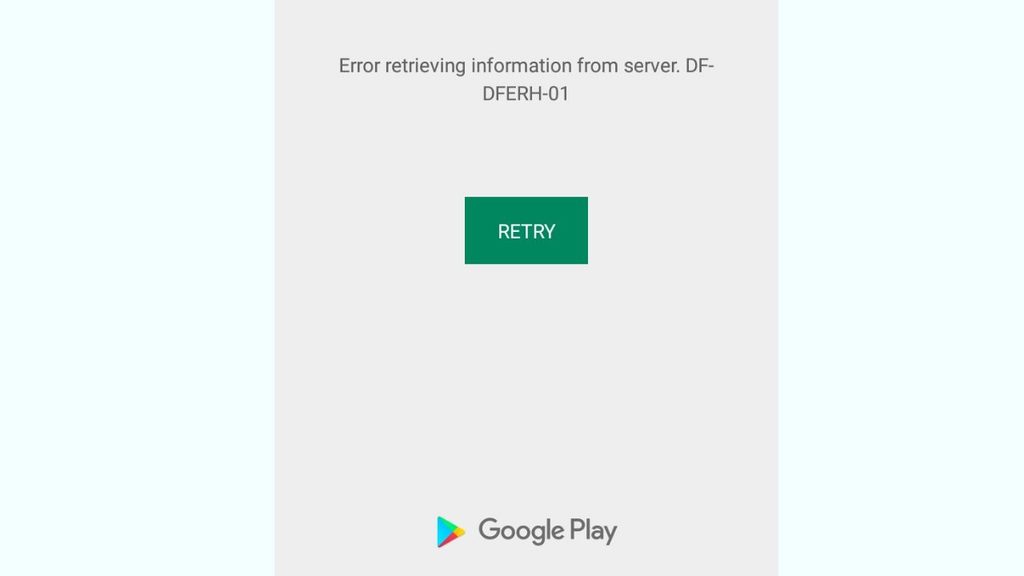
The DF-DFERH-01 error generally indicates that the Google Play Store could not retrieve or process information correctly. You might see the message when opening the Play Store, searching for an app, downloading an application, or checking for updates.
To fix the Google Play Store error DF-DFERH-01, try these solutions:
- Check your internet connection and switch between Wi-Fi and mobile data.
- Restart your Android device to clear temporary system problems.
- Clear the Google Play Store cache and data from your device settings.
- Clear Google Play Services cache if the error continues.
- Check automatic date and time settings on your phone.
- Update the Google Play Store and Android system software when updates are available.
- Remove and add your Google account again if other solutions do not work.
- Reset network settings as a final network-related troubleshooting step.
Step 1: Check Your Internet Connection
A weak or unstable internet connection can prevent the Play Store from retrieving app information. Start by checking whether websites or other online apps are working normally. If you are connected to Wi-Fi, try switching to mobile data. If you are using mobile data, connect to a reliable Wi-Fi network and test the Play Store again.
You can also turn Airplane mode on for several seconds and then turn it off. On most Android phones, you can find this option by opening Settings > Network & internet > Airplane mode, although the exact wording can vary by manufacturer. You can also access it from the Quick Settings panel by swiping down from the top of the screen.
If the Play Store starts working after changing networks, the problem may have been related to your original connection rather than the Play Store itself.
Step 2: Restart Your Android Device
A simple restart can clear temporary processes that may be interfering with the Play Store. This is especially useful if the error appeared suddenly after your phone had been running for a long time.
Press and hold the Power button, then select Restart when the option appears. Wait until your phone completely starts again, unlock it, and open Google Play Store. Try searching for the app that previously caused the error.
If the Play Store works after restarting, you probably had a temporary system or service issue. If the error comes back, continue with the next step.
Step 3: Clear Google Play Store Cache
The Play Store stores temporary files to help it load information faster. Occasionally, these files can become outdated or corrupted and cause errors such as DF-DFERH-01.
To clear the cache, open Settings > Apps > See all apps > Google Play Store > Storage & cache > Clear cache. The exact menu names can differ slightly depending on your Android manufacturer and software version.
After clearing the cache, open the Play Store again. You do not normally need to sign in again simply because you cleared the cache. Check whether the error has disappeared.
If clearing the cache does not help, you can return to Settings > Apps > See all apps > Google Play Store > Storage & cache and choose Clear storage or Clear data. This resets the Play Store’s local app data, so you may need to adjust some Play Store preferences afterward.
Step 4: Clear Google Play Services Cache
Google Play Services works behind the scenes with many Google apps and Android functions. If its temporary data becomes problematic, the Play Store may not communicate properly with Google’s servers.
Open Settings > Apps > See all apps > Google Play Services > Storage & cache > Clear cache. Depending on your phone, you may need to tap See all apps or use the search option in your Apps settings to locate Google Play Services.
Once the cache is cleared, restart your phone and open the Play Store. Give the device a moment to reconnect with Google’s services before trying to download an app.
Step 5: Check Date and Time Settings
Incorrect date or time settings can sometimes interfere with secure connections between your Android device and online services. Your phone should normally use the network-provided date and time.
Go to Settings > System > Date & time. Depending on your device, you may instead find these controls under General management > Date and time. Turn on Set time automatically and Set time zone automatically if those options are available.
After changing these settings, restart the Play Store and try again. Making sure your phone has the correct time is a simple step, but it can resolve unexpected connection problems.
Step 6: Update the Google Play Store
An outdated Play Store version can sometimes cause compatibility or service problems. You can check for a Play Store update directly from the app.
Open Google Play Store > profile picture > Settings > About > Update Play Store. If an update is available, allow it to install. If your Play Store is already up to date, you can move to the next troubleshooting method.
You should also check for Android updates through Settings > System > Software update or the equivalent option provided by your phone manufacturer. Installing available system updates can resolve compatibility issues between Android components.
Step 7: Remove and Add Your Google Account
If the error continues after clearing temporary data, your Google account synchronization may need to be refreshed. Before doing this, make sure you know the Google account email address and password associated with your phone.
Open Settings > Passwords & accounts > Google > Remove account. Some devices may use Settings > Accounts and backup > Manage accounts > Google instead.
After removing the account, restart your phone. Then return to Settings > Passwords & accounts > Add account > Google and sign in again.
Removing an account from the device does not permanently delete your Google account. However, make sure important information is synchronized before proceeding, particularly contacts and other account-related data.
Step 8: Reset Network Settings
If the Play Store error appears to be connected to your network and none of the earlier solutions worked, resetting network settings may help.
Look under Settings > System > Reset options > Reset Wi-Fi, mobile & Bluetooth. The wording can vary between Android devices.
Keep in mind that this action can remove saved Wi-Fi networks, passwords, Bluetooth connections, and other network configurations. After the reset, reconnect to your Wi-Fi network and test the Play Store again.
FAQs
What causes Google Play Store error DF-DFERH-01?
The error can be associated with network connectivity, Play Store cache problems, Google Play Services, account synchronization, incorrect date and time settings, or software issues. There is not always one universal cause.
Is DF-DFERH-01 a serious Android problem?
Usually, DF-DFERH-01 is not a serious hardware problem. It generally indicates that the Play Store is having trouble retrieving or processing information. Basic troubleshooting often resolves it.
Will clearing Play Store data delete my installed apps?
Clearing Play Store data does not normally uninstall your installed applications. However, it resets the Play Store’s local settings and data, so some preferences may need to be configured again.
Should I remove my Google account to fix the error?
You do not need to start with account removal. Try checking your connection, restarting the phone, clearing cache, and checking date and time settings first. Removing and adding the Google account can be considered if those solutions do not work.
Why does the Play Store work on Wi-Fi but not mobile data?
If the Play Store works on Wi-Fi but not mobile data, the problem may involve mobile data restrictions, carrier settings, data-saving features, or your cellular connection. Check whether Google Play Store is allowed to use mobile data.
Can restarting my phone fix DF-DFERH-01?
Yes. A restart can clear temporary processes and refresh connections between Android and Google services. It is one of the easiest troubleshooting steps to try first.