
Seeing a yellow border around your screen in Windows 10 or Windows 11 can be confusing, especially when you have not intentionally changed any display settings. The yellow outline may appear around the entire desktop, a particular window, or the area being captured or shared.
In many cases, the border is related to screen recording, screen sharing, accessibility features, graphics settings, or a third-party application rather than a damaged monitor. The exact cause can vary depending on what is running on your computer.
In this guide, I have explained most practical fixes.
Fix Yellow Border Around Screen in Windows 11 or 10
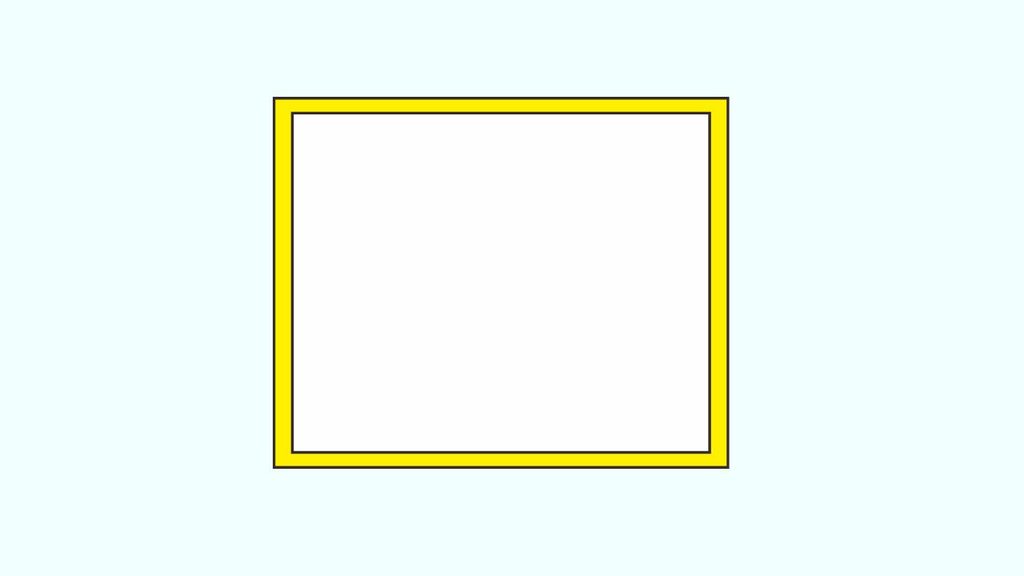
To fix the yellow border,
- First, close screen recording and screen-sharing applications that may be highlighting the display.
- To do this, check Windows Settings > Accessibility > Contrast themes and make sure an unwanted theme is not active.
- To do this, check Windows Settings > Accessibility > Magnifier and turn off Magnifier if it is active.
- To do this, restart Windows Explorer from Task Manager to refresh the desktop interface.
- To do this, update your graphics driver if the border appeared after a display or driver problem.
- To do this, temporarily close third-party utilities that modify your screen, windows, or display appearance.
- To do this, perform a clean restart or clean boot if the yellow border keeps returning after Windows starts.
Let’s learn in detail!
Step 1: Close Screen Recording and Screen Sharing Apps
Start by checking whether an application is currently recording or sharing your screen. This is one of the first things to investigate if the yellow border appeared suddenly while you were working.
Look at the notification area near the Windows taskbar clock and close any application that may be capturing your display. You should also check applications such as screen recorders, remote desktop tools, video conferencing software, streaming programs, or graphics utilities.
If you are using a screen recording application, open its settings and look for options related to recording borders, capture indicators, or highlighted recording regions.
After closing the application, check whether the yellow outline disappears. If it does, the application was likely responsible rather than Windows or your monitor.
Step 2: Check Windows Accessibility and Contrast Settings
Windows includes accessibility settings that can change the appearance of your desktop. An unusual color scheme can sometimes make a border appear more noticeable.
Open Settings > Accessibility > Contrast themes in Windows 11. In Windows 10, look under Settings > Ease of Access > High contrast.
Check whether a high contrast or contrast theme is currently enabled. If you did not intentionally enable one, switch back to the normal Windows appearance.
You can also review Settings > Accessibility > Visual effects in Windows 11 and check whether any unusual visual settings were recently changed.
The exact names and locations can vary slightly between Windows 10 and Windows 11, so focus on settings related to contrast, visual effects, and display appearance.
Step 3: Turn Off Magnifier
Windows Magnifier can change how your screen behaves and may sometimes make an unusual outline easier to notice.
Press Windows + Esc to quickly close Magnifier if it is running. Then check your screen again.
You can also open Settings > Accessibility > Magnifier in Windows 11. On Windows 10, go to Settings > Ease of Access > Magnifier.
Make sure Magnifier is turned off unless you specifically need it.
If the yellow border disappears after closing Magnifier, restart your computer and see whether the problem returns. If it does, another application or setting may be launching Magnifier automatically.
Step 4: Restart Windows Explorer
If the yellow border is caused by a temporary Windows interface problem, restarting Windows Explorer may clear it without requiring a full restart.
Press Ctrl + Shift + Esc to open Task Manager. Find Windows Explorer in the list of running processes. Select it and choose Restart.
Your taskbar and desktop may briefly disappear while Explorer restarts. This is normal. After a few seconds, the Windows interface should return.
Check the screen after Explorer restarts. If the border has disappeared, the problem may have been caused by a temporary graphical or desktop interface glitch.
Step 5: Restart Your Computer
A simple restart can resolve temporary display problems that survive individual application closures.
Select Start > Power > Restart and allow Windows to completely restart.
Once you reach the desktop, do not immediately open all your usual programs. Instead, check whether the yellow border is already visible.
If the border is gone, open your applications one at a time. This can help you identify whether a particular program is causing the problem.
If the border appears immediately after a certain application starts, that application becomes the most likely source.
Step 6: Update Your Graphics Driver
A graphics driver problem can cause unusual screen behavior, particularly if the issue started after a Windows update, graphics update, or hardware change.
Press Windows + X > Device Manager. Expand Display adapters, right-click your graphics device, and select Update driver.
Choose the option that allows Windows to search for an available driver.
If Windows does not find a newer driver, check the support software provided by your computer or graphics hardware manufacturer. Depending on your system, the graphics hardware may come from Intel, AMD, or NVIDIA.
After updating the driver, restart your computer and check whether the yellow border is still present.
Step 7: Check Display and Color Settings
If the border is actually part of a display effect, reviewing your display configuration may help.
Open Settings > System > Display in Windows 11. In Windows 10, open Settings > System > Display as well.
Check your display resolution, scale, and refresh rate. Make sure they are set to values supported by your monitor.
If you recently changed these settings, return them to their previous values and check the screen again.
Also check your monitor’s physical controls or companion software. Some monitors include gaming, accessibility, or screen enhancement features that can add visual outlines.
Step 8: Close Third-Party Screen Utilities
Think about software installed specifically for customizing your desktop, windows, mouse, keyboard, or monitor.
Examples include screen capture utilities, window management tools, gaming overlays, remote-access software, color-management applications, and display enhancement programs.
Close these programs temporarily and check the border.
If the yellow outline disappears, reopen the programs one at a time. This helps you determine which application is responsible.
Once you identify the program, look through its settings for options related to screen highlighting, recording indicators, window borders, overlays, or accessibility.
Step 9: Perform a Clean Boot
If you cannot identify the application responsible, a clean boot can help determine whether a third-party service is causing the problem.
Press Windows + R, type msconfig, and press Enter. Open the Services tab and select Hide all Microsoft services. Then review the remaining services and disable the ones you recognize as third-party software.
Next, open Task Manager from the Startup section and disable unnecessary startup applications.
Restart Windows and check the display.
If the yellow border disappears during the clean boot, a third-party program or service is likely involved. You can then re-enable items gradually to identify the specific software causing the issue.
Be careful when changing startup services. Avoid disabling unfamiliar Windows services unnecessarily.
Step 10: Check for Windows Updates
An operating system update can sometimes resolve graphics and display-related bugs.
Open Settings > Windows Update and select Check for updates.
If updates are available, install them and restart the computer when prompted.
If the yellow border started immediately after a recent update, however, note the update date and determine whether the problem began at the same time. This information can be useful when troubleshooting further.
FAQs
Why is there a yellow border around my Windows screen?
A yellow border can be caused by screen recording software, screen-sharing tools, accessibility settings, graphics utilities, or temporary Windows display problems. The exact cause depends on what is running on your computer.
Is the yellow border a sign that my monitor is damaged?
Not necessarily. A colored border around the screen is often software-related. Test the monitor with another computer or display source if you want to determine whether the issue follows the monitor or stays with your Windows installation.
How do I remove a yellow border caused by screen recording?
Close the recording application first. If the border disappears, open the application’s settings and look for options involving recording indicators, capture borders, screen highlighting, or recording regions.
Can a graphics driver cause a yellow border?
Yes. A graphics driver problem can cause unusual visual behavior. Updating or reinstalling the appropriate graphics driver can help when the problem is related to the display driver.
Why does the yellow border keep coming back?
If the border returns every time Windows starts or whenever a particular application opens, that application may be launching automatically. Check Startup apps and the application’s own settings to identify the source.
Should I reset Windows to fix the yellow border?
A complete Windows reset should generally not be your first troubleshooting step. Try closing screen-related applications, checking accessibility settings, restarting Explorer, updating graphics drivers, and performing a clean boot first.
Final Words
A yellow border around your screen in Windows 10 or Windows 11 is usually something you can troubleshoot without replacing your monitor or resetting your computer. Start with the simplest possibilities, especially screen recording and screen-sharing software, because these applications can intentionally display colored borders.
If that does not work, check accessibility settings, Magnifier, Windows Explorer, graphics drivers, display settings, and third-party utilities.
A clean boot can be particularly useful when the border keeps returning and you cannot determine which application is responsible.