
Are you trying to enroll your Windows computer in Microsoft Intune, but keep getting the “This device is already set up in another organization” message? This error can be frustrating, especially when you’re setting up a work or school account, and Company Portal refuses to complete the enrollment process.
This issue commonly occurs when a device is still associated with another organization’s Microsoft Entra ID (formerly Azure Active Directory) or Microsoft Intune environment. For example, you might have purchased a previously managed laptop, switched employers, reinstalled Windows, or tried to enroll a computer that was previously used for another organization’s work.
The important thing to understand is that removing a work or school account from Windows doesn’t always remove the device’s enrollment or registration from the previous organization’s management environment.
In this guide, I’ll explain how to fix the “This device is already set up in another organization” error in Company Portal or during Intune enrollment.
Important: If the computer belongs to your employer or school, don’t attempt to bypass its management restrictions. Your IT administrator may need to release the device from the previous organization’s tenant before you can enroll it elsewhere.
What Causes the “This Device Is Already Set Up in Another Organization” Error?
Before changing anything, it helps to understand what’s causing the problem.
Microsoft Intune is a cloud-based device management service that allows organizations to manage Windows computers, enforce security policies, install applications, and control access to company resources.
When a computer is enrolled, its management information is associated with an organization’s Microsoft Entra ID tenant and Intune environment.
The error can appear for several reasons.
Previous organization enrollment: Your computer might still be registered with a former employer’s or school’s Microsoft Entra ID tenant.
Incomplete device removal: Someone may have disconnected the work account from Windows without properly removing the device from the organization’s management environment.
Old enrollment certificates: Windows may still contain certificates associated with a previous Intune enrollment.
Stale device records: An outdated device entry may remain in Microsoft Entra ID, Intune, or Windows Autopilot.
Duplicate or cloned device information: A computer created from a previously enrolled system image may contain old enrollment information.
Now that you understand the possible causes, let’s work through the fixes.
Fix This Device Is Already Set Up in Another Organization in Company Portal or During Intune Enrollment
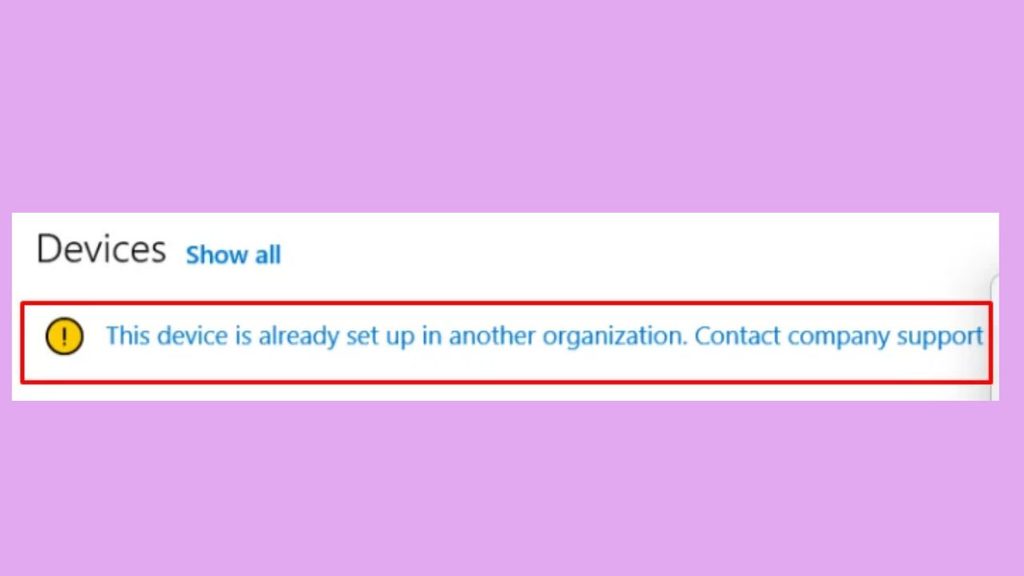
To fix this error, first check whether Windows is connected to an old work or school account. Then verify the device’s Microsoft Entra ID registration and Intune enrollment status. If the device is still registered with another organization, ask that organization’s administrator to remove or release it before attempting enrollment again.
Try these troubleshooting methods:
- Check the connected work or school accounts in Windows Settings.
- Disconnect an old work or school account if you are authorized to do so.
- Check the device’s Microsoft Entra ID join status.
- Remove outdated Intune enrollment information through the appropriate administrative process.
- Ask the previous organization’s IT administrator to remove the device from its tenant.
- Restart Windows and try enrolling through Company Portal again.
- Check Intune enrollment restrictions and device limits if the error continues.
1: Check Connected Work or School Accounts
Start by checking whether your Windows computer is connected to an old work or school account.
Sometimes, Windows retains an organization connection even after you’ve stopped using the associated account.
Press Windows + I to open Settings. Navigate to Accounts > Access work or school.
Look through the connected accounts and check whether you see an organization that you no longer use.
If you find an old account and have permission to remove it, select the account and click Disconnect. Confirm your selection when Windows asks for permission.
Restart your computer after disconnecting the account.
Now open Company Portal and try enrolling the device again.
Important: Don’t disconnect an account if the computer is still managed by your current employer or school. Doing so may interrupt access to organizational resources or remove required management settings. Also, disconnecting a local account doesn’t necessarily release a device from the previous organization’s cloud tenant.
2: Check Your Device’s Microsoft Entra ID Join Status
If disconnecting an old account doesn’t help, check whether your computer is still joined or registered with another Microsoft Entra ID organization.
Windows provides a command-line utility called DSRegCmd that displays device registration information.
Press Windows + S, search for Command Prompt, and select Run as administrator.
In the Command Prompt window, enter:
dsregcmd /status
Press Enter and wait for the device information to appear.
Look under the Device State section. You’ll find several entries, including AzureAdJoined, DomainJoined, and WorkplaceJoined.
These values help identify your computer’s current registration state.
For example, AzureAdJoined : YES indicates that the device is joined to Microsoft Entra ID. WorkplaceJoined : YES indicates that a work account registration exists for the current user.
If your computer is already joined to an organization you don’t recognize, contact the previous organization’s IT administrator or your current IT team.
Don’t immediately run commands such as dsregcmd /leave without understanding the consequences. Leaving a Microsoft Entra domain can affect organizational sign-in and device access.
The goal here is to identify the existing connection before making changes.
3: Remove the Previous Intune Enrollment Properly
If your device was previously managed by another organization, the old Intune enrollment may still be active.
In this situation, simply disconnecting the work account may not be enough.
If you have access to the previous organization’s IT department, ask its administrator to check the device in the Microsoft Intune admin center.
The administrator can navigate to Devices > All devices, search for your computer, and review its enrollment information.
Depending on the device ownership and management requirements, the administrator may need to perform a Retire action or another approved unenrollment process.
For a Windows device, the Retire action removes organizational management settings and company data while preserving personal data. However, the device’s Microsoft Entra ID and Autopilot records may require separate attention.
If you’re the authorized administrator, verify that the device has completed the unenrollment process before trying again.
Don’t use Wipe or Delete without checking the consequences. Wipe resets the device and removes its data, while deleting a device record is not always equivalent to releasing its hardware registration from Windows Autopilot.
4: Check and Remove Old Intune Enrollment Certificates
Another possible reason for this error is an outdated Intune enrollment certificate remaining on your computer.
Microsoft documents a related Windows enrollment error, 0x8007064c, which can occur when a computer was previously enrolled, contains a cloned enrollment image, or still has an old account certificate.
If you are comfortable working with Windows management tools, you can check whether an old Intune certificate exists.
Press Windows + R, type mmc, and press Enter.
In the Microsoft Management Console, navigate to File > Add/Remove Snap-in. Select Certificates and click Add.
Choose Computer account, click Next, select Local computer, and click Finish.
Click OK to return to the console.
Now navigate to Certificates (Local Computer) > Personal > Certificates.
Look for an Intune certificate issued by Sc_Online_Issuing.
If you find one, don’t automatically delete it. First, confirm that it belongs to an obsolete enrollment and that your current organization doesn’t depend on it. If you’re unsure, ask your IT administrator to verify the certificate.
For a confirmed stale enrollment, the administrator can follow Microsoft’s documented cleanup procedure.
The related Microsoft troubleshooting procedure also identifies the registry key:
HKEY_LOCAL_MACHINE\SOFTWARE\Microsoft\OnlineManagement
However, don’t delete registry entries simply because they exist. Back up the registry and confirm that the old enrollment is no longer active before making changes.
This solution is particularly relevant when the enrollment process reports that the machine is already enrolled.
5: Ask the Previous Organization to Release the Device From Windows Autopilot
If you purchased a used laptop or received a computer previously owned by another company, this step is especially important.
Windows Autopilot allows organizations to register devices and automatically apply organizational setup and enrollment settings during the initial Windows setup process.
Even after reinstalling Windows, an organization’s Autopilot registration may remain associated with the device.
This means a fresh Windows installation doesn’t necessarily remove its previous organizational ownership or registration.
Contact the previous organization and ask its IT administrator to check whether your computer is registered in Windows Autopilot.
The administrator should locate the device using its serial number and verify its registration.
If the computer was legitimately transferred or sold to you, the previous organization should follow its approved device release process. This may involve removing the device from Windows Autopilot and reviewing its associated Microsoft Entra ID and Intune records.
After the release is completed, restart the computer and try the enrollment process again.
If you’re an IT administrator handling the transfer, verify that the Autopilot registration and associated device records have been addressed before handing the computer to its new owner.
Remember: A factory reset or Windows reinstallation does not automatically remove a device from an organization’s cloud-based Autopilot inventory.
6: Reset the Company Portal Application
Sometimes, the device registration has already been corrected, but Company Portal continues displaying an old enrollment status.
This can happen because of outdated application data or cached information.
To resolve this, try resetting Company Portal.
Press Windows + I to open Settings. Navigate to Apps > Installed apps.
Find Company Portal in the application list.
Click the three-dot menu next to it and select Advanced options.
Scroll down to the Reset section and click Reset. Confirm your selection if Windows displays a warning.
This clears the application’s local data and restores its settings to their default state.
Once the reset is complete, restart Windows.
Open Company Portal, sign in using your current work or school account, and check whether your device can now enroll successfully.
If the application still behaves unexpectedly, you can uninstall it and install the latest version through the Microsoft Store.
Keep in mind that resetting Company Portal doesn’t remove an existing Microsoft Entra ID or Intune enrollment. It only addresses the application’s local data.
7: Check Intune Enrollment Restrictions and Device Limits
If your computer is no longer associated with the previous organization but enrollment still fails, your current organization’s Intune configuration may be responsible.
This is something your IT administrator should investigate.
Ask the administrator to sign in to the Microsoft Intune admin center and navigate to Devices > Enrollment > Enrollment restrictions.
The administrator should review the applicable enrollment restrictions and check whether Windows enrollment is permitted for your device and user account.
Another setting worth checking is the Device limit restriction.
For example, an organization may allow each employee to enroll only a specific number of devices. If your account has already reached that limit, Windows enrollment may fail.
The administrator can review your enrolled devices under Users > All users > Select your account > Devices and compare the number of devices against the applicable enrollment limit.
If outdated device records are present, the administrator can review and remove them according to organizational policy.
Also, confirm that your work account has the required Intune license and that the organization’s MDM configuration is properly established.
These checks help identify enrollment restrictions that may prevent an otherwise eligible computer from joining the organization.
Microsoft Learn
8: Restart Windows and Enroll the Device Again
After resolving the old registration or enrollment issue, it’s time to try the enrollment process again.
First, restart your Windows computer to apply any changes made during troubleshooting.
Once Windows starts, make sure you’re connected to a reliable internet connection.
Open Settings > Accounts > Access work or school and check whether an old organizational connection is still listed. If the device has been properly released, you can proceed with the new organization’s approved enrollment process.
Open the Company Portal and sign in using your current company or school email address.
Follow the on-screen instructions to complete device setup. Depending on your organization’s configuration, you may need to verify your identity, accept management permissions, or complete additional security requirements.
Wait until Company Portal confirms that enrollment is successful.
You can also check the device’s management status by opening Settings > Accounts > Access work or school, selecting the connected organizational account, and clicking Info if that option is available.
If the device still displays the same message, collect the enrollment details and contact your IT administrator.
They can investigate the device registration, enrollment logs, and tenant-side configuration.
FAQs
1. Why does Company Portal say this device is already set up in another organization?
This message usually appears when your computer is still associated with another Microsoft Entra ID tenant or has an existing Intune enrollment. It can also happen when old enrollment certificates or Windows Autopilot registration information remain on the device.
2. Can I fix this error without reinstalling Windows?
Yes. In most cases, you don’t need to reinstall Windows. Disconnecting an outdated work account, removing an authorized old enrollment, or having the previous organization release the device can resolve the issue.
3. Does factory resetting Windows remove the previous organization’s Intune enrollment?
Not necessarily. A factory reset removes local Windows data and settings, but it doesn’t automatically remove cloud-based device registration or Windows Autopilot records. The previous organization may still need to release the device.
4. How do I know if my computer is already enrolled in Intune?
Open Command Prompt as an administrator and run dsregcmd /status. Review the device registration information. You can also check Settings > Accounts > Access work or school to see whether an organizational account is connected.
For confirmation of the actual Intune enrollment status, your IT administrator can check the device in the Intune admin center.
5. Can I enroll one device in two different Intune organizations?
A Windows device generally can’t maintain simultaneous management by two different MDM authorities. You must properly unenroll it from the previous management environment before enrolling it with another organization.
6. What should I do if I purchased a used laptop that displays this error?
Contact the seller and ask them to have the previous organization release the device from Windows Autopilot and its associated management environment. If the seller cannot arrange this, consider requesting a refund because reinstalling Windows may not resolve the ownership-related registration.
7. Does removing a device from Intune also remove it from Microsoft Entra ID?
Not always. Intune device management and Microsoft Entra ID device registration are separate records. Depending on the device’s registration state and the administrative action performed, additional cleanup may be necessary.