
Running into the ‘Something went wrong (1099)’ error on Gemini AI can be frustrating, especially when you are trying to get answers, generate content, or complete an important task. The error usually appears unexpectedly and prevents Gemini from processing your request properly. In most cases, the problem is related to account authentication issues, browser problems, network connectivity, temporary server outages, or corrupted cache files.
Whether you are using Gemini on a desktop browser, laptop, Android phone, or iPhone, there are several troubleshooting methods you can try to get things working again.
Meaning of ‘Something Went Wrong (1099)’ on Gemini AI
The ‘Something went wrong (1099)’ error on Gemini AI is a general system error that typically occurs when Gemini cannot successfully communicate with Google’s servers or verify your session. The error may appear when you try to submit a prompt, start a conversation, upload files, or access Gemini features.
Several factors can trigger this issue. A temporary problem with Google’s services may interrupt communication between your device and Gemini. An expired account session can also prevent Gemini from authenticating your request. Browser extensions, corrupted cookies, outdated browser versions, unstable internet connections, and VPN services may also contribute to the problem.
Fix ‘Something Went Wrong (1099)’ on Gemini AI
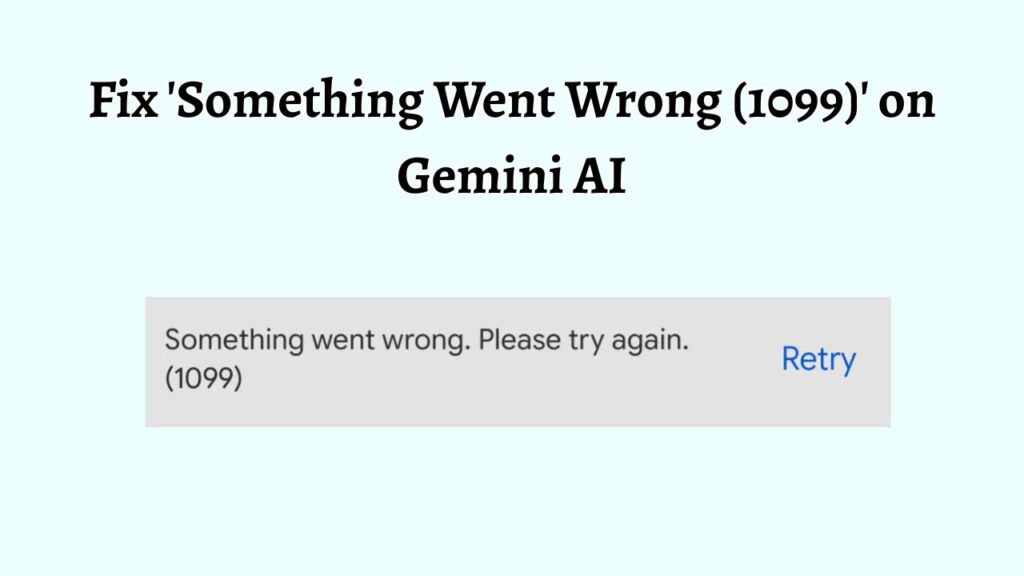
To fix ‘Something went wrong (1099)’ on Gemini AI, sign out and back into your Google account, refresh the Gemini page, clear browser cache and cookies, disable browser extensions, check your internet connection, update your browser, turn off VPN services, and verify whether Gemini services are experiencing a temporary outage.
If the problem continues, try using Gemini in a different browser or device.
Step 1: Sign Out of Gemini and Sign Back In
Sometimes Gemini loses its connection to your Google account, which can cause the ‘Something went wrong (1099)’ error. The easiest way to fix this is by signing out and signing back in.
Open Gemini and click your profile picture in the top-right corner of the screen. Select Sign out from the menu. After signing out, close the browser tab completely. Open a new browser tab, go back to Gemini, and sign in with your Google account again.
When you sign back in, Gemini creates a fresh connection with Google’s servers. If the error was caused by a temporary account issue, it may start working normally right away.
Step 2: Make Sure Your Internet Connection Is Working Properly
Gemini needs a stable internet connection to send your questions and receive answers. If your connection becomes slow or disconnects for even a few seconds, you may see the 1099 error.
Try opening a few other websites, such as Google Search or YouTube. If those websites are loading slowly or not opening at all, your internet connection may be the problem.
Restart your Wi-Fi router by unplugging it for about 30 seconds and then plugging it back in. Wait a few minutes for the connection to come back. If you are using a phone, try switching between Wi-Fi and mobile data to see if Gemini works better on a different connection.
Once your internet is stable, open Gemini again and test it with a simple question.
Step 3: Clear Your Browser’s Cache and Cookies
Your browser saves temporary files called cache and cookies to help websites load faster. Sometimes these files become outdated or damaged, which can prevent Gemini from working correctly.
If you use Google Chrome, click the three dots in the upper-right corner and select Settings. Click Privacy and Security, then choose Clear Browsing Data. Select Cookies and Other Site Data and Cached Images and Files. Click Clear Data to remove them.
After the cleanup is complete, close Chrome and open it again. Visit Gemini, sign in to your Google account, and check whether the error has disappeared.
Step 4: Turn Off Browser Extensions for a Few Minutes
Browser extensions are small tools added to your browser. Examples include ad blockers, password managers, privacy tools, and shopping assistants. While useful, some extensions can accidentally interfere with Gemini.
In Chrome, click the puzzle-piece icon near the address bar and open Manage Extensions. Turn off all extensions temporarily using the toggle switch beside each one.
Close and reopen the browser, then visit Gemini again. If Gemini starts working, one of the extensions is causing the problem. You can turn them back on one by one until you find the extension responsible for the error.
Step 5: Open Gemini in an Incognito Window
An Incognito Window is a special browser window that ignores most stored cookies, cached data, and extensions. This makes it a great tool for testing website problems.
In Chrome, click the three dots in the top-right corner and select New Incognito Window. A new dark-colored browser window will appear.
Sign in to your Google account and open Gemini. Try asking Gemini a question. If everything works normally in Incognito Mode, the issue is likely related to your regular browser settings, cookies, or extensions.
Step 6: Update Your Browser to the Latest Version
Older browser versions may not work properly with newer online services like Gemini. Keeping your browser updated helps prevent compatibility issues.
In Chrome, click the three dots, select Help, and then click About Google Chrome. Chrome will automatically check for updates and install them if available.
Once the update finishes, restart the browser. Open Gemini again and see whether the 1099 error is gone.
Step 7: Turn Off Your VPN Temporarily
A VPN changes your internet location and adds extra privacy. However, some VPN servers can interfere with Google’s services and cause login or connection issues.
If you are using a VPN application, disconnect it temporarily. Wait a few seconds, then refresh the Gemini page.
Try sending a prompt again. If Gemini starts working, the VPN connection is likely contributing to the problem. You can later reconnect using a different VPN location if needed.
Step 8: Wait and Try Again Later
Sometimes there is nothing wrong with your computer, phone, browser, or internet connection. Gemini’s servers may be experiencing a temporary issue.
If you have already tried several fixes and nothing works, wait 15 to 30 minutes and try again. Temporary service interruptions are usually resolved by Google’s technical teams without any action required from users.
Many users find that the error disappears on its own once the service returns to normal.
Step 9: Try Gemini on Another Device
If the error continues, use another device to test Gemini. For example, if you normally use Gemini on your laptop, try opening it on your smartphone or tablet.
Sign in with the same Google account and test Gemini. If it works on another device, the problem is likely related to the original browser or computer rather than your account.
This simple test can help you quickly narrow down the cause of the issue.
Step 10: Remove and Add Your Google Account Again
If nothing else has worked, reconnecting your Google account may help.
Sign out of your Google account completely. Close your browser and reopen it. Then sign back in using your Google email address and password.
This creates a fresh account session and can fix deeper account authentication issues that may be causing the ‘Something went wrong (1099)’ error on Gemini.
FAQs
Why does Gemini show ‘Something went wrong (1099)’?
The error typically appears due to authentication issues, corrupted browser data, unstable internet connections, browser conflicts, VPN interference, or temporary Gemini server problems.
Is error 1099 a permanent issue?
No. In most cases, the error is temporary and can be resolved using basic troubleshooting steps such as refreshing the session, clearing cache files, or signing back into your Google account.
Can browser extensions cause Gemini error 1099?
Yes. Certain ad blockers, privacy extensions, script blockers, and security tools can interfere with Gemini and trigger the error.
Clearing browser cookies signs you out of websites, but your Gemini conversation history associated with your Google account remains stored on Google’s servers unless manually deleted.
Should I reinstall my browser?
Reinstalling the browser is usually unnecessary. Most users resolve the issue through cache cleanup, browser updates, account reauthentication, or extension troubleshooting.
Summary
The ‘Something went wrong (1099)’ error on Gemini AI is usually caused by temporary authentication, browser, network, or server-related issues. Fortunately, the problem is often easy to fix. Start by refreshing Gemini and signing back into your Google account. Then, verify your internet connection, clear browser cache and cookies, disable extensions, and test Gemini in private browsing mode. Updating your browser, turning off VPN services, and checking for temporary service outages can also help resolve the issue.
If necessary, try another browser or device to pinpoint the cause. By working through these troubleshooting steps methodically, most users can restore normal Gemini functionality and continue using the platform without further interruptions.