
Are you seeing error code 0xc0000001 when starting your Windows 11 or Windows 10 PC? This error can be frustrating because it may prevent Windows from loading properly, leaving you stuck on a blue recovery screen or an automatic repair message.
This error commonly appears when Windows cannot access the files or components it needs to start. Possible causes include corrupted system files, damaged boot configuration data, faulty RAM, disk errors, or a recent Windows update. In some cases, a connected USB device or a failing storage drive can also interfere with startup.
In this guide, you’ll learn how to fix error code 0xc0000001 using beginner-friendly troubleshooting methods.
Fix Error Code 0xc0000001 in Windows 11/10
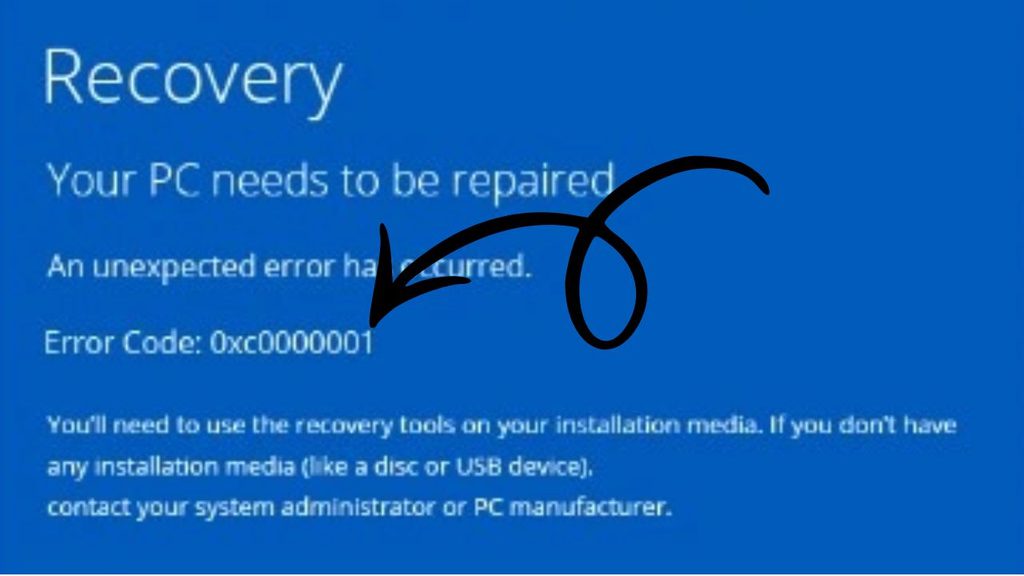
To fix error code 0xc0000001 in Windows 11 or Windows 10, follow these steps in order.
- Disconnect unnecessary USB devices and restart your PC.
- Open the Windows Recovery Environment and run Startup Repair.
- Uninstall a recent Windows update if the error appeared after updating.
- Run System Restore to return Windows to an earlier working state.
- Check your system drive for file system errors.
- Repair corrupted Windows system files using Command Prompt.
- Rebuild the boot configuration if Windows still cannot start.
- Test your RAM and check your storage drive for hardware problems.
- Reset or reinstall Windows if the other methods fail.
Step 1: Disconnect External Devices and Restart Your PC
Before changing any Windows settings, disconnect unnecessary external devices. Sometimes, a USB drive, external hard drive, printer, or other connected peripheral can interfere with the startup process. Although this is not the most common cause of error 0xc0000001, checking your connections is an easy first step.
Turn off your computer completely. Disconnect USB flash drives, external storage devices, memory card readers, and other nonessential accessories. Keep your monitor, keyboard, and mouse connected if needed. If you recently installed new hardware, consider whether the problem started immediately afterward.
Now turn on your PC and check whether Windows loads normally. If the error disappears, reconnect your devices one at a time to identify the possible cause.
If the error remains, continue to the next step. Avoid repeatedly forcing your computer to shut down if Windows is actively installing an update.
Step 2: Run Startup Repair
Startup Repair is a Windows recovery tool that can identify and fix certain problems preventing your computer from starting. It is a sensible next option because it attempts to repair startup issues without requiring you to reinstall Windows.
If your computer displays the recovery screen, select See advanced repair options or Advanced options, depending on the message shown.
Navigate to Troubleshoot > Advanced options > Startup Repair. Select your Windows installation if prompted, and enter your account password if required. Let the tool scan your system and complete any repairs.
If you cannot reach the recovery screen, Windows may enter the Windows Recovery Environment (WinRE) after several unsuccessful startup attempts. You can also boot from a Windows 10 or Windows 11 installation USB, select your language, and choose Repair your computer instead of installing Windows.
Once Startup Repair finishes, restart your PC and check whether the problem has been resolved. If Windows still displays error code 0xc0000001, move on to the next method.
Step 3: Uninstall a Recent Windows Update
Did the error appear immediately after installing a Windows update? If so, a problematic update could be responsible. Removing the latest update may restore your ability to start Windows.
Open the recovery options and navigate to Troubleshoot > Advanced options > Uninstall Updates. Depending on your Windows version and the updates available, you may see options to uninstall the latest quality update or the latest feature update.
Start with the latest quality update if the problem began after a routine security or maintenance update. A feature update may be relevant if the error started after a major Windows version upgrade.
Follow the on-screen instructions to complete the process. Your PC may restart automatically.
Keep in mind that uninstalling an update is not guaranteed to fix the error, particularly if damaged system files or hardware problems are involved. If the update removal option is unavailable or unsuccessful, continue with the next step.
Step 4: Use System Restore
System Restore can help if a recent driver installation, software change, or system configuration issue caused Windows to stop starting. It returns certain system files, drivers, registry settings, and installed programs to an earlier restore point.
To use this feature, open Troubleshoot > Advanced options > System Restore. Choose your Windows account if prompted, then enter your password. Select a restore point created before the error first appeared.
Review the affected programs if Windows offers that option, and confirm that you want to restore the system. Allow the process to finish without interrupting the computer.
System Restore generally does not remove your personal documents, photos, or other personal files, but it can remove programs, drivers, and updates installed after the selected restore point. It also works only if a suitable restore point exists.
After the restoration finishes, restart your PC and see whether Windows starts correctly.
Step 5: Check the Drive for File System Errors
Problems with the file system or storage drive can prevent Windows from reading the files it needs during startup. You can use the CHKDSK utility to check a drive for file system errors and, when requested, attempt to repair them.
Open Troubleshoot > Advanced options > Command Prompt from the recovery environment.
First, identify the drive letter containing your Windows installation. Drive letters can differ in recovery mode, so Windows may not be installed on C: in this environment. Enter the following command:
diskpart
Then enter:
list volume
Review the listed volumes, identify the likely Windows partition, and enter exit to leave DiskPart. You can check a suspected drive by entering:
dir C:\Windows
Replace C: with the appropriate drive letter. If the Windows folder is not found, try another likely volume.
Once you identify the correct drive, run:
chkdsk C: /f
Replace C: with your actual Windows drive letter. The /f option instructs CHKDSK to fix detected file system errors.
Allow the scan to finish. If the drive reports serious errors or makes unusual noises, prioritize backing up important files and checking the hardware. Avoid repeated intensive scans on a drive that may be physically failing.
Step 6: Repair Corrupted Windows System Files
Corrupted or missing Windows files can trigger error code 0xc0000001. The System File Checker (SFC) utility can scan protected system files and replace damaged versions when suitable repair sources are available.
Open Troubleshoot > Advanced options > Command Prompt.
First, confirm your Windows drive letter using the method explained in Step 5. For example, if Windows is installed on C:, enter:
sfc /scannow /offbootdir=C:\ /offwindir=C:\Windows
Replace the drive letter and Windows directory with the correct paths for your installation. In some recovery environments, the boot directory and Windows directory are on different volumes, so the command may need to be adjusted.
Press Enter and wait for the scan to finish. Do not close Command Prompt while the scan is running.
If SFC reports that it repaired corrupted files, restart your computer and test Windows. If it cannot perform the requested operation, verify the drive paths before trying again.
For more extensive component corruption, an offline DISM repair may be appropriate, but it requires a compatible Windows image or repair source in some situations. Avoid using arbitrary repair commands without confirming the correct installation paths.
Step 7: Repair the Boot Configuration
Windows relies on startup files and boot configuration data to locate and load the operating system. If these components are damaged, Windows may fail to start even when the system files on the drive are intact.
Open Troubleshoot > Advanced options > Command Prompt and identify the Windows installation and EFI system partition, if applicable.
On many modern UEFI-based PCs, Windows uses an EFI System Partition formatted with FAT32. Its drive letter may not be assigned in the recovery environment. You can use DiskPart to inspect the available volumes and partitions, but be careful not to format or delete anything.
On a UEFI system, once you have correctly identified the EFI partition and assigned it a temporary drive letter, you can use BCDBoot to recreate the boot files. For example, if Windows is on C: and the EFI partition has been assigned S:, the command is:
bcdboot C:\Windows /s S: /f UEFI
Replace both drive letters with the correct ones for your PC. Using the wrong partition or directory can make recovery more difficult, so verify the paths before running the command.
If your PC uses legacy BIOS rather than UEFI, the repair procedure differs. Do not apply UEFI-specific commands to a legacy BIOS installation without checking the system configuration.
Restart the computer after completing the appropriate repair. If you are unsure which partition contains the boot files, skip this step and seek help before modifying partitions.
Step 8: Check Your RAM and Storage Hardware
If the software repairs do not work, check whether a hardware problem is preventing Windows from starting. Faulty RAM can cause unpredictable startup errors, while a failing SSD or hard drive may make important system files unreadable.
If your PC starts occasionally, run Windows Memory Diagnostic by opening the Start menu, searching for Windows Memory Diagnostic, and selecting the restart-and-check option. Because your computer may not boot, you might instead need a compatible bootable memory-testing tool.
If you recently added RAM, shut down the computer and disconnect its power before inspecting the hardware. Desktop users with suitable experience can check whether the memory modules are seated correctly. Laptop memory may be inaccessible or soldered to the motherboard, so consult the manufacturer’s instructions before opening the device.
For storage, watch for repeated disk errors, unusually slow reads, or a drive that disappears from the firmware setup screen. These symptoms can indicate a hardware problem. Back up important files as soon as possible if the drive is still accessible.
If the memory test reports errors or the drive appears to be failing, consider professional hardware diagnosis instead of repeatedly attempting Windows repairs.
Step 9: Reset or Reinstall Windows
If none of the earlier solutions works, resetting or reinstalling Windows may be necessary. Treat this as a last resort because it can remove applications, settings, and potentially personal files, depending on the option you choose.
Open Troubleshoot > Reset this PC if the option is available. Windows may offer Keep my files or Remove everything. The first option is intended to preserve personal files, but it removes many installed apps and resets settings. It is not a substitute for a backup, and recovery failures can still result in data loss.
If resetting fails, you may need Windows installation media created on another working computer. Boot from the USB drive and choose the repair options first. If you decide to reinstall Windows, carefully distinguish a repair operation from a clean installation, which can erase data and partitions.
Before proceeding, back up important files whenever possible and make sure you have your BitLocker recovery key if drive encryption is enabled. If your files are valuable and the drive may be failing, consider professional data recovery before reinstalling Windows.
FAQs
1. What causes error code 0xc0000001 in Windows 11/10?
This error can result from corrupted system files, damaged boot configuration data, problematic updates, faulty RAM, file system errors, or a failing storage drive. The exact cause depends on your system and when the error first appeared.
2. Can I fix error 0xc0000001 without losing my files?
Yes, in many cases. Startup Repair, uninstalling a problematic update, and System Restore may resolve the issue without deleting personal documents. However, no recovery method is completely risk-free, so back up your files whenever possible.
3. Does error code 0xc0000001 mean my hard drive is damaged?
Not necessarily. The error can occur because of software or boot configuration problems. However, repeated disk errors, unusual drive noises, or a drive that is no longer detected can indicate hardware failure and should be investigated.
4. What should I do if Startup Repair fails?
Try uninstalling a recent update, using System Restore, checking the file system, and repairing system files. If Windows still cannot start, investigate boot configuration problems and possible hardware faults before considering a reset or reinstall.
5. Is it safe to use Command Prompt to fix this error?
Yes, when you use the correct commands and identify the correct Windows and boot partitions. Commands such as CHKDSK, SFC, and BCDBoot can help, but incorrect paths or partition changes can cause additional problems. Always verify drive letters and partition details first.
6. Can faulty RAM cause error code 0xc0000001?
Yes. Faulty or improperly seated RAM can cause startup failures and other unpredictable errors. A memory diagnostic test can help identify problems, although a successful test does not always rule out intermittent hardware faults.
Final Words
Error code 0xc0000001 in Windows 11/10 can prevent your computer from starting, but it does not automatically mean that Windows needs to be reinstalled. Begin by disconnecting unnecessary devices and running Startup Repair. If that does not help, try uninstalling recent updates, using System Restore, checking the file system, and repairing corrupted system or boot files.
If the error persists, investigate your RAM and storage drive before attempting a reset or clean installation.
Most importantly, protect your personal files before performing advanced recovery operations.