
The “Error Code 0x80004005” in Windows 11 or 10 is one of those vague system errors that can leave you guessing. It is commonly labeled as an “unspecified error”, which means Windows is not clearly telling you what went wrong. This error can appear during several activities, such as Windows updates, accessing shared folders, extracting ZIP files, or even while using virtual machines.
Let’s learn the possible causes of this error code and learn the ways to fix it!
Causes of Error Code 0x80004005 in Windows 11 or 10
One common cause is corrupted system files. When essential Windows files become damaged or missing, the system may fail to perform operations correctly, triggering this error.
Another frequent reason is Windows Update issues. If updates fail to download or install properly, you may encounter “0x80004005” during the update process.
The error can also occur due to permission problems. If your user account does not have the required access to certain files or folders, Windows may block the operation.
Sometimes, third-party antivirus software interferes with system processes, mistakenly blocking legitimate actions and causing this error.
Network-related scenarios, such as accessing shared drives, may trigger the issue due to incorrect network configurations or disabled file sharing settings.
Additionally, registry errors, damaged ZIP archives, or misconfigured virtual machines can also lead to this problem.
Fix: Error Code 0x80004005 in Windows 11 or 10
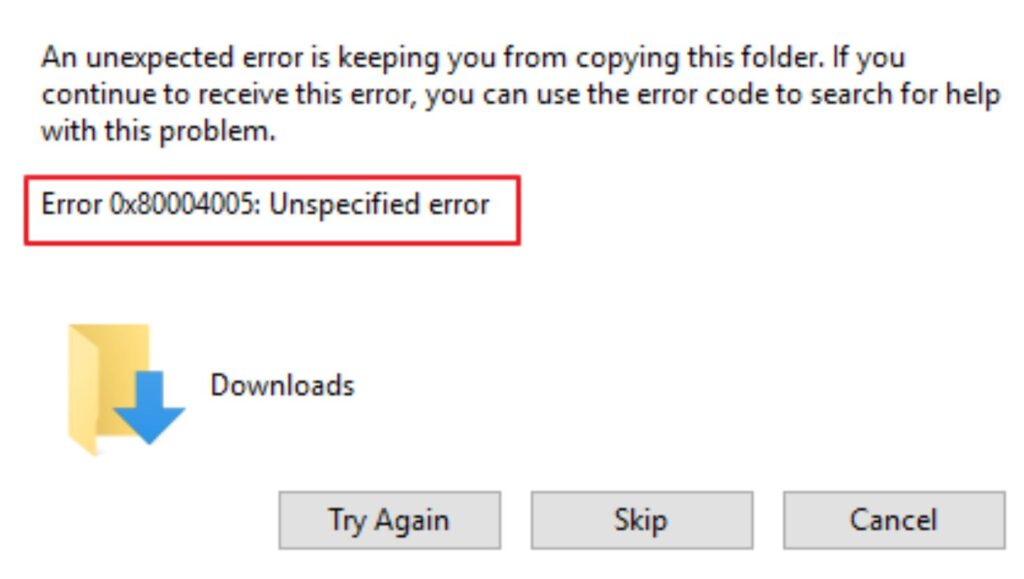
The fastest way to fix “Error Code 0x80004005” is to run the built-in Windows Troubleshooter and repair system files using the SFC scan. Open Settings, go to Troubleshoot, run the relevant troubleshooter, then open Command Prompt as administrator and run “sfc /scannow” to fix corrupted files automatically.
Method 1: Run the Windows Update Troubleshooter
Step 1: Open the Settings App
Start by clicking on the Start menu and selecting Settings. This is the central hub for configuring your system. Once inside, navigate to the section labeled “System”, and then scroll down to find “Troubleshoot”. This built-in feature is designed to detect and fix common Windows problems automatically.
Step 2: Access Troubleshooting Tools
Click on “Other troubleshooters”. Here, you will see a list of troubleshooters for different system components. Locate “Windows Update”, which is specifically designed to fix update-related issues that often trigger the “0x80004005” error.
Step 3: Run the Troubleshooter
Click the “Run” button next to Windows Update. The system will begin scanning for issues. Follow any on-screen instructions carefully. If the troubleshooter finds a problem, it will attempt to fix it automatically. Once complete, restart your computer and check if the error is resolved.
Method 2: Repair Corrupted System Files Using SFC and DISM
Step 1: Open Command Prompt as Administrator
Click on the Start menu, type “cmd”, then right-click on Command Prompt and choose “Run as administrator”. This ensures you have the necessary permissions to make system-level changes.
Step 2: Run the SFC Scan
In the command window, type “sfc /scannow” and press Enter. This command scans your system for corrupted or missing files and replaces them with the correct versions. The process may take several minutes, so be patient and avoid closing the window.
Step 3: Use DISM for Deeper Repair
If the SFC scan does not fix the issue, type the following command: “DISM /Online /Cleanup-Image /RestoreHealth”. This tool repairs the Windows image itself, which can resolve deeper issues. Once the process finishes, restart your system and check if the error persists.
Method 3: Disable Third-Party Antivirus Temporarily
Step 1: Locate Your Antivirus Software
Find the antivirus program running on your computer. It is usually visible in the system tray near the clock. Right-click on its icon to access its settings.
Step 2: Temporarily Disable Protection
Select the option that says “Disable protection” or “Turn off antivirus”. Choose a temporary duration such as 10 or 15 minutes. This step is safe if you avoid downloading files during this time.
Step 3: Retry the Action
Now attempt the action that previously caused the “Error Code 0x80004005”. If the issue is resolved, your antivirus may be interfering. Consider adjusting its settings or switching to a different solution.
Method 4: Fix Windows Update Components Manually
Step 1: Stop Update Services
Open Command Prompt as administrator and type commands to stop services like Windows Update and Background Intelligent Transfer Service. This prevents conflicts while resetting components.
Step 2: Rename Update Folders
Rename the SoftwareDistribution and Catroot2 folders. These folders store update files, and renaming them forces Windows to create fresh copies, eliminating corrupted data.
Step 3: Restart Services
Restart the previously stopped services using command prompts. Once done, reboot your computer and try updating again.
Method 5: Enable Network Discovery and File Sharing
Step 1: Open Network Settings
Go to Control Panel, then select “Network and Sharing Center”. This area manages how your computer interacts with other devices on the network.
Step 2: Turn On Network Discovery
Click “Change advanced sharing settings”. Enable “Network discovery” and “File and printer sharing”. These options allow your system to communicate properly with shared folders.
Step 3: Save Changes and Test Access
Save the settings and try accessing the shared resource again. This often resolves the error when it occurs during network operations.
Method 6: Check File Permissions
Step 1: Locate the Problem File or Folder
Find the file or folder that triggers the error. Right-click on it and select “Properties”.
Step 2: Adjust Security Settings
Go to the “Security” tab and click “Edit”. Ensure your user account has full control permissions. If not, enable all permissions.
Step 3: Apply Changes
Click “Apply” and then “OK”. Try accessing the file again to confirm the issue is resolved.
Method 7: Extract ZIP Files Using Alternative Tools
Step 1: Identify the Problem File
If the error occurs while extracting a compressed file, the archive may be corrupted or incompatible with Windows.
Step 2: Use Third-Party Software
Download a reliable extraction tool, such as a file archiver. Install it and use it to open the ZIP file instead of the default Windows extractor.
Step 3: Extract the Contents
Attempt to extract the files using the new tool. This often bypasses the limitation, causing the “0x80004005” error.
Method 8: Modify Registry Settings Carefully
Step 1: Open Registry Editor
Press Win + R, type “regedit”, and press Enter. This tool allows you to modify advanced system settings.
Step 2: Navigate to Relevant Key
Locate the section related to file sharing or system policies. Be cautious, as incorrect changes can affect system stability.
Step 3: Create or Modify Values
Adjust values as needed to enable proper functionality. After making changes, restart your computer to apply them.
FAQs
What does “Error Code 0x80004005” mean in Windows?
It means an unspecified error where Windows cannot determine the exact cause, often related to updates, permissions, or corrupted files.
Is this error dangerous?
The error itself is not harmful, but it may indicate underlying issues such as corrupted files or misconfigured settings.
Can I fix this error without technical knowledge?
Yes, most fixes in this guide are beginner-friendly and rely on built-in tools like troubleshooters and command-line utilities.
Why does this error appear during Windows updates?
It usually happens due to corrupted update files, network issues, or interference from security software.
Will resetting Windows fix the problem?
Resetting Windows can resolve the issue, but it should be considered a last resort after trying all other methods.
Summary
The “Error Code 0x80004005” in Windows 11 or 10 is a broad issue caused by multiple factors, such as corrupted files, update failures, permission restrictions, or network misconfigurations. Because of its generic nature, resolving it requires a systematic approach.
The most effective fixes include running the Windows Troubleshooter, repairing files with “SFC” and “DISM”, adjusting permissions, and ensuring proper network settings. In some cases, disabling antivirus software or resetting update components can also resolve the issue.