
Microsoft PC Manager, designed to help Windows users, helps clean unnecessary files, manage storage, improve performance, and handle common system maintenance tasks. One of its useful features is Deep Cleanup, which scans your PC for temporary files, caches, update leftovers, logs, and other items that may no longer be needed.
However, you may sometimes select Deep Cleanup, complete the scan, and then see the message “Unable to proceed. Please go back and retry.” This can be frustrating, especially when other PC Manager features appear to work normally.
The problem can be related to PC Manager permissions, its service, temporary files, a pending Windows update, background applications, or a damaged app installation.
Let’s learn to fix it!
Fix “Deep Cleanup Unable to Proceed” Message on PC Manager
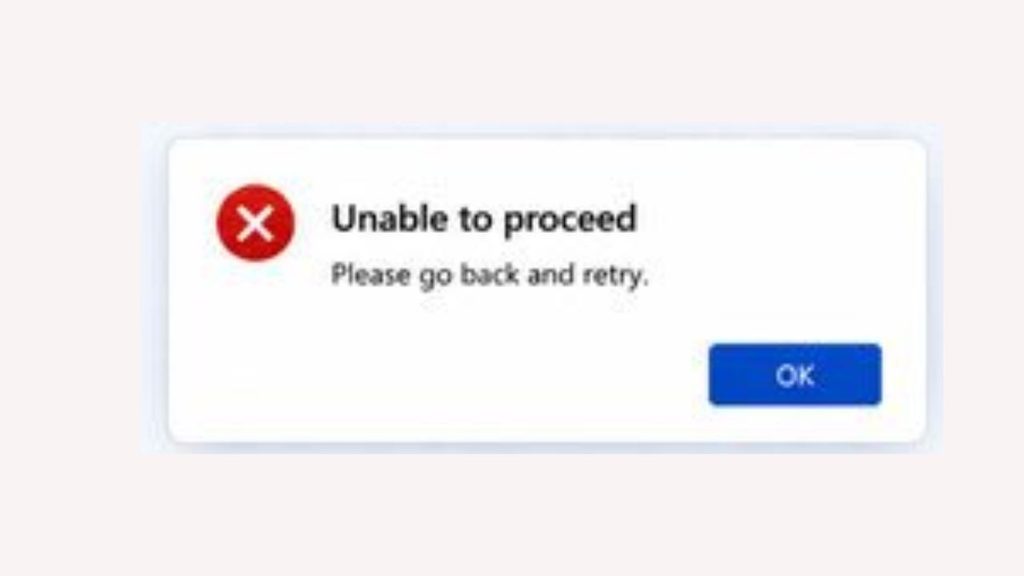
To fix the “Deep Cleanup Unable to Proceed” message in PC Manager, you can:
- Restart your computer and open PC Manager as administrator.
- Close browsers and other applications running in the background.
- Install any pending Windows updates and restart your PC.
- Restart the PC Manager service from Windows Services.
- Clear unnecessary temporary files through Windows Storage settings.
- Repair the Microsoft PC Manager app from Advanced options.
- Reset PC Manager if repairing the app does not work.
- Update or reinstall PC Manager if the problem continues.
- Make sure PC Manager is installed on the C: drive and has proper access to Windows system components.
The following steps cover everything in detail!
Step 1: Restart Your PC and Open PC Manager as Administrator
Start with a simple Windows restart. This can release temporary file locks, close background processes, and restart services that PC Manager needs.
Select Start > Power > Restart and allow Windows to boot normally. Once you reach the desktop, avoid opening several applications immediately.
Next, open Start and search for PC Manager. Right-click Microsoft PC Manager and select Run as administrator. If Windows displays a User Account Control prompt, select Yes.
After PC Manager opens, go to Cleanup > Storage Management > Deep Cleanup and run the scan again.
Running PC Manager with administrator permissions can help when the cleanup process needs access to system-level files. If Deep Cleanup works after this step, you do not need to make any other changes.
Step 2: Close Browsers and Background Applications
Another application may be using a file that PC Manager is trying to clean. This is particularly possible with web browsers, because browsers continuously create and access cache files.
Close Microsoft Edge, Google Chrome, Mozilla Firefox, and any other browsers you have open. Also close applications that may be actively working with temporary files, downloads, archives, or large documents.
After closing them, wait a few seconds and open PC Manager again. Go to Cleanup > Storage Management > Deep cleanup and try the operation.
If you want to make sure an application has completely stopped, press Ctrl + Shift + Esc to open Task Manager. Check the Processes section and close an application only when you recognize it and know that you are finished using it.
Avoid ending Windows system processes unnecessarily. The goal is simply to close ordinary applications that may be holding files open.
Step 3: Install Pending Windows Updates
A pending Windows update can sometimes interfere with system cleanup operations. Windows may be preparing update files or waiting for a restart before completing maintenance tasks.
To check for updates, go to Start > Settings > Windows Update. Select Check for updates and allow Windows to download and install available updates.
If Windows displays a Restart required message, restart your PC after the update finishes. Some updates cannot fully complete until Windows restarts.
Once you are back at the desktop, open PC Manager and try Deep cleanup again.
Keeping Windows updated is also important because Microsoft may correct bugs affecting system maintenance and storage-related operations through later updates.
Step 4: Restart the PC Manager Service
If Deep Cleanup still displays the error, the PC Manager service may not be running correctly. Restarting the service can refresh the component that communicates with the PC Manager application.
Press Windows + R to open the Run dialog. Type services.msc and press Enter.
The Windows Services window will appear. Look through the list for the PC Manager service, which may appear as PCManager Service or a similarly named PC Manager service depending on your version.
Right-click the relevant service and select Restart. If the service is stopped, select Start instead.
Afterward, close the Services window and reopen Microsoft PC Manager. Navigate to Cleanup > Storage Management > Deep cleanup and test the feature again.
If you cannot find a PC Manager service, do not change unrelated Windows services. Continue with the next solution instead.
Step 5: Clear Windows Temporary Files
If PC Manager is having difficulty processing temporary files, you can first clean some of them through Windows itself.
Go to Start > Settings > System > Storage > Temporary files. Windows will analyze the storage on your system and display categories of files that can potentially be removed.
Review the categories carefully before selecting anything. You can remove temporary items that you no longer need, but pay attention to categories such as Downloads, because that folder may contain files you still want.
Select the appropriate temporary-file categories and choose Remove files.
After Windows finishes cleaning them, restart your computer and test Deep Cleanup in PC Manager again. This can reduce the amount of temporary data that PC Manager has to process.
Step 6: Run Storage Sense
Windows also includes Storage Sense, which can automatically manage certain unnecessary files and help free up disk space.
Go to Start > Settings > System > Storage > Storage Sense. Turn on Storage Sense if it is currently disabled.
You can then use the option to run Storage Sense manually, if available. Let Windows complete its cleanup process before opening PC Manager again.
This step is useful because it gives Windows an opportunity to handle temporary storage items independently of PC Manager. Once it finishes, restart PC Manager and check whether Deep Cleanup can proceed normally.
Step 7: Repair Microsoft PC Manager
If the problem is caused by damaged application components, Windows gives you an option to repair PC Manager without completely removing it.
Go to Start > Settings > Apps > Installed apps. Find Microsoft PC Manager in the application list.
Select the three-dot menu next to PC Manager and choose Advanced options. Look for the Repair option and select it.
Windows will attempt to repair the application’s installation while preserving its data. The process may finish quickly, and you may not see a dramatic change on the screen.
When the repair is complete, launch PC Manager again. Go to Cleanup > Storage Management > Deep cleanup and test it.
This is one of the safest solutions to try because it does not immediately remove the application or its stored settings.
Step 8: Reset Microsoft PC Manager
If repairing the application did not solve the issue, you can try Reset from the same Advanced options screen.
Go to Start > Settings > Apps > Installed apps > Microsoft PC Manager > Advanced options.
First, select Terminate if the option is available. This completely closes the PC Manager application and its related app process.
Then select Reset and confirm the action when Windows asks.
Keep in mind that resetting an app can remove its local application data and restore its settings to their default state. It does not mean that your personal Windows files are deleted, but you may need to configure some PC Manager preferences again.
Once the reset finishes, open PC Manager and try Deep Cleanup.
Step 9: Update Microsoft PC Manager
An outdated version of PC Manager may have compatibility problems with your current Windows installation. Updating the application is therefore worth trying before reinstalling it.
Open the Microsoft Store and search for Microsoft PC Manager. If an update is available, install it and wait until the process completes.
You can also check whether Windows has recently received an update that changed the behavior of storage or cleanup components.
After updating PC Manager, restart Windows. Then open PC Manager and run Deep Cleanup again.
If the problem started immediately after an application or Windows update, allowing the latest available updates to install may resolve compatibility issues.
Step 10: Check Whether PC Manager Is Installed on the C: Drive
PC Manager may have trouble with certain operations if its installation has been moved away from the main Windows system drive.
Open Start > Settings > Apps > Installed apps and locate Microsoft PC Manager. Select its three-dot menu and check whether Windows provides a Move option.
If PC Manager has been moved to another drive and Windows allows you to move it back, consider returning it to the C: drive, which is normally the drive containing your Windows installation.
After moving the application, restart Windows and test Deep Cleanup.
Do not manually move PC Manager’s program folders between drives using File Explorer. Application installations should be managed through Windows so that their files, permissions, and registration remain consistent.
Step 11: Reinstall Microsoft PC Manager
If none of the previous solutions work, the PC Manager installation itself may be damaged. At this point, a fresh installation can be worth trying.
Before uninstalling the application, make sure you are comfortable reinstalling it afterward. Go to Start > Settings > Apps > Installed apps, locate Microsoft PC Manager, select its three-dot menu, and choose Uninstall.
After Windows removes the application, restart your computer. Then install the latest version of Microsoft PC Manager from Microsoft’s official distribution channel.
Once installation is complete, open PC Manager and test Deep Cleanup before changing other settings.
A fresh installation replaces damaged application components and can resolve problems that Repair and Reset cannot.
FAQs
Why does PC Manager say “Unable to proceed” during Deep Cleanup?
The message can appear when PC Manager lacks the required access, its service is not working correctly, another application is using a file, Windows has pending updates, or the PC Manager installation has encountered a problem.
Is it safe to use Deep Cleanup in PC Manager?
Generally, Deep Cleanup is intended to identify unnecessary files that can be removed to free storage space. However, always review the cleanup categories before confirming the operation, particularly anything involving personal files or folders such as Downloads.
Can restarting Windows fix the PC Manager Deep Cleanup error?
Yes. A restart can clear temporary file locks, close background applications, and restart Windows services. It is a good first step before trying more advanced troubleshooting.
Should I reset PC Manager immediately?
No. Try Repair first. Resetting can restore PC Manager to its default state and remove local application data, so it is better used after simpler solutions fail.
What should I do if Deep Cleanup still does not work?
If Deep Cleanup continues to display the “Unable to proceed” message after repairing, resetting, updating, and reinstalling PC Manager, the issue may involve a Windows component, service, or compatibility problem. At that point, checking your Windows version and PC Manager version and seeking Microsoft support can help identify a version-specific problem.
Final Thoughts
The “Deep Cleanup Unable to Proceed” message in Microsoft PC Manager can usually be approached without making complicated changes to Windows. Start by restarting your PC, opening PC Manager with administrator permissions, and closing applications that may be using temporary files.
If that does not work, check for Windows updates, restart the PC Manager service, and clear temporary files through Windows Storage settings. The next important solutions are to repair or reset PC Manager, update the application, and check its installation location.
If the problem continues after all of these steps, a fresh PC Manager installation is the logical final software-level fix.