
If you’ve ever tried installing a game or large software package on Windows and suddenly hit the message, “An error occurred while unpacking: unarc.dll returned an error code”, you’re not alone. The ‘unarc.dll’ file is responsible for decompressing archived data during installation. When the installer tries to extract files and fails, it throws an error code such as “error code -1”, “error code -6”, or others.
These codes often indicate specific problems. For example, “error code -1” usually points to corrupted or incomplete files, while “error code -6” often relates to insufficient RAM or paging file issues.
Common causes include corrupted downloads, low system memory, restricted permissions, antivirus interference, or hardware limitations.
This guide walks you through a detailed process to diagnose and fix the issue.
Fix: An Error Occurred While Unpacking unarc.dll
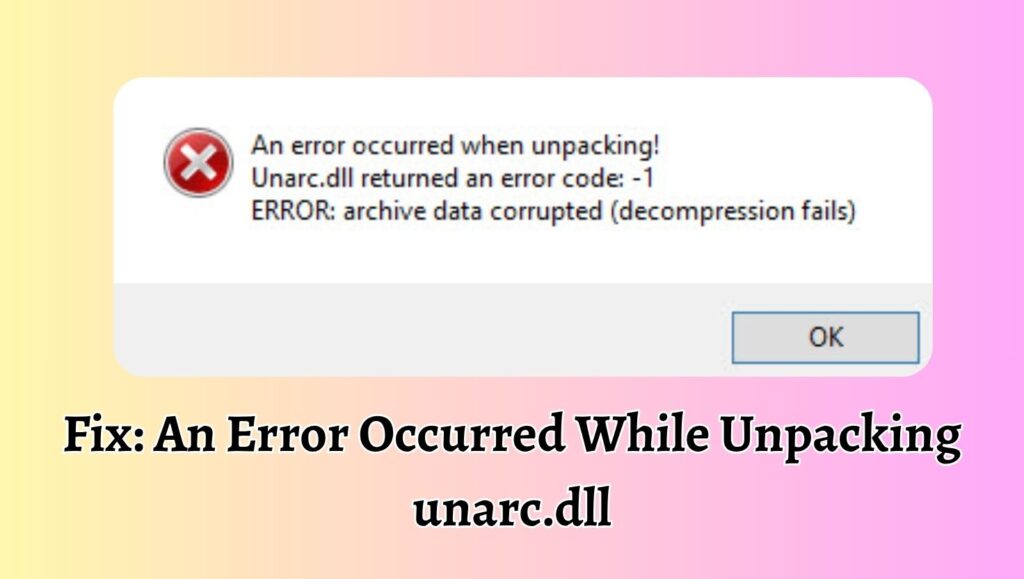
To fix the “An error occurred while unpacking unarc.dll” issue, verify the integrity of installation files, ensure sufficient disk space and RAM, disable antivirus temporarily, run the installer as administrator, and check system settings like paging file size. Most cases are caused by corrupted archives, memory limitations, or system interference during extraction.
Step 1: Verify the Integrity of Installation Files
The first and most important step is ensuring your installation files are not corrupted. A damaged archive is one of the most common reasons behind the “unarc.dll error”.
When you download large files, especially from unreliable sources or unstable internet connections, there is a chance that some parts of the archive are missing or damaged. Even a small corruption can break the extraction process.
To fix this, re-download the installation files from a trusted source. If the source provides a checksum such as MD5 or SHA, compare it with your downloaded file to confirm integrity. If you are using a torrent, force a recheck to repair any missing pieces.
Also, avoid pausing downloads frequently or using unstable networks. A clean, uninterrupted download significantly reduces the chances of encountering this error.
Step 2: Check Available Disk Space
Insufficient storage can also trigger the “unarc.dll returned an error” message. During installation, compressed files are extracted, which temporarily requires more space than the final installed size.
For example, if a game requires 50 GB after installation, it might need 70 GB or more during extraction. If your drive does not have enough free space, the process will fail midway.
To fix this, open your file explorer and check the available space on the drive where you’re installing the software. Free up space by deleting unnecessary files, emptying the recycle bin, or moving large files to another drive.
It’s always a good idea to keep at least double the required installation space available to avoid interruptions.
Step 3: Increase Virtual Memory or Paging File
Another major cause of this error is insufficient system memory. When your RAM is not enough to handle decompression, Windows uses a “paging file” as virtual memory. If this is too small or disabled, extraction may fail.
To resolve this, go to system settings and adjust the virtual memory size. Open the advanced system settings, navigate to performance settings, and then to the virtual memory section.
Set the paging file size to either “system managed” or manually increase it. A good rule is to set it to at least 1.5 to 2 times your RAM size.
After applying changes, restart your computer before trying the installation again.
Step 4: Run the Installer as Administrator
Permission issues can also interfere with file extraction. If the installer does not have the required privileges, it may fail to write or extract files properly.
To fix this, right-click on the installer file and select “Run as administrator”. This ensures that the installer has full access to system resources and directories.
Also, avoid installing software in restricted directories unless necessary. Installing in a simple folder like “C:\Games” can sometimes help avoid permission conflicts.
Step 5: Temporarily Disable Antivirus or Security Software
Antivirus programs are designed to protect your system, but sometimes they can mistakenly block or interfere with file extraction processes. This can result in the “unarc.dll error” during installation.
Some security tools flag compressed or executable files as suspicious, especially in repacked installers. When this happens, they may quarantine or block essential components.
To resolve this, temporarily disable your antivirus software before starting the installation. Make sure to disconnect from the internet while doing this to stay safe.
After installation is complete, re-enable your antivirus immediately. If the issue was caused by interference, this step should resolve it.
Step 6: Check RAM for Errors
Faulty or unstable RAM can also cause decompression failures. Since extraction relies heavily on memory, even minor issues can lead to errors like “unarc.dll returned an error code”.
You can use the built-in Windows Memory Diagnostic tool to check for problems. Restart your system and allow the tool to scan your memory.
If errors are detected, you may need to reseat your RAM modules or replace faulty hardware. In some cases, reducing overclocking settings can also stabilize memory performance.
Step 7: Disable Overclocking
If your CPU or RAM is overclocked, it might cause instability during intensive tasks like file extraction. Even if your system seems stable during normal use, decompression can push it to its limits.
To fix this, enter your BIOS settings and reset your CPU and RAM speeds to default values. Save the changes and restart your system.
Running your system at stock settings ensures stability and reduces the chances of encountering extraction errors.
Step 8: Extract Files Manually Using Reliable Tools
Sometimes, the built-in installer fails due to compatibility issues. In such cases, manually extracting the archive using tools like WinRAR or 7-Zip can help.
Right-click the archive file and select the extraction option. If the extraction fails, it confirms that the archive itself is corrupted. If it succeeds, you can run the setup from the extracted folder.
This method helps isolate whether the problem lies with the installer or the archive.
Step 9: Move Installation Files to a Different Drive
Drive-related issues can also cause this error. If your current drive has bad sectors or file system errors, extraction may fail.
Try moving the installation files to another drive, preferably an SSD or a healthy partition. Then run the installer again from the new location.
You can also run a disk check using system tools to identify and fix any errors on your drive.
Step 10: Reinstall Required System Components
Missing or outdated system components can interfere with installation processes. Libraries like Visual C++ Redistributables or DirectX are often required for proper functioning.
Download and install the latest versions of these components from official sources. Restart your system afterward and try installing again.
Keeping your system updated ensures compatibility and reduces errors during installation.
Faqs
What does “unarc.dll returned an error code -1” mean?
This usually indicates that the installation files are corrupted or incomplete. Re-downloading the files often fixes the issue.
Can low RAM cause the unarc.dll error?
Yes, insufficient RAM or an improperly configured paging file can lead to extraction failures and trigger this error.
Is it safe to disable antivirus software during installation?
It is generally safe if you are installing from a trusted source. Just make sure to re-enable your antivirus immediately after installation.
Why does this error occur mostly with large games?
Large games use heavy compression, which requires significant system resources during extraction. Any limitation or interruption can cause failure.
Does reinstalling Windows fix this issue?
In most cases, it is not necessary. The problem is usually related to files, memory, or settings rather than the operating system itself.