
Keeping your Windows 11 computer running smoothly requires regular maintenance, system monitoring, and timely updates. If you own an Acer laptop or desktop, Acer Care Center is one of the most useful utilities available for managing your device. It helps you monitor hardware health, update drivers, optimize performance, and troubleshoot common issues from a single dashboard.
Whether you recently purchased an Acer computer or want to reinstall the application after a Windows reset, this guide will walk you through everything you need to know about downloading, installing, and using Acer Care Center on Windows 11.
By following the instructions below, even beginners can easily set up the software and take advantage of its built-in maintenance and support features.
What is Acer Care Center?
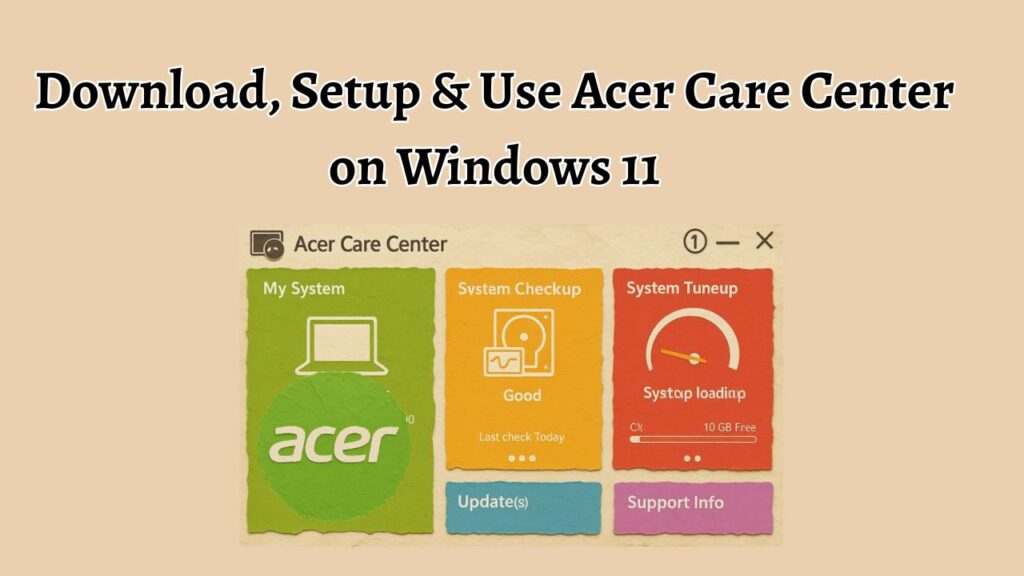
Acer Care Center is an official system management utility developed by Acer for its laptops and desktop computers. The software is designed to help users maintain their devices, monitor system health, update drivers, check hardware information, and optimize overall performance.
Instead of searching through different Windows settings and support tools, Acer Care Center combines multiple maintenance functions into one convenient interface.
Some of the key features include:
- System Health Monitoring that displays the condition of your hardware and storage devices.
- Driver and Software Updates that help keep your Acer device updated with the latest compatible components.
- Hardware Information that provides details about your processor, memory, storage, and system specifications.
- Recovery Management that assists with creating backups and restoring your system when needed.
- System Tune Up Tools that help improve overall device performance.
- Customer Support Access that provides direct access to Acer support resources.
For Acer users, this utility acts as an all-in-one maintenance center that simplifies device management.
Get Acer Care Center File (.exe)
Before installing the software, you need to download the official Acer Care Center setup file (.exe).
To ensure safety and compatibility, always download the application from Acer’s official support website. Using unofficial sources may expose your system to outdated software or security risks.
The setup file is usually available in executable format and is designed specifically for supported Acer laptops and desktops. Before downloading, verify that your device model supports Acer Care Center.
You should also ensure that:
- Your PC is running Windows 11.
- You have administrator privileges.
- You have a stable internet connection.
- You have sufficient free storage space for installation.
Once the setup file has been downloaded, you can proceed with the installation process described below.
Downloading & Installing Acer Care Center on Your Windows 11 PC/Laptop
Quick Steps to Download and Install Acer Care Center on Windows 11:
- Open the official Acer Support website.
- Search for your Acer laptop or desktop model.
- Navigate to the Drivers and Manuals section.
- Locate Acer Care Center under Applications.
- Download the Acer Care Center setup file.
- Open the downloaded .exe file.
- Follow the installation wizard instructions.
- Restart your computer if prompted.
- Launch Acer Care Center from the Start menu.
- Complete the initial setup and begin using the application.
Let’s learn the complete steps in detail!
Step 1: Visit the Acer Support Website
The first step is to access Acer’s official support portal, where the software is available for download.
Go to Start Menu > Open Your Preferred Web Browser > Visit Acer Support Website.
Once the website opens, look for the search box that allows you to identify your Acer device. Acer provides software downloads based on specific computer models, so entering the correct model number is important.
If you are unsure about your model number, you can usually find it on a sticker attached to the bottom of your laptop or on the back of your desktop system.
After identifying your model, continue to the next step.
Step 2: Search for Your Acer Device Model
Now you need to locate the support page for your exact computer model.
Go to Search Box > Enter Device Model Number > Select Matching Device.
A list of support resources will appear for your specific Acer product.
This page contains all official downloads related to your computer, including drivers, BIOS updates, manuals, and utility applications.
Selecting the correct model ensures that you receive the proper version of Acer Care Center that is compatible with your hardware.
Once your model page loads, move on to the Applications section.
Step 3: Locate Acer Care Center
After opening your device support page, find the software download section.
Go to Drivers and Manuals > Application Category > Acer Care Center.
You may notice several downloadable tools available. Carefully locate the entry labeled Acer Care Center.
Before downloading, verify that the listed operating system is Windows 11 or a compatible version.
You may also see release notes describing new features, bug fixes, or compatibility improvements.
After confirming the correct version, proceed to download the installer.
Step 4: Download the Acer Care Center Setup File
Now it is time to download the installation package.
Go to Acer Care Center Entry > Download Button > Save File.
Your browser will begin downloading the setup package to the default Downloads folder.
Depending on your internet speed, the download may take a few seconds or several minutes.
Once the download is complete, it is a good idea to verify that the file downloaded successfully and was not interrupted.
You are now ready to install the application.
Step 5: Run the Installer
The next step is launching the installation wizard.
Go to Downloads Folder > Acer Care Center Setup File > Double Click the .exe File.
Windows 11 may display a User Account Control prompt asking whether you want to allow the application to make changes to your device.
Select Yes to continue.
The installation wizard will open and guide you through the remaining setup process.
Carefully read any instructions that appear on the screen before proceeding.
Step 6: Complete the Installation Wizard
Once the installer opens, you can begin the setup process.
Go to Setup Wizard > Next > Accept License Agreement > Install.
The wizard will automatically copy files, configure settings, and install required components.
During installation, avoid shutting down your computer or closing the installer window.
The process typically takes only a few minutes.
After installation is completed, you may see a confirmation message indicating that Acer Care Center has been successfully installed.
Click Finish to exit the wizard.
Step 7: Restart Your Computer
Although not always required, restarting ensures that all components load correctly.
Go to Start Menu > Power > Restart.
Allow Windows 11 to restart normally.
After rebooting, all Acer Care Center services should be fully operational and ready for use.
This step helps prevent potential issues that can occur when system services have not yet been initialized.
Step 8: Launch Acer Care Center
Now you can start using the application.
Go to Start Menu > Search Box > Type Acer Care Center > Open Application.
The software will launch and display its main dashboard.
Depending on your device, the application may perform an initial system scan to gather information about hardware, drivers, and system status.
After the scan finishes, you can begin exploring the available tools and features.
Check System Health Using Acer Care Center
One of the most useful features is system health monitoring.
Go to Acer Care Center > Dashboard > System Health.
The software displays important information about your computer’s condition, including storage status, hardware health, and overall system performance.
Beginners can use this section to quickly determine whether their computer requires maintenance or attention.
Regularly reviewing system health helps identify potential problems before they become serious.
Update Drivers and Software Via Acer Care Center
Keeping drivers updated is important for stability and security.
Go to Acer Care Center > Updates > Check for Updates.
The application will scan your device and compare installed drivers against available updates.
If updates are found, follow the on-screen instructions to download and install them.
Updated drivers can improve performance, fix bugs, and enhance compatibility with Windows 11.
View Hardware Information Via Acer Care Center
Acer Care Center provides detailed hardware information.
Go to Acer Care Center > My System > Hardware Information.
You can view specifications such as:
- Processor details
- Installed memory
- Storage capacity
- Operating system version
- Device serial number
This feature is especially useful when troubleshooting issues or checking system specifications before upgrading hardware.
Perform System Tune Up Via Acer Care Center
Over time, computers accumulate temporary files and unnecessary data.
Go to Acer Care Center > Tune Up > Optimize System.
The software scans for items that may affect performance and provides recommendations for improvement.
Running optimization tasks periodically can help maintain a responsive Windows 11 experience.
Beginners who are unfamiliar with manual maintenance tools often find this feature particularly helpful.
Create System Backups Via Acer Care Center
Backups protect important files and system configurations.
Go to Acer Care Center > Recovery Management > Backup Options.
Follow the prompts to create a backup of important data or system settings.
If unexpected issues occur later, backups can help restore your system more quickly.
Creating backups regularly is considered a best practice for all computer users.
Access Recovery Tools Via Acer Care Center
Recovery tools can help resolve system issues without performing a complete Windows reinstall.
Go to Acer Care Center > Recovery Management > Recovery Options.
Depending on your device model, you may have access to recovery features that assist with restoring factory settings or repairing system problems.
These tools can be extremely valuable when troubleshooting software-related issues.
Get Acer Support Information Using Acer Care Center
Acer Care Center simplifies access to support resources.
Go to Acer Care Center > Support > Contact Information.
You can find warranty details, support links, product information, and troubleshooting resources.
This makes it easier to receive assistance when technical issues arise.
FAQs
Is Acer Care Center free?
Yes. Acer Care Center is an official utility provided by Acer at no additional cost for supported Acer devices.
Does Acer Care Center work on all Windows 11 PCs?
No. The software is primarily designed for Acer laptops and desktop computers. It may not function properly on devices manufactured by other brands.
Is Acer Care Center safe to install?
Yes. When downloaded from Acer’s official support website, Acer Care Center is safe and legitimate.
Can I uninstall Acer Care Center?
Yes. You can remove it by going to Settings > Apps > Installed Apps > Acer Care Center > Uninstall.
Why is Acer Care Center not opening?
This issue may occur because of outdated software, missing system components, corrupted files, or compatibility problems. Updating Windows 11 and reinstalling the application often resolves the issue.
Do I need Acer Care Center if Windows 11 already has maintenance tools?
While Windows 11 includes built-in maintenance utilities, Acer Care Center provides Acer-specific features such as hardware diagnostics, driver updates, recovery management, and support integration.
How often should I use Acer Care Center?
Checking the application once every few weeks is generally sufficient for monitoring system health, installing updates, and performing routine maintenance.
Summary
Acer Care Center is a powerful maintenance and support utility designed specifically for Acer computers running Windows 11. It allows users to monitor hardware health, update drivers, optimize performance, access recovery tools, and obtain support information from a single interface.
The installation process is straightforward. Simply download the official Acer Care Center .exe file, install it using the setup wizard, restart your computer if required, and launch the application from the Start menu.