
Google Docs makes it easy to create professional documents for school, work, business, and personal use. Whether you are writing a report, preparing a resume, creating a business letter, or formatting an assignment, page margins play an important role in how your document looks when viewed or printed.
Margins are the blank spaces around the edges of a page. They help keep your text organized, improve readability, and prevent content from appearing too close to the edges of the paper. Google Docs lets you adjust these spaces according to your needs, and you can also save your preferred settings as the default for future documents.
If you are wondering what the default margins in Google Docs are, how to change them, or how to make your preferred margins apply automatically, this guide will walk you through the process.
Let’s do it!
Default Margins in Google Docs
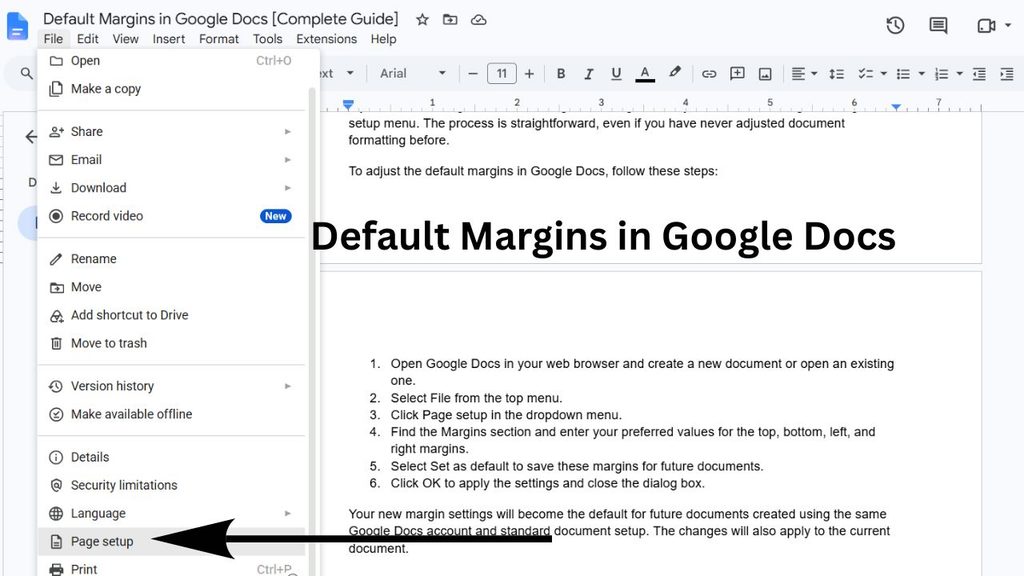
The default margins in Google Docs are 1 inch on all four sides of a page. This means the top, bottom, left, and right margins are each set to 1 inch when you create a new document using the standard page setup.
These margins work well for most everyday documents, including school assignments, office reports, business letters, and general writing projects. They provide enough white space around the text to make your document easy to read.
However, you might need different margins for specific purposes. For example, a school assignment may require 1-inch margins, while a document that needs extra room for binding might require a wider left margin. You might also want to use narrower margins to fit more content on each page.
Google Docs allows you to change the margins for an individual document or save new settings as your default.
Understanding the difference is important because changing a document’s margins does not automatically change the settings for every document you create later.
Adjust Default Margins in Google Docs [Complete Guide]
If you want to change the default margins in Google Docs, you can do so through the Page setup menu. The process is straightforward, even if you have never adjusted document formatting before.
To adjust the default margins in Google Docs, follow these steps:
- Open Google Docs in your web browser and create a new document or open an existing one.
- Select File from the top menu.
- Click Page setup in the dropdown menu.
- Find the Margins section and enter your preferred values for the top, bottom, left, and right margins.
- Select Set as default to save these margins for future documents.
- Click OK to apply the settings and close the dialog box.
Your new margin settings will become the default for future documents created using the same Google Docs account and standard document setup. The changes will also apply to the current document.
Step 1: Open Google Docs
Start by opening Google Docs in your preferred web browser. You can access it through the Google Docs website and sign in to your Google account if you are not already signed in.
Once the homepage loads, select Blank document to create a new document. If you already have a document that you want to format, open it from your recent documents list instead.
For beginners, creating a blank document is often the easiest option because you can experiment with margin settings without affecting an existing project. However, if you are working on a document that already contains text, you can adjust its margins without deleting your content.
Step 2: Open the File Menu
After opening your document, look at the menu bar near the top of the screen. You will see options such as File, Edit, View, Insert, Format, and Tools. Click File to open its dropdown menu.
The File menu contains several document management options, including downloading, printing, sharing, and configuring your page. For this task, you need to locate the Page setup option.
Follow this navigation path: Google Docs document > File > Page setup. Depending on your screen size or interface version, the menu may look slightly different, but the Page setup option is generally available in the File menu.
Step 3: Select Page Setup
Click Page Setup in the File menu. A dialog box will appear with settings for your document’s page format.
You will generally see options for Pages and Pageless, along with settings such as page orientation, paper size, page color, and margins. If you want to adjust conventional page margins for a printable document, make sure you are using the Pages format.
The Pages format organizes content into separate pages and supports standard margin settings. Pageless documents work differently because their content can flow without traditional page boundaries.
The navigation path is File > Page Setup> Pages. Once you have reached the correct section, you can move on to editing the margin values.
Step 4: Enter Your Preferred Margin Values
In the Page setup dialog box, locate the Margins section. You should see four fields labeled Top, Bottom, Left, and Right. In a standard Google Docs document, each field is initially set to 1 inch.
Click the field you want to change and enter your preferred measurement. For example, if you want to reduce the margins on every side, you could enter 0.5 in all four fields. This creates half-inch margins, leaving more space for text on each page.
You can also change individual sides. For instance, you might set the left margin to 1.25 inches to leave extra room for binding while keeping the other three margins at 1 inch.
Follow File > Page Setup> Margins > Top, Bottom, Left, and Right to locate the relevant fields. Before moving forward, double-check your measurements to ensure they match the formatting requirements for your document.
Step 5: Set Your New Margins as the Default
This is the most important step if you want your preferred margins to apply to future documents.
After entering your desired values, look for the Set as default button in the Page setup dialog box. Click it to save the current page setup as your default configuration.
This option is useful if you regularly create documents that require the same formatting. For example, if your school or workplace requires half-inch margins, saving them as your default can reduce the amount of manual formatting you need to do.
Remember that changing the margin fields and saving them as the default are two different actions. If you only change the values and click OK, you update the current document, but you do not necessarily change the default settings for future documents.
The navigation path is File > Page setup > Enter margin values > Set as default.
Step 6: Apply the Changes
Once you have selected Set as default, click OK to close the Page setup dialog box and apply the settings.
Your current document should now reflect the new margin measurements. You may notice that some paragraphs wrap differently, page breaks move, or the total number of pages changes. This is normal because the available space for text has changed.
For example, narrower margins generally provide more horizontal writing space, which can reduce the number of pages in some documents. Wider margins reduce the available writing area and may increase the page count.
After applying the settings, review your document to make sure headings, tables, images, and paragraphs still look right. The navigation path is Page setup > OK > Review your document.
Step 7: Check the Default Margins in a New Document
To confirm that your changes were saved, open a separate blank document in Google Docs. Avoid using the current document for this test because it already contains the settings you just applied.
Select File > Page setup in the new document and check the four margin fields. If your default settings were saved successfully, the fields should display your preferred values rather than the original 1-inch measurements.
For example, if you saved 0.75-inch margins on every side, the new document should show 0.75 for the top, bottom, left, and right margins.
This quick check helps you confirm that your preferred page setup is being used for new documents. If the original values still appear, repeat the process and make sure you select Set as default before clicking OK.
Step 8: Restore the Standard One-Inch Margins
If you decide to return to the original Google Docs margin settings, you can restore them just as easily.
Open your document and navigate to File > Page setup. In the Margins section, enter 1 in the Top, Bottom, Left, and Right fields. Then click Set as default if you want to restore these measurements for future documents as well.
Finally, click OK to apply the changes. Your current document will use standard one-inch margins, and future documents will use them too if you saved the settings as the default.
This is especially helpful when you need to meet standard formatting requirements for school assignments, professional reports, or other documents that specify one-inch margins.
FAQs
What are the default margins in Google Docs?
The standard default margins in Google Docs are 1 inch on the top, bottom, left, and right sides of the page. You can change these measurements through the Page setup menu.
Can I set different margins for different sides in Google Docs?
Yes. Google Docs lets you specify separate values for the top, bottom, left, and right margins. You can use this feature when a document needs extra space for binding or a particular formatting requirement.
How do I change margins in Google Docs without changing the defaults?
Open File > Page setup, enter your preferred margin values, and click OK without selecting Set as default. This changes the current document’s page setup without intentionally replacing your saved defaults.
Why are my Google Docs margins not changing?
First, make sure your document uses the Pages format instead of Pageless. Then check that you edited the correct margin fields and clicked OK. If the layout still looks different than expected, review the page orientation and paper size, too.
Can I use half-inch margins in Google Docs?
Yes. Enter 0.5 inches in each of the four margin fields to create half-inch margins. If you want this layout for future documents, select Set as default before clicking OK.
Do Google Docs margin settings apply to all my documents?
Selecting Set as default saves your preferred page setup for future documents created with the standard Google Docs document setup. It does not mean every existing document will automatically be reformatted to match the new defaults.
Can I change Google Docs margins on a phone?
The Google Docs mobile app has fewer page-formatting controls than the desktop web version, and the available options can vary by device and app version. For the most direct access to the full Page setup dialog and the Set as default option, use Google Docs in a desktop browser.