
Connecting two VGA monitors is not simply a matter of plugging two cables into one port. Your computer needs to be capable of producing two independent video signals. This distinction is especially important with VGA because a basic VGA splitter generally duplicates the same image instead of creating a genuine extended desktop.
Before you start, look at the back or side of your computer and identify the available video ports. You might see VGA, HDMI, DisplayPort, DVI, or USB-C. Your monitors may also have different combinations of these ports.
If your computer has two independent display outputs, setting up dual monitors is usually easy. If it has only one VGA output, you may need an adapter, docking station, or another supported display solution.
Let’s learn the entire process in detail, including checking your hardware, connecting the monitors, configuring Windows, and troubleshooting common VGA issues.
Connecting Dual Monitors with VGA [Complete Guide]
Follow these steps one by one:
- To connect dual monitors with VGA, first check whether your computer supports two separate display outputs.
- Connect the first monitor to the computer using a VGA cable and connect the second monitor to another compatible video output.
- If your computer has only one VGA port, use a compatible adapter or docking solution that supports two independent displays.
- Turn on both monitors and open Windows Settings > System > Display.
- Select Identify to determine which display is Monitor 1 and Monitor 2.
- Choose Extend these displays from the multiple-display settings to use both monitors as one expanded desktop.
- Select Keep changes and adjust the display resolution, orientation, and monitor position as needed.
- If the second monitor does not work, check the cables, adapters, video drivers, input source, and Windows display settings.
Step 1: Check Your Computer and Monitor Ports
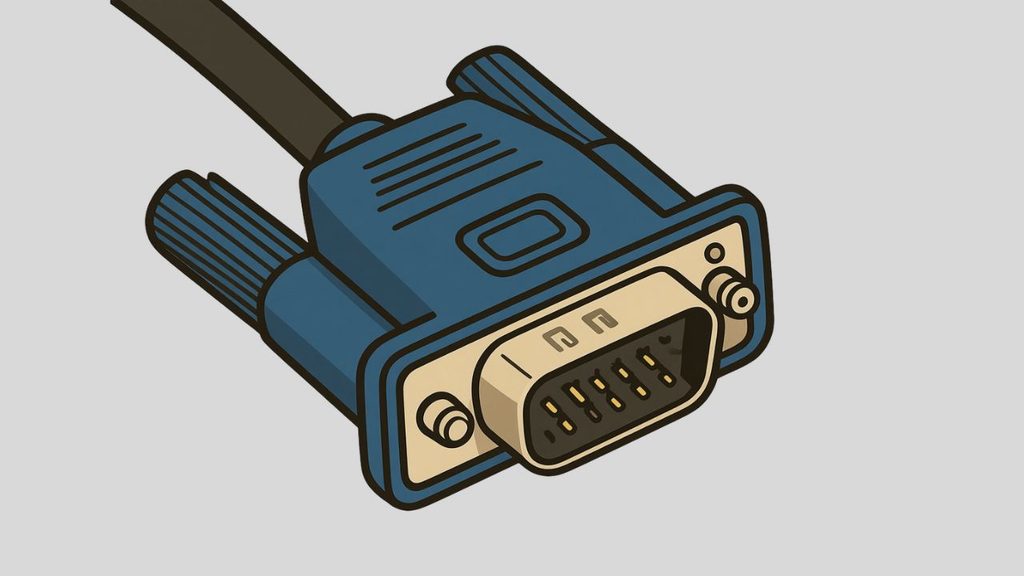
Start by checking the ports on both your computer and monitors. A VGA port is usually a blue, 15-pin connector with three rows of small holes. It is commonly secured with two screws on the sides.
Check whether your computer has two video outputs that can operate simultaneously. For example, you might have one VGA port and one HDMI port. In that situation, you could connect one monitor through VGA and the other through HDMI, assuming your computer supports simultaneous output.
Next, check the available inputs on each monitor. If both monitors have VGA inputs, you can use VGA cables for both when the computer provides two suitable VGA-capable outputs.
Step 2: Get the Correct Cables and Adapters
Once you know which ports are available, gather the appropriate VGA cables and adapters. A standard VGA cable has a male connector designed to plug into a VGA input or output.
If your computer has VGA for one monitor and HDMI for the other, you may need an HDMI-to-VGA adapter for the second display. However, make sure the adapter is appropriate for the direction of the connection. HDMI and VGA use different types of signals, so a simple passive cable is not always enough.
Also, avoid assuming that a VGA splitter will give you two independent screens. A standard splitter generally mirrors one video signal across two monitors. If your goal is an extended desktop, you need hardware capable of supporting independent displays.
Step 3: Connect the First Monitor
Turn off your computer and monitor if you want to make the physical connection with everything powered down. Connect one end of the VGA cable to the computer’s VGA output and the other end to the first monitor’s VGA input.
Tighten the screws on the VGA connectors gently. They help keep the cable securely attached and prevent accidental movement.
Turn the monitor on and use its Input or Source control to select VGA if the monitor does not automatically detect the connection.
Step 4: Connect the Second Monitor
Now connect the second monitor using the computer’s other supported display output. Depending on your hardware, this could be another VGA connection, HDMI, DisplayPort, DVI, or a compatible adapter.
If you are using an adapter, connect it firmly between the computer’s video output and the monitor’s VGA cable. Then switch the second monitor to the correct input source.
After connecting both displays, turn on your computer. Windows should automatically detect the available monitors in many cases.
Step 5: Open Windows Display Settings
After Windows starts, right-click an empty area of your desktop and select Display settings. You can also open Settings > System > Display.
You should see graphical representations of the connected monitors. If Windows detects both displays, they will normally appear as 1 and 2.
Click Identify to display a number on each physical monitor. This makes it easier to determine which monitor Windows considers Display 1 and Display 2.
If only one display appears, select Detect under the display settings and give Windows a moment to search for the second monitor.
Step 6: Choose Extend These Displays
This is the most important configuration step if you want to use both monitors independently.
In Settings > System > Display, locate the multiple-display option. Open the drop-down menu and select Extend these displays.
Windows will now treat the two monitors as an expanded desktop. You can move your mouse from one screen to the other, drag application windows between them, and keep different programs open on each display.
If you choose Duplicate these displays, both monitors will show the same content. That option is useful for presentations but does not provide the extra workspace most people want from a dual-monitor setup.
Step 7: Arrange the Monitors
Your physical monitor arrangement and Windows’ virtual arrangement should match.
In Display settings, click and drag the monitor rectangles so their positions correspond to your desk. For example, if your second monitor is physically to the left of your main monitor, place Display 2 on the left side of Display 1 in Windows.
You can also select a monitor and change its display resolution, scale, orientation, and refresh rate, depending on what Windows and your hardware support.
For the best experience, use the recommended resolution shown by Windows whenever possible.
Step 8: Select Your Main Display
If you want one monitor to be your primary workspace, select that display in Display settings and enable Make this my main display.
Your main display generally receives the primary desktop elements, such as the main taskbar and default location for newly opened applications.
This setting is especially useful if one monitor is larger, newer, or positioned directly in front of you.
Step 9: Test Both Monitors
Now test your setup. Move the mouse from one screen to the other and open a few applications.
Try dragging a browser window from the first monitor to the second. You can also open File Explorer or another application on each screen to confirm that the extended desktop is working correctly.
If everything works, your dual VGA monitor setup is complete.
Tips
Keep your VGA cables firmly connected, because loose connectors can cause flickering, color problems, or a missing display.
If possible, use shorter, good-quality VGA cables. VGA is an analog video connection, so cable quality and interference can become more noticeable at higher resolutions or longer distances.
Remember that a basic VGA splitter usually mirrors the same image. It does not automatically create an extended desktop.
If one monitor looks blurry, check its native resolution in Windows Display settings. Selecting an incorrect resolution can make text and images appear less sharp.
Also check your graphics driver if Windows repeatedly fails to recognize the second monitor. Updating the graphics driver can resolve compatibility and detection problems.
Faqs
Can I connect two monitors using one VGA port?
A basic VGA splitter can connect two monitors physically, but it generally duplicates the same display. For two independent screens, your computer needs hardware that can provide two separate display signals.
Can I use VGA and HDMI at the same time?
Yes, many computers can use VGA and HDMI simultaneously, provided the graphics hardware and drivers support multiple displays. Connect each monitor to its respective output and configure them through Windows Display settings.
Why is my second VGA monitor not detected?
Check that the cable is connected properly, the monitor is set to the correct VGA input, and Windows has detected the display. You can also use Settings > System > Display > Detect to search for another monitor.
Can I extend my desktop with two VGA monitors?
Yes, you can use two VGA monitors with an extended desktop if your computer or compatible display hardware provides two independent video outputs.
Does VGA support high-resolution monitors?
VGA can support several resolutions, but it is an older analog standard and may not provide the same clarity as modern digital connections such as HDMI and DisplayPort. The actual result depends on your graphics hardware, monitor, cable quality, and resolution.