
A Jadens Thermal Printer is widely used for printing shipping labels, barcode labels, warehouse stickers, and eCommerce packaging labels. Connecting the printer to a Windows 11 or Windows 10 computer is usually simple, but many users face problems during the initial setup because of incorrect driver installation, USB connection issues, or improper printer settings.
This guide explains how to connect your Jadens thermal printer to Windows step by step in an easy way.
Connect Jadens Thermal Printer to Windows 11/10
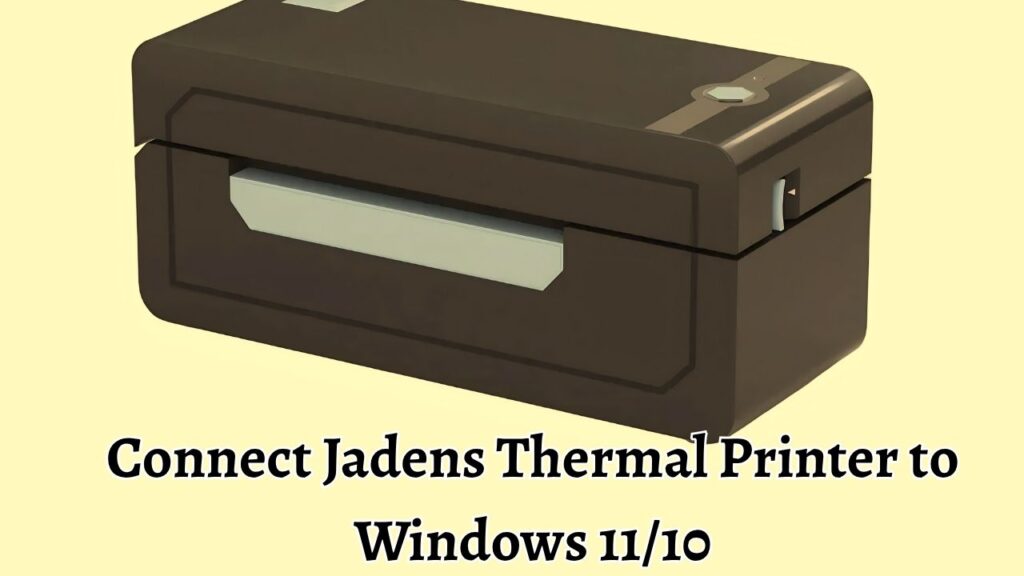
Turn on the Jadens Thermal Printer and connect it to your Windows computer using a USB cable or Bluetooth. Download and install the latest printer driver from the official Jadens website. Open the Windows printer settings and add the printer manually if it does not appear automatically. Configure the correct paper size and printing preferences, then print a test label to confirm the connection is working properly.
Let’s learn the complete process in detail!
Why You Need the Correct Printer Setup?
A thermal printer works differently from a regular inkjet or laser printer. It uses heat to print on thermal paper and labels. Because of this, Windows must recognize the printer correctly to avoid problems such as blank labels, missing text, incorrect alignment, or printing errors.
A proper setup helps you:
- Use shipping platforms smoothly
- Print labels faster
- Avoid paper waste
- Improve print quality
- Prevent connection errors
- Use the printer with apps like Shopify, Etsy, Amazon, eBay, and USPS tools
Before You Start the Setup
Before connecting the printer, make sure you have these things ready:
- A working Windows 11 or Windows 10 computer
- The Jadens thermal printer power adapter
- A USB cable or Bluetooth-enabled PC
- Thermal labels are loaded properly inside the printer
- An active internet connection for downloading drivers
Also, make sure the printer is powered on before starting the installation.
Step 1: Unbox and Prepare the Jadens Thermal Printer
First, remove the printer from the box carefully and place it on a flat surface near your computer. Connect the power cable to the printer and plug the adapter into a wall outlet. Press the power button to turn on the printer.
Next, open the printer cover and load the thermal labels correctly. The printable side of the labels should face upward. Adjust the paper guides so the labels stay aligned inside the printer.
Go to the printer cover area and close it firmly until you hear a click. This ensures the labels feed correctly during printing.
After loading the labels, press and hold the feed button for a few seconds. The printer should automatically detect the label size and feed one or two labels forward.
This step is important because incorrect label placement can cause alignment problems later.
Step 2: Connect the Printer to Your Windows Computer
Now connect the Jadens printer to your Windows PC.
If you are using a USB connection, plug the USB cable into the printer and then connect the other end to your computer. Windows may automatically detect the device.
If you are using Bluetooth, turn on Bluetooth on your computer first.
Go to Start > Settings > Bluetooth & devices > Bluetooth and switch Bluetooth ON.
Now press the Bluetooth pairing button on the printer if your model supports wireless connectivity. Wait for the printer name to appear on the computer screen.
Select the Jadens printer name and click Connect. Some printers may require a pairing code. If prompted, enter the default code provided in the printer manual.
Once connected, keep the printer powered on throughout the setup process.
Step 3: Download the Jadens Printer Driver
Windows sometimes installs a generic driver automatically, but using the official driver provides better compatibility and print accuracy.
Open your web browser and visit the official Jadens support website.
Go to Support > Downloads > Thermal Printer Drivers. Choose the correct driver for your printer model and your Windows version. Click Download and wait for the setup file to finish downloading.
After downloading, open the Downloads folder and double-click the driver installation file. If Windows shows a security prompt, click Yes to allow the installation. Follow the installation instructions on the screen carefully.
The setup wizard usually installs the printer driver within a few minutes.
Restart your computer after the installation finishes to ensure Windows loads the new driver correctly.
Step 4: Add the Jadens Printer in Windows Settings
After installing the driver, you need to confirm that Windows recognizes the printer.
Go to Start > Settings > Bluetooth & devices > Printers & scanners.
Click Add device. Windows will search for nearby printers automatically.
If the Jadens printer appears in the list, select it and click Add device. If the printer does not appear, click Add manually.
Choose Add a local printer or network printer with manual settings. Select the correct USB port from the list and continue. Choose the Jadens driver that you installed earlier.
Complete the setup process and allow Windows to finish adding the printer.
Once added, the printer should appear under the Printers section.
Step 5: Set the Jadens Printer as Default
Setting the printer as the default helps Windows send labels to the correct device automatically.
Go to Start > Settings > Bluetooth & devices > Printers & scanners. Select the Jadens thermal printer from the list. Click Set as default.
Now Windows will automatically use this printer whenever you print labels from shipping software or browser-based label tools.
This step prevents accidental printing to another printer connected to your computer.
Step 6: Configure the Correct Label Size
Thermal printers require accurate paper size settings. Incorrect dimensions can cause cropped or shifted labels.
Go to Start > Settings > Bluetooth & devices > Printers & scanners > Jadens Printer > Printing preferences.
Look for the Paper Size or Label Size option. Choose the correct label dimensions, such as:
- 4 x 6 inches for shipping labels
- 2 x 1 inches for barcode labels
- 3 x 2 inches for warehouse labels
Click Apply and then click OK.
Some shipping platforms also require matching label settings inside the application. Always use the same label size in both Windows and the shipping software.
Step 7: Print a Test Label
Printing a test page confirms that the connection and settings are working properly.
Go to Start > Settings > Bluetooth & devices > Printers & scanners. Select the Jadens printer. Click Printer properties.
Under the General tab, click Print Test Page. The printer should immediately start printing.
Check the printed label carefully for:
- Clear text
- Proper alignment
- No blank spaces
- Correct size
- Sharp barcode printing
If the test label prints correctly, your printer is ready to use.
Connect Jadens Printer to Shipping Platforms
Most users connect thermal printers to shipping software for label printing.
Popular platforms include:
- Amazon Seller Central
- eBay Seller Hub
- Shopify Shipping
- Pirate Ship
- USPS Click N Ship
- FedEx Ship Manager
- UPS WorldShip
Open your preferred shipping platform and create a sample shipping label.
When printing, select the Jadens thermal printer from the printer list.
Choose the correct label size, usually 4 x 6 inches.
Click Print and verify the output.
If the label appears too small or rotated incorrectly, check both the browser print settings and the Windows printing preferences.
Fix Common Jaden’s Printer Connection Problems
Sometimes users face issues while connecting the printer. Here are simple solutions for common problems.
Printer Not Detected
Check that the USB cable is connected securely.
Try another USB port on the computer.
Restart both the printer and the PC.
Reinstall the official printer driver.
Blank Labels Printing
Make sure thermal labels are inserted facing the correct direction.
Use compatible thermal paper only.
Clean the printer head gently with a lint-free cloth.
Printer Offline Error
Go to Start > Settings > Bluetooth & devices > Printers & scanners.
Select the Jadens printer.
Click Open print queue > Printer.
Uncheck Use Printer Offline.
Labels Printing Crooked
Reload the labels carefully inside the printer.
Adjust the paper guides properly.
Run the label calibration process again by holding the feed button.
Bluetooth Connection Fails
Turn Bluetooth OFF and ON again on the PC.
Remove the existing printer pairing and reconnect it.
Move the printer closer to the computer.
Restart both devices before pairing again.
Update the Printer Driver Regularly
Keeping the driver updated improves stability and compatibility with Windows updates.
- Go to Device Manager on your computer.
- Open Printers or Print queues.
- Right-click the Jadens printer.
- Select Update driver.
- Choose Search automatically for drivers.
- Windows will check for updated drivers automatically.
You can also download the latest driver manually from the Jadens support website.
FAQs
Why is my Jadens thermal printer not connecting to Windows 11?
The problem is usually caused by outdated drivers, incorrect USB connections, or Bluetooth pairing issues. Install the latest driver and reconnect the printer properly.
Does Jadens thermal printer work with Windows 10?
Yes. Most Jadens thermal printers support both Windows 10 and Windows 11 systems.
How do I connect the printer using Bluetooth?
Go to Start > Settings > Bluetooth & devices > Bluetooth and turn Bluetooth ON. Put the printer into pairing mode and connect it from the Bluetooth devices list.
Why are my labels printing blank?
Blank labels usually happen when labels are inserted incorrectly or when non-thermal paper is used. Reload the labels with the printable side facing upward.
How do I print 4×6 shipping labels?
Go to Printer Preferences > Paper Size and select 4 x 6 inches. Use the same size inside your shipping software as well.
Can I use Jadens thermal printer with shipping websites?
Yes. The printer works with many shipping platforms, including Amazon, Shopify, eBay, USPS, UPS, and FedEx.
Do I need internet access to use the printer?
You only need internet access to download drivers or access online shipping platforms. Normal printing works offline after setup.
What should I do if Windows cannot find the printer?
Use the Add option in Printers & scanners settings to install the printer manually, using the correct driver.