
If you use OneDrive on Windows 11, you probably have a growing collection of folders for documents, photos, work files, downloads, projects, and other personal data. After a while, finding the right folder can become a little frustrating, especially when every folder has the same standard yellow appearance.
A common question is whether you can change OneDrive folder color in Windows 11 to make certain folders easier to identify. You can customize how OneDrive folders look on your PC, but there is an important limitation. Windows 11 does not provide a direct option in File Explorer to change a folder’s color.
You can still customize a OneDrive folder by changing its folder icon. This can give the folder a different appearance and make it easier to recognize. The change is generally a visual customization on your Windows PC, so it is important to understand how it relates to OneDrive synchronization.
Let’s learn everything in detail!
Change OneDrive Folder Color Windows 11
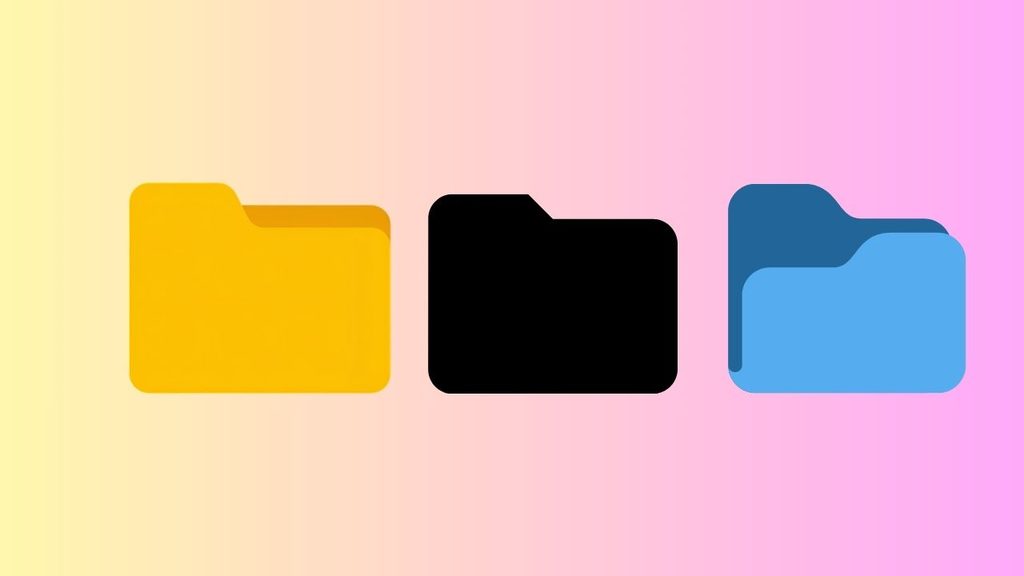
To change the appearance of a OneDrive folder in Windows 11,
- First, open File Explorer and locate the OneDrive folder you want to customize.
- Right-click the folder and select Properties to open its customization options.
- Select the Customize tab and choose Change Icon.
- Select a different icon from the available Windows icons or choose a compatible .ico file stored on your PC.
- Click Apply and then OK to save the new folder appearance.
- If you specifically want different folder colors, use a trusted third-party folder customization application that supports Windows 11, because File Explorer does not include a native folder-color selector.
Before you start, there is one thing you should know. Changing a OneDrive folder’s color is not the same as changing the color of a normal Windows folder through a Windows 11 setting. File Explorer does not have a simple color palette where you can pick red, blue, green, or another color for an individual folder.
Instead, Windows lets you change a folder’s icon. A colored folder icon can provide almost the same practical result because it makes the folder visually different from the others.
Also, remember that OneDrive synchronization is separate from Windows folder appearance settings. Your files and folders can synchronize through OneDrive while certain Windows-specific appearance customizations remain associated with your local computer.
1: Open Your OneDrive Folder
Start by opening File Explorer on your Windows 11 computer. You can do this by selecting the File Explorer icon from the taskbar or by pressing Windows + E on your keyboard.
In the left navigation pane, look for OneDrive. Depending on your account and Windows configuration, it may appear as OneDrive – Personal, OneDrive – [organization name], or another OneDrive label.
Select OneDrive and browse to the folder whose appearance you want to change. For example, you might have folders named Work, Photos, Projects, or Important Documents.
Take a moment to confirm that you have selected the correct folder before continuing. This is especially useful if you have several folders with similar names.
2: Open the Folder Properties
Once you find the folder, right-click it. A Windows 11 context menu will appear with several options.
Select Show more options if necessary, and then choose Properties. You can also access the traditional context menu depending on your Windows 11 configuration.
The Properties window contains information and settings associated with the selected folder. Look across the tabs at the top and find Customize.
If the Customize tab is available, you can continue with the icon customization method.
3: Select the Customize Tab
Select the Customize tab in the folder’s Properties window.
You should see several options related to how the folder appears in File Explorer. Look for the Folder icons section.
Under this section, select Change Icon.
This opens the Change Icon window. Windows provides a collection of standard icons that you can use for the selected folder.
Keep in mind that this is an icon change rather than a true folder-color change. If you choose a colored folder-style icon, however, the result can make the folder much easier to identify visually.
4: Choose a Different Folder Icon
The Change Icon window displays available icons that Windows can use for the folder.
Browse through the available choices and select an icon that you want to use. If you find a suitable colored folder icon, select it and then choose OK.
You can also use your own icon if you have a compatible .ico file. Select Browse in the Change Icon window and navigate to the location where your icon file is stored.
For example, you could keep several custom icons in a dedicated folder such as C:\Icons. You might use a blue folder icon for work files, a green folder icon for completed projects, and another color for personal files.
When selecting custom icons, use files from a trusted source and make sure they are actually intended to be used as Windows icons.
5: Apply the New Appearance
After selecting your preferred icon, select OK to close the Change Icon window.
Back in the folder Properties window, select Apply and then OK.
Windows should now display the selected icon for that folder in File Explorer.
If the new icon does not immediately appear, do not assume something went wrong. File Explorer can sometimes take a moment to refresh folder icons. Close and reopen the OneDrive location or restart File Explorer if necessary.
You can also press F5 while viewing the folder to refresh the current File Explorer window.
6: Use a Folder Color Customization Tool
If your goal is specifically to have red, blue, green, yellow, or other colored folder icons, Windows 11 does not offer a native folder-color feature in File Explorer.
In that situation, you can use a reputable third-party folder customization application. These tools can provide colored folder icons or additional folder customization features that are not available through standard Windows settings.
Before installing anything, make sure the software is compatible with Windows 11 and comes from a trustworthy developer. Avoid downloading random executable files simply because they promise colorful folders.
After installing a reputable customization tool, follow its instructions to select the OneDrive folder and apply the desired color. The exact process will vary depending on the application.
7: Understand OneDrive Synchronization
This step is important because OneDrive synchronization and folder appearance are not the same thing.
OneDrive synchronizes your files and folders between your PC and your OneDrive storage according to your synchronization settings. A Windows folder icon customization is primarily a local File Explorer appearance setting.
Because of this, changing a folder icon on one Windows 11 PC does not necessarily mean that the same visual customization will appear on another computer where you sign in to the same OneDrive account.
Your actual files, folders, and synchronized data can still be available across your devices even if the custom visual appearance is not replicated.
8: Restore the Original Folder Icon
If you decide that you no longer want the custom appearance, you can easily restore the folder’s original icon.
Right-click the customized OneDrive folder and select Properties. Open the Customize tab and select Change Icon.
Choose the default folder icon and select OK. Then select Apply followed by OK.
After refreshing File Explorer, the folder should return to its normal Windows appearance.
Faqs
Can I directly change a OneDrive folder’s color in Windows 11?
No, not through standard Windows 11 File Explorer settings. Windows lets you change a folder’s icon, but it does not provide a native color selector for individual folders.
Can I make OneDrive folders different colors?
Yes. You can use custom folder icons to give OneDrive folders different appearances. A reputable third-party customization application can also provide colored folder icons.
Will changing a folder icon delete my OneDrive files?
No. Changing the folder icon does not delete the files stored inside the folder. It changes the folder’s visual appearance in Windows.
Will my custom folder color sync to another computer?
Not necessarily. OneDrive synchronizes your files and folders, while Windows-specific folder appearance settings may remain local to the computer where you configured them.
Why can’t I find the Customize tab?
The Customize tab may not be available for every type of folder or location. Make sure you are working with a normal folder inside your locally accessible OneDrive directory rather than a special system location.
Can I change every OneDrive folder at once?
Windows does not provide a straightforward native option to assign different colors to every OneDrive folder at once. You would generally need to customize folders individually or use a third-party application that offers batch customization.
Is changing a folder icon safe?
The Windows customization itself is generally a simple appearance change. However, if you download custom icons or third-party software, use trusted sources and avoid unknown executable files.
Bottom Lines
Changing a OneDrive folder color in Windows 11 is slightly different from changing a standard setting because File Explorer does not include a dedicated folder-color feature. However, you can still make OneDrive folders easier to recognize by changing their folder icons.
The easiest approach is to open File Explorer > OneDrive > Right-click the folder > Properties > Customize > Change Icon. Choose an available icon or select a trusted .ico file, then apply the change.
If you want true colored folder icons, a reputable third-party customization tool can provide more options. Just remember that these visual changes may be specific to your Windows PC and are not necessarily synchronized across every device connected to your OneDrive account.
For most users, using distinct folder icons is a simple way to organize OneDrive visually without changing the actual files or disrupting OneDrive synchronization.