
Are you trying to connect your 8BitDo controller to a Windows PC, but your computer refuses to recognize it? This can be frustrating, especially when you are ready to play your favorite game and the controller does not appear in Windows settings, Steam, or the game’s controller configuration menu.
The problem can happen with several 8BitDo controllers, including the 8BitDo Ultimate, Pro 2, Pro 3, SN30 Pro, and Ultimate 2C. Sometimes, Windows does not detect the controller at all. In other cases, the controller connects through Bluetooth or USB, but the buttons and analog sticks do not respond.
There are several possible reasons behind this issue. Your controller may be using the wrong connection mode, Windows may have an outdated Bluetooth driver, the USB cable may not support data transfer, or the controller firmware may need an update.
In this guide, I’ll explain how to fix the 8BitDo controller not recognized on PC problem using simple methods.
Whether you use Windows 11 or Windows 10, follow these steps to get your controller working again.
8BitDo Controller Not Recognized on PC
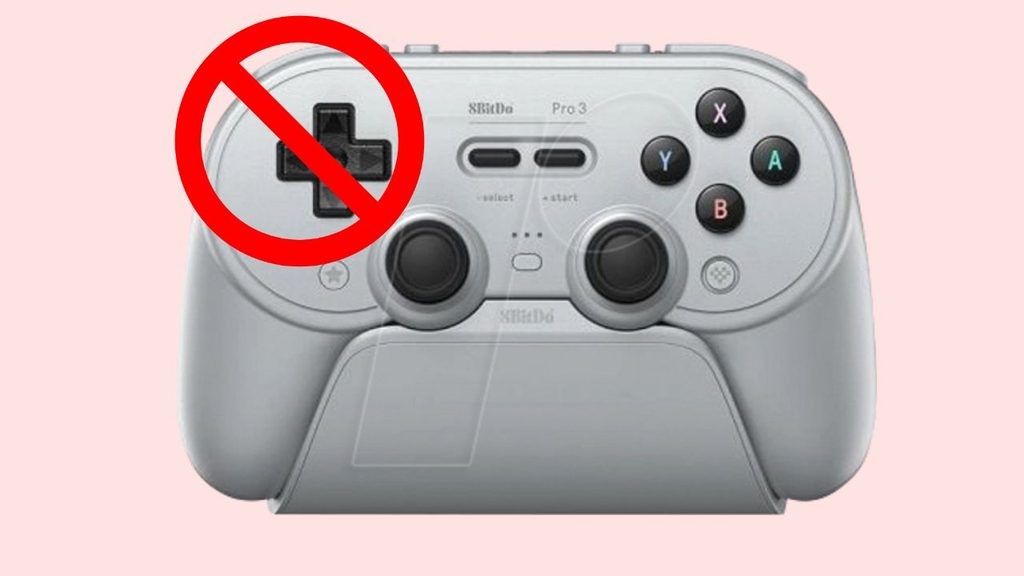
To fix an 8BitDo controller that is not recognized on your PC, follow these steps:
- Disconnect the controller and restart your Windows computer.
- Check the controller’s battery level and select the correct Windows-compatible connection mode.
- Connect the controller using a USB data cable or pair it again through Bluetooth.
- Open Device Manager and check whether Windows detects the controller.
- Update the controller firmware using the official 8BitDo firmware updater.
- Update your Windows Bluetooth and USB drivers.
- Configure your controller through Steam’s controller settings.
- Test the controller using Windows Game Controllers settings and reconnect it if necessary.
Step 1: Restart Your PC and 8BitDo Controller
Before trying advanced troubleshooting methods, restart both your computer and controller. This simple step can resolve temporary communication problems between Windows and your 8BitDo device.
First, disconnect your controller from the PC if you are using a USB cable. If it is connected through Bluetooth, turn the controller off. Next, restart your computer by opening the Start menu and selecting the Power option.
Follow this navigation path: Start > Power > Restart.
After Windows starts again, turn on your 8BitDo controller and try connecting it. If your controller has a dedicated connection-mode switch, check its position before reconnecting.
Make sure the controller has sufficient battery power. A low battery can interrupt wireless pairing or cause unexpected disconnections. If necessary, charge it for a while before testing again.
Once the controller reconnects, check whether Windows recognizes it. If the problem remains, continue to the next step.
Step 2: Select the Correct Controller Connection Mode
One of the most common reasons an 8BitDo controller is not recognized is an incorrect connection mode. Several 8BitDo controllers support multiple input modes, such as XInput, DInput, Switch mode, and other platform-specific modes.
Windows generally works best with XInput for modern PC games because it provides compatibility with the Xbox controller input standard.
However, the correct startup combination depends on your exact 8BitDo model. Some controllers use a physical mode switch, while others require holding a particular button while powering on the device.
For example, certain 8BitDo controllers support XInput mode through a specific startup button combination. Do not assume the same combination works across every model.
Check your controller’s official user manual to find its Windows or XInput startup instructions.
The general process is: Controller power off > Select the Windows-compatible mode > Turn on controller > Connect to PC.
After selecting the correct mode, reconnect the controller using USB or Bluetooth. Open your game and check whether it detects the controller.
Step 3: Try a Different USB Cable and Port
If you are connecting your 8BitDo controller through USB, the cable itself could be causing the problem. Some USB cables are designed only for charging and do not support data transfer. When you use one of these cables, your controller may receive power without being detected by Windows.
Start by disconnecting the controller. Try another USB data cable that supports both charging and data transfer. If your controller uses USB-C, make sure the replacement cable is compatible with its port.
Next, connect the controller directly to another USB port on your computer. If you are using a desktop PC, try a port on the back of the computer because it connects directly to the motherboard.
Follow this path: Disconnect the controller > Replace the USB cable > Try another USB port > Reconnect the controller.
Avoid using a USB hub during troubleshooting. A hub may introduce additional connection problems, especially if it does not provide sufficient power.
If Windows recognizes your controller after changing the cable or port, the original connection was likely the problem.
Step 4: Remove and Pair the Controller Again Through Bluetooth
If you prefer a wireless connection, an outdated or corrupted Bluetooth pairing can prevent Windows from recognizing your 8BitDo controller.
First, make sure your controller supports Bluetooth connectivity. Some 8BitDo models use a dedicated 2.4 GHz USB receiver instead, so check your model’s manual.
If Bluetooth is supported, open Windows Settings by pressing Windows + I. In Windows 11, select Bluetooth & devices. In Windows 10, select Devices > Bluetooth & other devices.
Find your 8BitDo controller in the paired-device list. Select it and choose Remove device. Confirm your selection if Windows asks for permission.
Now, put your controller into Bluetooth pairing mode using the instructions for your particular model. Open the Bluetooth settings on your PC and select Add device > Bluetooth. Wait for your controller’s name to appear and select it.
The navigation path is Settings > Bluetooth & devices > Add device > Bluetooth on Windows 11.
Once pairing is complete, check whether Windows recognizes the controller. If it still does not appear, update your Bluetooth driver in the next step.
Step 5: Update or Reinstall Bluetooth and USB Drivers
Your computer needs the correct drivers to communicate with connected hardware. If the Bluetooth or USB driver is outdated, damaged, or incompatible, Windows may fail to recognize your 8BitDo controller.
To check your drivers, right-click the Start button and select Device Manager. Expand the Bluetooth section and look for your wireless adapter. You can also expand Universal Serial Bus controllers to inspect USB-related devices.
Right-click the relevant Bluetooth adapter and select Update driver > Search automatically for drivers. Follow the instructions if Windows finds an available update.
The navigation path is Start > Device Manager > Bluetooth > Your Bluetooth Adapter > Update driver.
If the controller appears under an Unknown USB Device entry, it may indicate a USB communication problem. Try another cable and port first. You can also right-click the problematic entry and select Uninstall device, then disconnect and reconnect the controller.
Be careful not to uninstall your primary Bluetooth adapter unless you have another way to restore connectivity. You can also check your PC manufacturer’s website for the latest compatible drivers.
Step 6: Update Your 8BitDo Controller Firmware
Outdated controller firmware can sometimes cause compatibility and connection problems. Updating the firmware may resolve bugs that prevent Windows from detecting the device correctly.
Visit the official 8BitDo support website and find the firmware updater or software specifically intended for your controller model. The updater supports automatic device recognition for compatible models and offers firmware updates when available. <Cite refs={[“turn508582search0″,”turn508582search1”]}/>
Download and install the appropriate utility. Connect your controller using a compatible USB data cable and follow the instructions displayed by the updater.
The general process is 8BitDo Support > Firmware Updater > Connect Controller > Check for Updates > Install Firmware.
Some models require a special button combination to enter firmware update mode. Follow the exact instructions for your controller rather than using a combination intended for another model.
Do not disconnect the controller or shut down your computer while a firmware update is running. Once the update finishes, restart the controller and try connecting it again.
Step 7: Check Whether Windows Detects the Controller
Sometimes, Windows recognizes your 8BitDo controller, but your game does not. In this situation, check whether the device is working at the operating system level.
Press Windows + R, type joy.cpl, and press Enter. This opens the Game Controllers window, where Windows displays compatible connected game controllers.
Look for your 8BitDo controller in the list. Select it and click Properties. Open the Test tab and press the controller buttons or move the analog sticks.
The navigation path is Windows + R > joy.cpl > Controller Name > Properties > Test.
If the buttons and sticks respond, Windows is receiving controller input. The problem may be related to your game settings or input configuration rather than the controller connection itself.
If the controller does not appear, revisit the USB, Bluetooth, and connection-mode troubleshooting steps.
Configure Your 8BitDo Controller in Steam
If Windows recognizes your controller but Steam does not, check the platform’s controller configuration.
Open Steam and select Steam > Settings > Controller. Look for the controller detection and input settings available in your Steam version.
Enable the appropriate controller support options, such as Xbox controller support when using an 8BitDo device in XInput mode. Available options may vary depending on your Steam version and connected hardware.
Follow this navigation path: Steam > Settings > Controller > Enable Appropriate Controller Support.
You can also open Steam’s controller test or calibration options to check whether the buttons and analog sticks are responding.
If you are playing a game outside Steam, check whether that game supports your controller’s input mode. Some older games may require XInput, while others support different controller standards.
Reset the Controller and Test It Again
If none of the previous methods work, resetting your controller may help resolve persistent configuration problems.
The reset procedure depends on your specific 8BitDo model. Some controllers have a reset button or require a particular button combination, while others use different recovery procedures.
Check the official manual before attempting a reset. Avoid assuming that holding the Home button or pressing a particular combination will work on every model.
After resetting, charge the controller, select the appropriate Windows connection mode, and connect it again using USB or Bluetooth.
Use this general sequence: Reset Controller > Restart PC > Select XInput Mode if Supported > Reconnect Controller > Test Input.
If Windows still cannot detect the device, test it on another compatible computer. If it fails there too, the controller, receiver, or USB connection may have a hardware problem.
FAQs
1. Why is my 8BitDo controller not showing up on my PC?
This can happen because of an incorrect connection mode, faulty USB cable, Bluetooth pairing issue, outdated firmware, or missing drivers. Try connecting it using another USB data cable and check whether it is set to a Windows-compatible mode.
2. How do I make my 8BitDo controller work on Windows 11?
Select the appropriate Windows or XInput mode for your controller, connect it through USB or Bluetooth, and allow Windows to recognize it. You can verify the connection using joy.cpl.
3. Why does my 8BitDo controller charge but not connect?
Your USB cable may support charging but not data transfer. Try another USB data cable and connect the controller directly to your computer.
4. Does 8BitDo work with Windows 10 and Windows 11?
Yes. Many 8BitDo controllers support Windows 10 and Windows 11. However, compatibility and connection methods vary by model. Check the official product manual for supported operating modes.
5. Should I use XInput or DInput for my 8BitDo controller?
For most modern Windows games, XInput is the recommended option because it follows the Xbox controller input standard. DInput may be useful for certain older games and applications.
6. Why does Steam detect my 8BitDo controller but my game does not?
The game may not support the controller’s current input mode. Check Steam’s controller settings, enable the appropriate input support, and verify that the game supports your controller configuration.
7. How do I update my 8BitDo controller firmware?
Download the appropriate firmware updater from the official 8BitDo support website, connect your controller, and follow the on-screen instructions. Make sure you select the correct firmware for your specific model.