
Opening the Control Panel on a Windows 11 PC or laptop is simple once you know where to look. The easiest method is using Windows Search, which allows you to type and open it instantly.
In this guide, you will learn the easiest way to open the Control Panel on a Windows 11 PC or laptop. After that, we will explore alternative methods and also learn how to use the Control Panel for uninstalling programs.
Let’s begin with the simplest and fastest method.
How To Open the Control Panel on Windows 11 PC or Laptop?
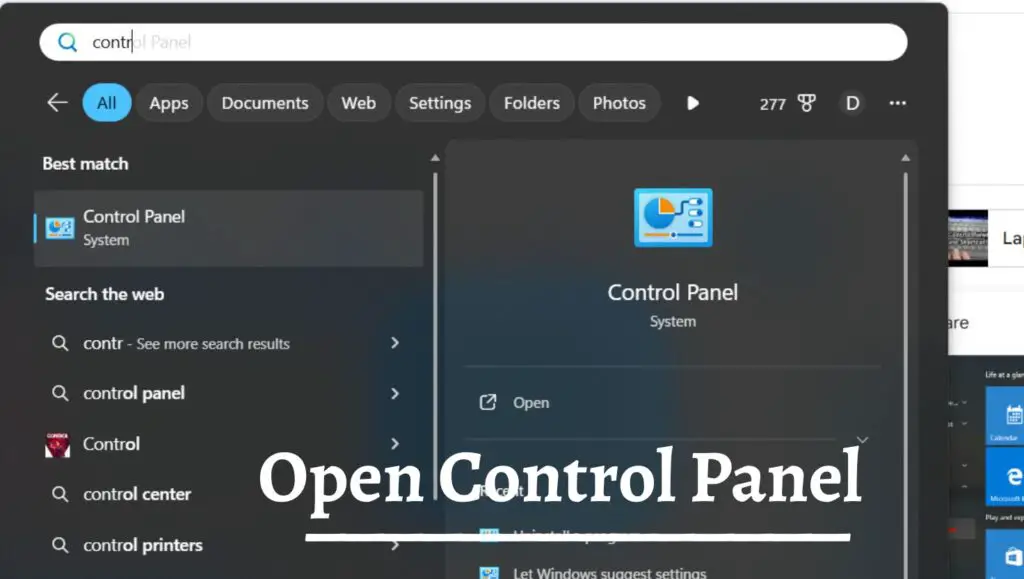
Step 1. Open Windows Search
First, click on the Start button located on the taskbar. Alternatively, you can press the Windows key on your keyboard.
Once you press the Windows key, the Start menu appears, along with a search box at the top. This is where Windows allows you to find apps, files, settings, and system tools.
Why is this important? Because Windows Search acts as a direct gateway to almost everything on your PC. Instead of navigating through multiple menus, you are using the system’s built-in shortcut.
Ready for the next move?
Step 2. Start Typing “Control Panel”
In the search box, type Control Panel, and as you begin typing, you must start seeing some automatically shown matching results. Within seconds, you will see the Control Panel appear under the Best Match section.
This instant result shows how optimized Windows Search has become. You do not need to type the entire phrase in many cases. Even typing “Control” is often enough.
Now that you see it on the screen, what should you do next?
Step 3. Click on Control Panel
Click on Control Panel from the search results.
The Control Panel window will open immediately. By default, it may display categories such as System and Security, Network and Internet, Hardware and Sound, Programs, User Accounts, Appearance and Personalization, Clock and Region, and Ease of Access.
At this point, you are inside one of the most powerful system management areas of Windows 11. From here, you can configure system behavior, manage installed programs, change hardware settings, and much more.
But did you know there are multiple other ways to open it if Search is not working or if you prefer shortcuts? Let’s explore them.
Tips for Opening the Control Panel if Windows Search is Not Working
While Windows Search is the easiest method, Windows 11 provides several alternative ways to open the Control Panel. These methods are especially useful if Search is malfunctioning, disabled, or if you prefer keyboard shortcuts and advanced tools.
Using the Run Command
Press Windows key + R on your keyboard to open the Run dialog box.
In the Run box, type control and press Enter.
Immediately, the Control Panel will launch. This method is extremely fast and often preferred by advanced users who enjoy keyboard-driven navigation.
The Run command works because “control” is the executable command associated with Control Panel. Simple, direct, and effective.
Curious about another powerful shortcut?
Using Command Prompt
Open Command Prompt by typing cmd in Windows Search and pressing Enter.
Inside the Command Prompt, type control and press Enter.
The Control Panel will open instantly.
This method may feel technical, but it is useful when troubleshooting system issues or working within command-line environments.
If you are comfortable with commands, this can become your favorite shortcut.
Want to pin it for even faster access?
Pin Control Panel to Start or Taskbar
Search for Control Panel using Windows Search.
Right-click on the result. You will see options such as Pin to Start and Pin to taskbar.
Select your preferred option.
Now the Control Panel will remain easily accessible without searching every time. This is ideal if you frequently manage system settings or uninstall software.
Would you like to access it through File Explorer instead?
Open via File Explorer
Open File Explorer from the taskbar.
In the address bar at the top, type Control Panel and press Enter.
The Control Panel window will open immediately.
This method is helpful when you are already working inside File Explorer and do not want to switch contexts.
As you can see, Windows 11 gives you flexibility. But once you are inside Control Panel, what can you actually do with it? One of the most common tasks is uninstalling programs.
Uninstalling Programs Using Control Panel
Although Windows 11 allows you to uninstall apps through Settings, many users still prefer using Control Panel for removing traditional desktop programs.
Here is how you can uninstall programs step by step.
First, open the Control Panel using any of the methods explained above. Once inside, click on Programs.
Under Programs, click on Programs and Features.
You will now see a list of installed desktop applications on your PC or laptop. This list includes traditional Win32 applications that may not always appear properly in the Settings app.
Scroll through the list and find the program you want to remove.
Click on the program name once to select it. At the top of the list, click on Uninstall. A confirmation window may appear. Follow the on-screen instructions to complete the removal process.
Once finished, the program will be removed from your system.
Why use the Control Panel for uninstalling programs? Because it often provides more consistent results when dealing with older software. Some advanced utilities and drivers also provide their uninstallers through Programs and Features.
If you regularly install and remove software, mastering this section can save you time and prevent leftover files from cluttering your system.
Still have questions about the Control Panel in Windows 11? Let’s address some common ones.
Faqs
Is the Control Panel removed in Windows 11?
No, the Control Panel is not removed in Windows 11. It is still available, but Microsoft is gradually moving many settings to the new Settings app. However, several advanced options still reside in Control Panel.
So even if it feels hidden, it remains an essential system tool.
What is the difference between Settings and Control Panel?
The Settings app is modern, touch-friendly, and designed for everyday users. The Control Panel is more traditional and contains many advanced or legacy configuration tools.
Some options overlap, but certain features are still exclusive to Control Panel.
Knowing when to use each tool gives you better control over your system.
Can I create a desktop shortcut for Control Panel?
Yes, you can. Right-click on the desktop, select New, then Shortcut. In the Location field, type “control” and click Next.
Name it ‘Control Panel’ and click ‘Finish’. You now have a direct shortcut on your desktop for instant access.
This is especially helpful if you frequently troubleshoot system settings.
Why does Microsoft hide the Control Panel?
Microsoft aims to unify system settings under the modern Settings app for a cleaner experience. However, because Windows supports legacy applications and advanced configurations, the Control Panel remains available.
Over time, more options may move to Settings, but for now, both coexist.
Understanding this balance helps you navigate Windows 11 more effectively.